Overview
This procedure defines the required follow-up cadence, ticket assignment, status management, documentation requirements, and response expectations for tickets managed through CRM and Freshdesk, including both reactive and proactive requests. Adhering to this process ensures timely resolution, consistent communication, accountability, and strong merchant relationships.
CRM serves as the system of record for all ticket activity, documentation, status updates, and resolution notes. Requests received through Freshdesk must be documented and tracked within CRM throughout the ticket lifecycle.
SLA – Incoming Ticket Response Time
To ensure timely service, consistent workload management, and to prevent overtime, the following Service Level Agreement (SLA) applies to all incoming tickets. This SLA is aligned with active business coverage hours.
Customer Care & Technical Support
- Tickets received during business hours (up to 6:30 PM EST): Must be reviewed and worked the same business day.
- Tickets received after 6:30 PM EST: Must be reviewed and worked by 12:00 PM EST the following business day.
Retention / Client Relations
- Tickets received during business hours (up to 4:30 PM EST): Must be reviewed and worked the same business day.
- Tickets received after 4:30 PM EST: Must be reviewed and worked by 12:00 PM EST the following business day.
NOTE: “Worked” includes initial review, documentation, assignment of the appropriate Group and Owner, status review, and at least one outbound contact attempt when applicable.
NOTE: If a ticket requires more research before a full response can be given, send at least an acknowledgment within the SLA window — for example: “Thank you for reaching out, we have received this request and are researching.”
All tickets must be acknowledged and actioned within the same business day when received during active coverage hours. This ensures timely resolution, reduces backlog, and supports operational efficiency.
Resolution Goal
All tickets should be resolved within 24–72 business hours whenever possible. Team members are expected to actively manage their assigned tickets, complete follow-up activities as outlined in this procedure, and work toward timely resolution while maintaining accurate documentation and consistent communication.
Ticket Assignment Requirements
Proper ticket assignment is essential to ensure accountability, workload visibility, and timely resolution.
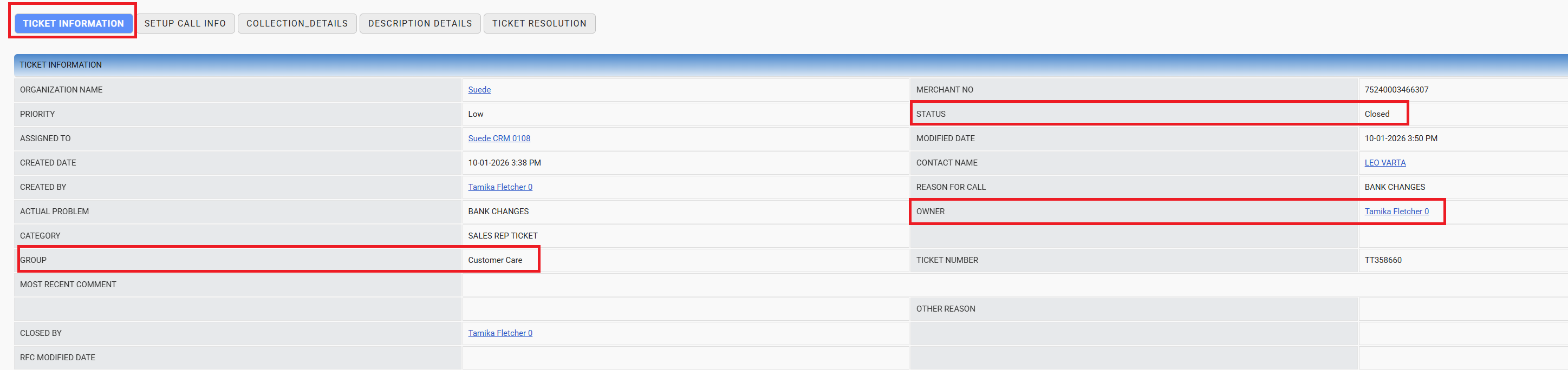
Ticket Information tab — Group, Owner, and Status fields.
Group Selection
Upon reviewing a new ticket, select the appropriate Group based on the type of request and the team responsible for resolution.
Examples include:
- Customer Care
- Retention / Client Relations
- Technical Support
- Other designated support groups
For CRM tickets, the Reason for Call field maps directly to a Group — see the Matrix Ticket Routing Guide for the full routing reference.
NOTE: Group selection determines which team is responsible for managing and resolving the request.
NOTE: If you're unsure which Group handles a particular type of request, reach out to leadership for guidance before assigning it.
Owner Selection
After selecting the appropriate Group, assign the ticket to yourself as the Owner.
IMPORTANT:
- Tickets should not remain unassigned.
- The assigned Owner is responsible for completing all required follow-up activities and maintaining ticket documentation.
- Ownership should be updated immediately if responsibility for the ticket changes.
Status Management
The ticket status should accurately reflect the current state of the request and be updated throughout the ticket lifecycle.
Status Guidelines
- Open – New ticket received and awaiting action.
- In Progress – Ticket is actively being worked.
- Wait for Response – Waiting for a response or additional information from the merchant.
- Pending 3rd Party – Waiting on a response or action from an external vendor, partner, or internal support team.
- Download Needed – Additional information or documentation is required before work can continue.
- Pending Lease Agreement – Awaiting a signed lease agreement.
- Pending ISO Approval – Awaiting ISO review or approval.
- Ready to Deploy – All requirements have been met and the request is ready for deployment.
- Closed – All required actions have been completed and the ticket has been resolved.
IMPORTANT:
- Update the ticket status whenever the state of the request changes.
- Status updates should align with ticket notes and documented activity.
- Verify the ticket status during each follow-up attempt.
- Ensure tickets are moved to Closed once all follow-up requirements and resolution activities have been completed.
Communication & Documentation Guidelines
All ticket activity must be documented consistently so that any agent, lead, or leader can pick up a ticket and immediately understand its history. Documentation requirements differ slightly depending on where the conversation is happening.
CRM Tickets
For tickets originating in or tied to the CRM — merchant-facing activity, calls, and emails — the CRM is where documentation happens.
- Log every call attempt, email, and merchant response directly in the CRM record.
- Notes must be clear, time-stamped, and attributed to the agent who performed the action.
Freshdesk Tickets
Freshdesk tickets are generated from an inbound email request, so the agent is essentially responding to that email through Freshdesk. That reply does not replace CRM documentation — the action still needs to be noted on the merchant's account in the CRM.
- Respond to the email request through Freshdesk.
- Note the action taken on the merchant's account in the CRM, including the Freshdesk ticket number for reference.
- Status should always reflect the true current state of the ticket — not where it was left at the last update.
CRM & Freshdesk Cross-Reference Requirements
Documentation always lives in the CRM — never in Freshdesk. The Freshdesk ticket number is referenced in the CRM note so the two can be traced back to each other.
- When working a CRM ticket that requires sending an email through Freshdesk, note in the CRM ticket that the email was sent via the Freshdesk ticket number, and add any relevant comments.
- When working a Freshdesk ticket (an inbound email), note the merchant's account in the CRM with the Freshdesk ticket number, the action taken, and the resolution.
- If the two systems ever disagree on what happened, the CRM entry is used to resolve the discrepancy.
System of Record
IMPORTANT: The CRM is the system of record for all merchant communication, documentation, and resolution notes. Freshdesk is the system of record for ticket routing and status (Group/Owner/Status) only. Documentation is always logged in the CRM, with the Freshdesk ticket number referenced for traceability — not the reverse.
Follow-Up Schedule & Required Actions
ISO / Agent / Relationship Manager / Internal Team Tickets
These tickets are not call-based. Follow-up happens through Freshdesk and CRM notes on the schedule below.
Day 1 – Initial Follow-Up
- Initial Follow-Up: Send the initial follow-up message to the requester.
- Documentation: Log the outreach in the CRM. If an email was sent via Freshdesk, include the Freshdesk ticket number in the CRM ticket.
Day 2 – Second Follow-Up
- Second Follow-Up: Send a second follow-up message if there's been no response.
- Documentation: Record the follow-up in the CRM. If an email was sent via Freshdesk, include the Freshdesk ticket number in the CRM ticket.
Day 3 – Final Follow-Up
- Final Follow-Up: Send a final follow-up message.
- Documentation: Log the final outreach in the CRM. If an email was sent via Freshdesk, include the Freshdesk ticket number in the CRM ticket.
- Closed Ticket: If there's still no response, update the ticket status to Closed and close the ticket.
Merchant Follow-Up Schedule & Required Actions
Merchant tickets follow the call-based cadence below.
Day 1 – Initial Contact
- Call Attempt #1: Attempt to contact the merchant via phone.
- If No Contact: Send the follow-up email template.
- Documentation: Log the call attempt and email in the CRM. If the email was sent via Freshdesk, reference the Freshdesk ticket number in the CRM note.
Day 2 – Second Attempt
- Call Attempt #2: Second phone attempt.
- If No Contact: Resend the follow-up email.
- Documentation: Record all activity in the CRM. If an email was sent via Freshdesk, reference the Freshdesk ticket number in the CRM note.
Day 3 – Final Attempt
- Call Attempt #3: Final phone attempt.
- If No Contact: Send the final follow-up email.
- Documentation: Log the final attempt in the CRM. If an email was sent via Freshdesk, reference the Freshdesk ticket number in the CRM note.
- Closed Ticket: If there's still no response, update the ticket status to Closed and close the ticket.
Reminders & Best Practices
- Use professional language and proper grammar in all communications.
- Ensure all actions are documented, time-stamped, and attributed to your name or initials.
- Review Group, Owner, and Status assignments throughout the ticket lifecycle to ensure accuracy.
- If ownership changes, update the Owner field immediately.
- If responsibility shifts to another department, update the Group field accordingly.
- Update the ticket status whenever the state of the request changes.
- If the merchant responds, update the ticket status immediately and proceed with resolution.
- Maintain accurate and detailed CRM notes to support visibility, continuity, and reporting.
- Tickets should not remain idle without documented activity or status updates.
Process Flow
Ticket Types
Use the list below to quickly identify which follow-up track a ticket falls under.
- Merchant: Direct merchant-facing requests — follows the Merchant Follow-Up Schedule (call-based cadence).
- ISO / Agent / Relationship Manager: Requests from an ISO, agent, or Relationship Manager on behalf of a merchant or their own account — follows the ISO / Agent / Relationship Manager / Internal Team Tickets schedule.
- Internal Team: Requests from another internal team or department — follows the ISO / Agent / Relationship Manager / Internal Team Tickets schedule.
Was this article helpful?
That’s Great!
Thank you for your feedback
Sorry! We couldn't be helpful
Thank you for your feedback
Feedback sent
We appreciate your effort and will try to fix the article