| PURPOSE This procedure outlines the end-to-end internal workflow for Split Funding (SF) change requests on already-boarded merchant accounts, including Risk/Underwriting approval, Customer Care set up, pricing updates, and audit logging. It ensures proper KYC/KYB review, compliance, system configuration, and documentation. |
| SCOPE: This procedure governs SF changes on merchants that are already boarded and live. For initial Split Funding setup during new merchant onboarding, see the Split Funding — User Guide, Steps 1–4. This workflow is also the interim manual control for the gap described in that guide's Future Enhancements section — until the system-level bank change approval workflow ships, this ticket process is what enforces review before a bank change reaches TSYS. |
Step 1 — Risk & Underwriting Review (KYC/KYB Gate)
Every SF request routes to Risk/Underwriting first — before Customer Care ever sees the ticket. On intake, classify and route the ticket to Risk/Underwriting:
- RFC (Reason for Contact): Risk/Underwriting
- Actual Problem: Split Funding
- Group: NY Risk
Underwriting then performs the full gate — eligibility, the Addendum, KYC/KYB, and GIACT bank verification. Customer Care does not perform GIACT; it stays with Risk/Underwriting even for changes on already-boarded merchants.
- Open the submitted SF ticket in the CRM.
- Verify merchant eligibility:
- Processor = TSYS
- BIN = CBCAL 7524
- Confirm the SF Addendum has been completed and signed.
- Perform:
- KYC (Know Your Customer)
- KYB (Know Your Business) review for all funded parties
- GIACT Bank Verification. Access the GIACT portal, perform gAuthenticate for every bank account listed on the SF Addendum, and attach the results in the CRM Documents section.
- Turn on the Split Funding flag. On the merchant's record, set Split Funding to Yes. UW only enables the flag here — entering the actual banking info and split percentages is Customer Care's job in Step 2, once the ticket is routed to them.
| NOTE: Per the Split Funding User Guide, “Giact Not Verified” is a warning flag for underwriting review, not an automatic disqualifier. If one or more accounts fail verification, that's part of the risk decision below — UW can approve with only the verified accounts (holding the unverified one pending re-verification) or deny outright, but either way the decision and reasoning get documented on the ticket before it moves further. |
IF APPROVED
| IF DENIED
|
| SLA: UW review must be completed within 48 business hours of ticket submission, so Customer Care and the merchant aren't left on an undefined timeline. |
Step 2 — Customer Care: CRM Setup & CBOS Sync Confirmation
The Split Funding flag is already turned on by UW in Step 1 — Customer Care's job here is entering the actual account details, not the toggle.
- Review the UW approval note (and any GIACT-related decision) from Step 1.
- Confirm the SF Addendum is in CRM Documents.
- Open the Split Funding Details window. On the merchant's Details tab, confirm the Split Funding field shows Yes, then click the shuffle icon next to it (tooltip: View Split Details).

Merchant Details tab — Split Funding field (Yes) and the shuffle icon that opens Split Funding Details - Enter the account details. For each account on the signed SF Addendum, fill SF Account Number, SF Type, and SF Routing Number, then enter either SF Percentage or SF Per Item (flat amount) matching whichever column (% Split or Flat $) the Addendum used, never both. Review the Indicators section (SF Net Separate Indicator, Include Credits, Include Chargebacks, Include Volume Adjustments, Include Reversals) and set as required for this merchant and click saved.
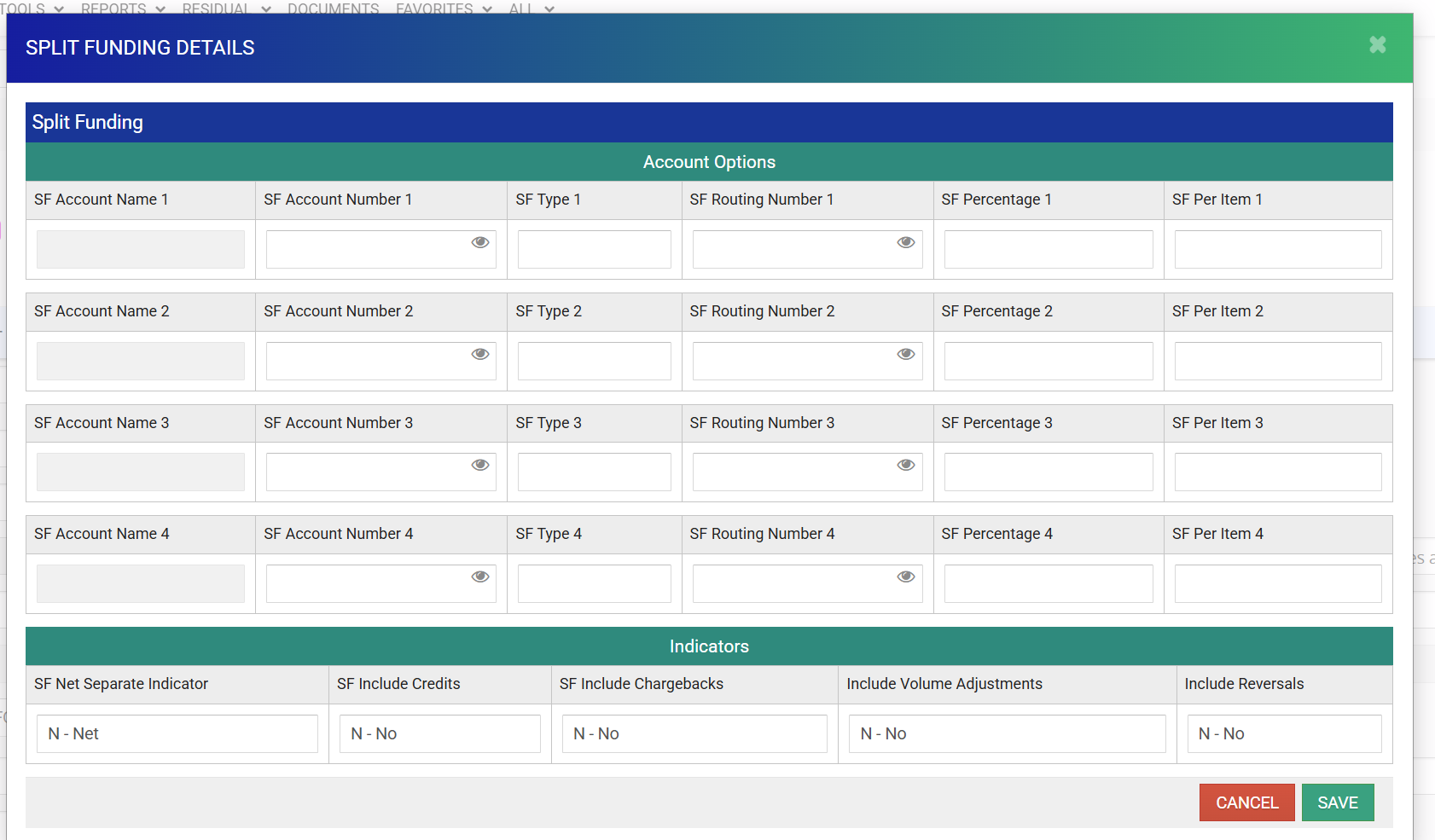
Split Funding Details window — up to 4 accounts, plus the Indicators section - Save, then Update. Click Save to store the entry in the CRM, then click Update to push the configuration to TSYS.

Save stores the entry in CRM; Update pushes it to TSYS - Confirm the Update dialog. Update opens a confirmation dialog with a Command and a timing option — confirm Command is set to Update All and the timing is Immediate, then click UPDATE.
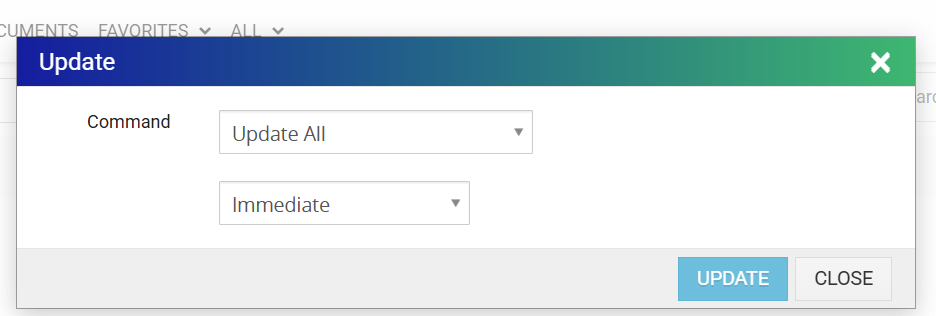
Update dialog — Command: Update All, timing: Immediate - Validate in the CRM:
- Banking details
- Split configuration
- Match to executed SF Addendum
- Confirm the sync in CBOS. View the merchant in TSYS CBOS under Merchant Enhanced Funding and confirm the DDAs, split type, and percentages/amounts match what was just entered in the CRM. Note the confirmation (and timestamp) on the ticket.
| IMPORTANT: All Split Funding setup happens in the CRM — do not configure or edit split funding directly in CBOS. CBOS is used only to confirm the sync landed correctly. This keeps the full audit trail (UW approval, GIACT verification, Activity Log) attached to the same record where the setup itself happened. If CBOS doesn't match what was entered in CRM, do not close the ticket — investigate the sync before proceeding to pricing. |
Step 3 — Pricing Update
Customer Care is responsible for updating pricing once CRM set up and the CBOS sync are confirmed.
- Update SF pricing in CRM per the SF Addendum.
- Ensure pricing matches the approved agreement.
- Add CRM notes confirming:
- SF enabled
- Pricing updated
- Setup completed
| NOTE: Do not close the ticket once pricing is updated. Until the system-level approval workflow ships, the ticket stays open for the audit review in Step 4. |
Step 4 — Audit & Quality Control (Interim)
| INTERIM CONTROL: Until the system-level Split Funding bank change approval workflow ships, the ticket is not closed by Customer Care. It stays open for a manual audit review by Customer Care Management before it's closed. |
- Reviewer opens the still-open ticket and performs a three-way match: compare the signed SF Addendum, the CRM setup, and the live CBOS Split Funding report — confirm all three agree on accounts, split type, and percentages/amounts.
- Confirm the Split Funding fee was added to the merchant's pricing.
- Confirm UW approval and Customer Care execution are both documented on the ticket.
- Confirm the SF Activity Log entry is complete, with all required fields (see below).
- If everything checks out, add a ticket comment confirming the review, for example:
- “Reviewed Split Funding setup and confirmed setup correctly. Confirmed fee added to the account.”
- Only after that comment is posted does the ticket get closed.
| IF SOMETHING DOESN'T MATCH: document the discrepancy in the ticket and route it back to Customer Care for correction rather than closing it — then re-review before closing. Confirm with your supervisor whether discrepancies should also escalate anywhere beyond Lily/Tamika and Customer Care. |
Split Funding (SF) Activity Log
Location: Team SharePoint — Split Funding (SF) Activity Log (shared departmental site, accessible to Customer Care, India Back Office, and management).
Required entries per MID
| FIELD | CAPTURED BY |
|---|---|
| DBA Name | Customer Care |
| MID | Customer Care |
| Partner | Customer Care |
| Date Pricing Updated | Customer Care |
| Split Funding Status | Customer Care |
| Task Status | Customer Care |
| Updated By | Customer Care |
| Audit Reviewer | Customer Care Manager |
Logging rules
- One entry per MID per SF change.
- Entry must match CRM and CBOS records exactly.
- Must be completed the same business day as the update.
Key Rules
- This procedure applies to SF changes on already-boarded, live merchant accounts. For new merchant SF setup during onboarding, see the Split Funding — User Guide, Steps 1–4.
- No SF setup or change without Risk/Underwriting approval.
- Incoming SF tickets route to Risk/Underwriting first (RFC: Risk/Underwriting, Actual Problem: Split Funding, Group: NY Risk). Customer Care never receives a ticket before UW has reviewed and approved it.
- UW owns approval, classification, routing, GIACT bank verification, and the risk decision on any verification failure. Customer Care does not perform GIACT, even on existing, already-boarded merchants.
- UW turns the Split Funding flag on; Customer Care enters the banking info, percentages, and pricing. The toggle and the account details are deliberately owned by two different people.
- Customer Care does not close the SF ticket after finishing setup and pricing — until the system-level approval workflow ships, the ticket stays open for audit review.
- Customer Care Management performs that interim audit review and posts a confirmation comment on the ticket before it's closed.
- The SF Activity Log is mandatory for audit compliance and lives on the shared departmental SharePoint site — keep it there, not on an individual's personal drive.
- All actions must be documented in CRM and on the ticket.
- This workflow — including the interim audit step — applies until the system-level Split Funding bank change approval workflow ships (see Future Enhancements in the Split Funding User Guide). Revisit this procedure once that release lands.
Was this article helpful?
That’s Great!
Thank you for your feedback
Sorry! We couldn't be helpful
Thank you for your feedback
Feedback sent
We appreciate your effort and will try to fix the article