| EMERGENCY USE ONLY: This procedure configures Split Funding directly in TSYS Express/CBOS, bypassing the CRM's Risk/Underwriting approval gate and audit trail. It exists solely as a contingency for when the CRM is unavailable and a change genuinely cannot wait. For all normal Split Funding requests, use the CRM-based process in Internal Workflow — Split Funding (SF) Tickets. Do not use this procedure as a shortcut around that workflow. |
Purpose
Technical configuration of Split Funding for merchants under CBCAL BIN 7524, performed directly in TSYS Express/CBOS when the CRM is unavailable.
Eligibility
- Available BINs: CBCAL 7524 only.
- Not available for any other BINs.
Step 1 — Access Merchant
- From Links, open Other Connections, then select TSYS Express.
- Input the merchant ID.
- Navigate to the merchant's Account tab and select the account.
Step 2 — Enable Split Funding
- Click Account.
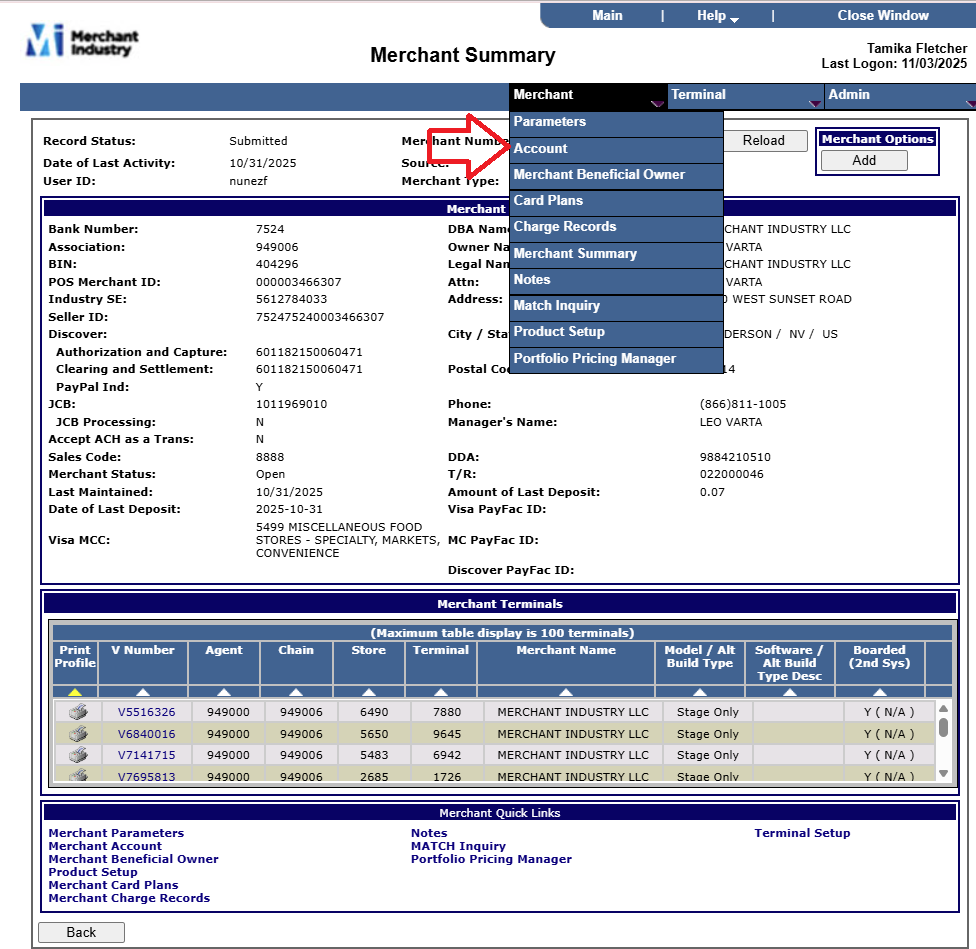
Merchant > Account
- Click Edit at the bottom of the page. Ensure the Split Funding flag is enabled, then click Validate and Board.
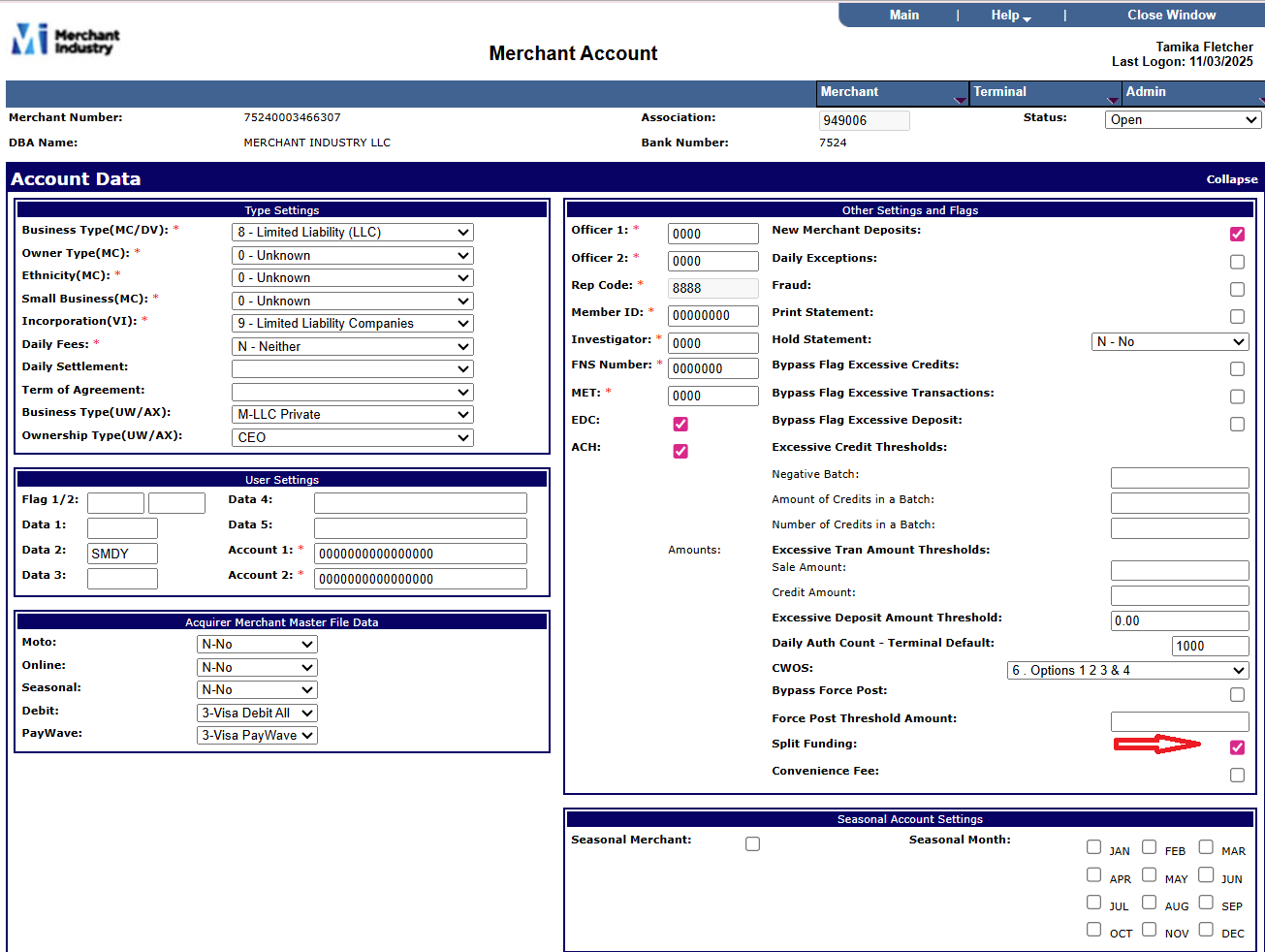
Merchant Account — Split Funding flag enabled under Other Settings and Flags

Validate and Board buttons at the bottom of the page
- Click Merchant at the top of the page, select Merchant Summary, then select Merchant Enhanced Funding.
Note: If an error appears here, return to Merchant Summary and select “Merchant Enhanced Funding” again.
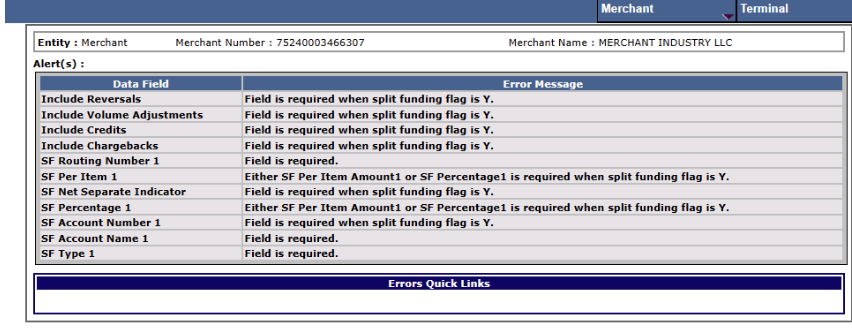
Errors Quick Links — missing required Split Funding fields
Step 3 — Enter Account Details
- Enter the bank account details and split percentages exactly as shown on the signed SF Addendum.
- Enter details for up to four additional accounts.
- Splits must be assigned using either all percentages or all fixed amounts — never mixed.
- SF Percentage fields accept 0.0001–100.0000. Enter the percentage as a whole number (e.g., enter 15 for 15%) — do not enter decimal format (e.g., 0.15).
- SF Per Item fields accept 0.0001–999.9999.
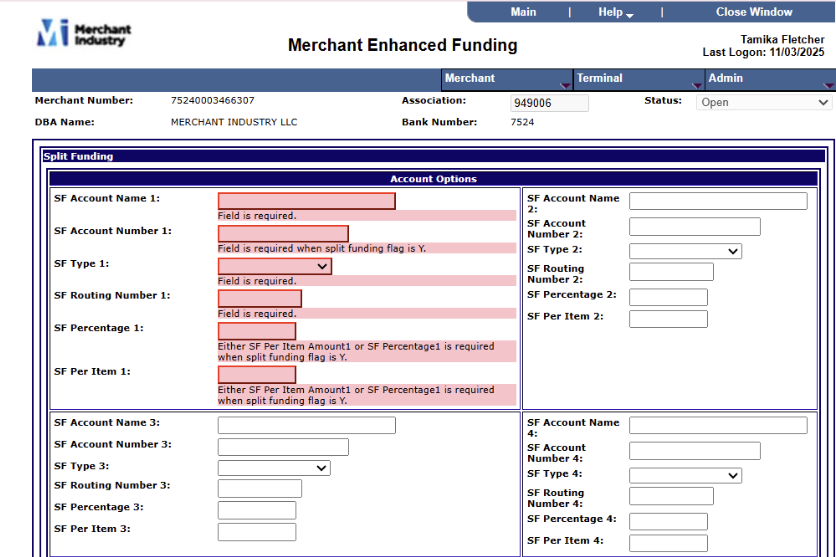
Merchant Enhanced Funding — Split Funding fields, showing required-field validation
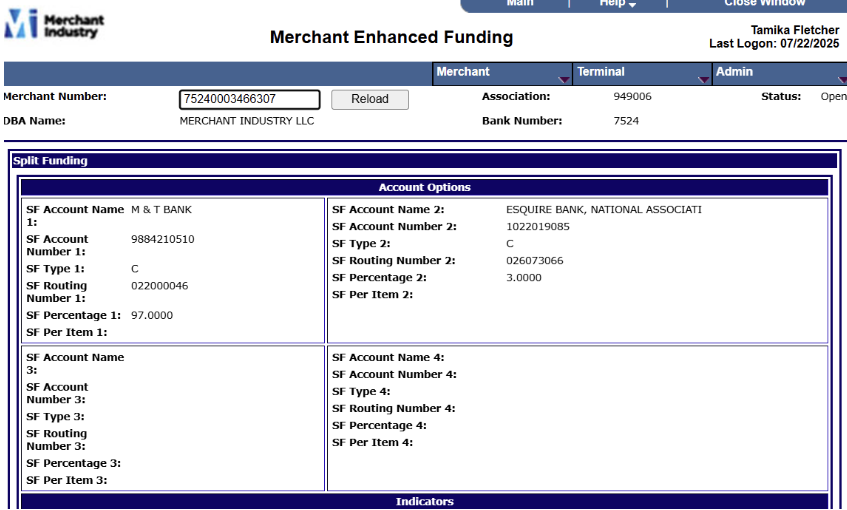
Merchant Enhanced Funding — example with account details entered
Step 4 — Indicators Section
- SF Net Separate Indicator: select N.
- Include Credits: includes credit transactions in split funding.
- Include Chargebacks: if selected, chargebacks are included in the split funding process.
- Include Volume Adjustments: if selected, volume adjustments are included in the split funding process.
- Include Reversals: if selected, reversals are included in the split funding process.

Indicators section — SF Net Separate Indicator, Include Credits, Include Chargebacks, Include Volume Adjustments, Include Reversals
Step 5 — Validate Totals
- Confirm the splits total 100%. Any remainder under 100% defaults to the primary account.
- Click Validate, then Board.
Step 6 — Save Changes
- Confirm all updates are saved in Express.
- Update pricing in CRM for the approved account(s) if CRM is reachable; if not, update pricing as soon as CRM is back online.
Step 7 — Confirm Setup
- Repeat the previous steps to confirm the Split Funding tab is enabled.
- Go to Merchant Summary > Merchant Enhanced Funding and verify that the banking information has been added correctly.
- Once confirmed, Split Funding has been successfully configured on the merchant account in CBOS.
Step 8 — Restore CRM as the System of Record
| Required follow-up: This step is not optional. As soon as CRM is available again: |
- Enter the identical configuration into the CRM Split Funding Details window so CRM matches CBOS exactly (see Internal Workflow — Split Funding (SF) Tickets, Step 2).
- Note on the ticket that CBOS/Express emergency setup was used, including the date/time and the reason CRM was unavailable.
- Add the corresponding entry to the SF Activity Log, with a note referencing this contingency use.
Processing Notes
- Merchants can split funds to a maximum of 4 additional accounts plus the primary account.
- Splits must be either all percentages OR all fixed amounts.
- Under the standard CRM workflow, setup typically takes 1–2 business days after submission — this contingency path is for immediate, same-day need only.
- If totals are less than 100%, the difference defaults to the primary account.
- Each MID incurs a monthly fee as listed in the executed MPA and Authorization Form.
Quality Control Checklist
- ☐ Supervisor or Risk/Underwriting sign-off obtained before proceeding
- ☐ Confirm BIN = CBCAL 7524
- ☐ Split Funding flag enabled
- ☐ Accounts entered correctly
- ☐ Splits entered as either all percentages OR all fixed amounts
- ☐ Totals = 100% (remainder defaults to primary if not)
- ☐ Save confirmed in Express
- ☐ Pricing matches executed MPA & Authorization Form
- ☐ GIACT verified (in CRM, or confirmed with Risk/Underwriting if CRM was inaccessible)
- ☐ CRM updated to match once available, with ticket and Activity Log notes added
Escalation
- Technical Errors: escalate to Tech/QA with screenshots.
- Funding Errors or Delays: report to your immediate supervisor.
Was this article helpful?
That’s Great!
Thank you for your feedback
Sorry! We couldn't be helpful
Thank you for your feedback
Feedback sent
We appreciate your effort and will try to fix the article