Overview
This process covers how to add TransArmor to a merchant account in Merchant Manager.
Add TransArmor to the Merchant Account
- Log in to Merchant Manager. Under Merchant Selection, enter the Internal Merchant # (or External Merchant #) and select go.
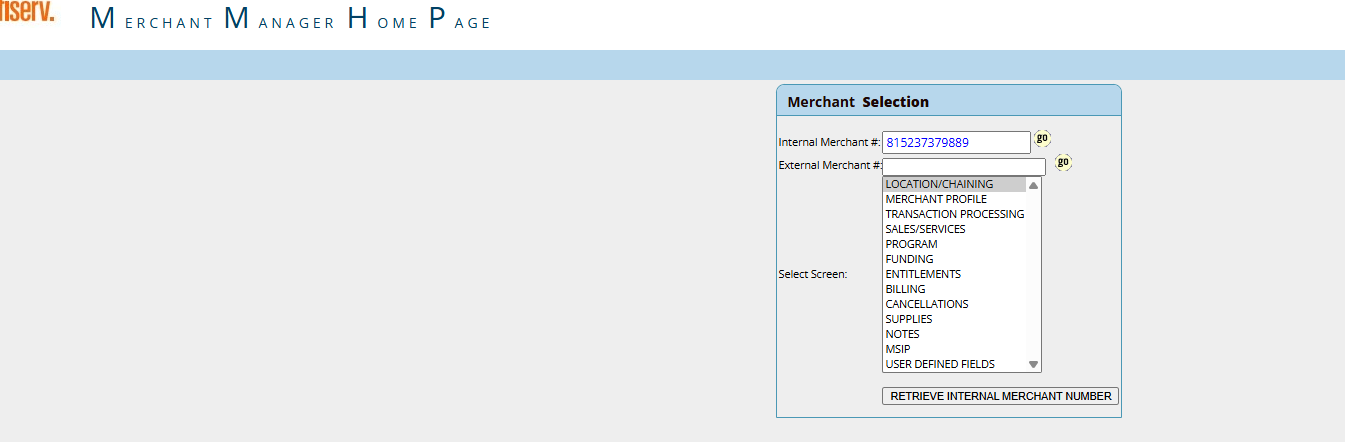
Merchant Manager Home Page — Merchant Selection.
- On the merchant record, select the Sls/Svcs tab at the top.
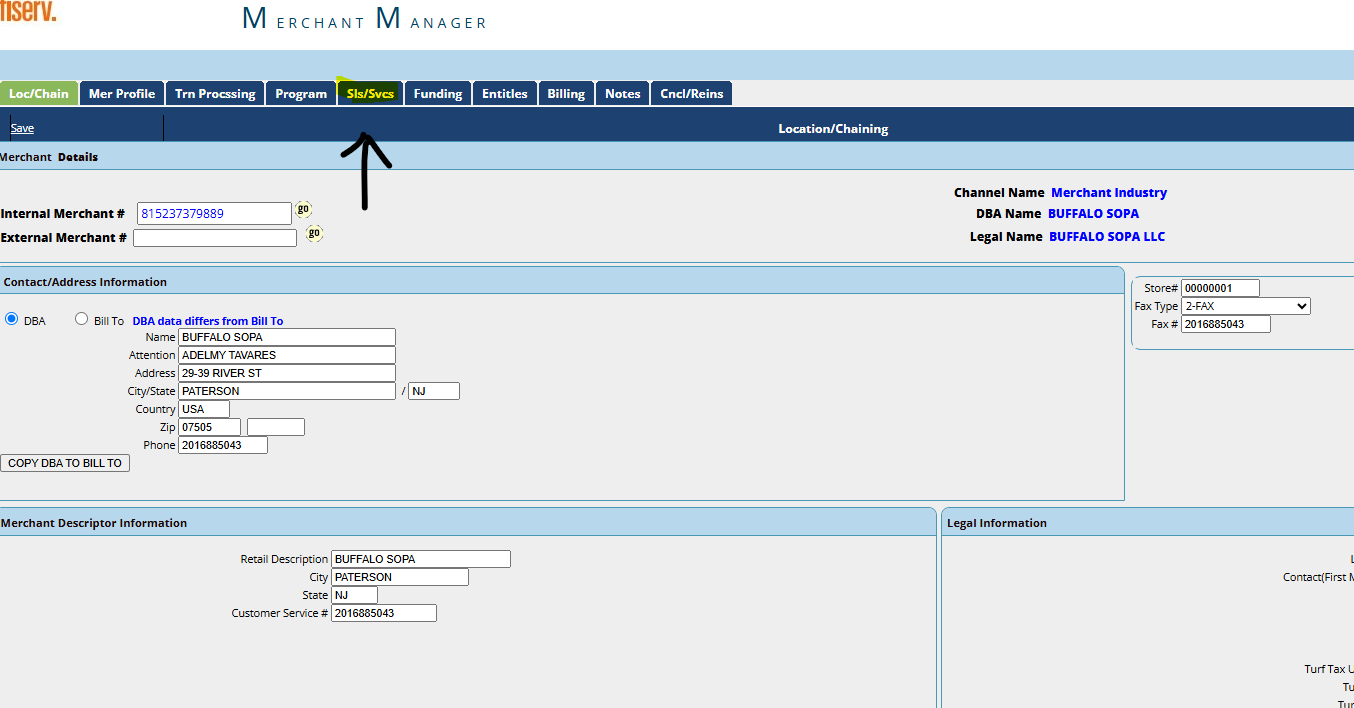
Merchant record — select the Sls/Svcs tab.
- Under TransArmor, set Service Level to 01-BOTH.
- Enter 0001 in the TransArmor Token Type field. A pop-up will prompt you to confirm the Token — enter 0001 again and select OK.
- Set Encryption Type to 01-RSA/PKI.
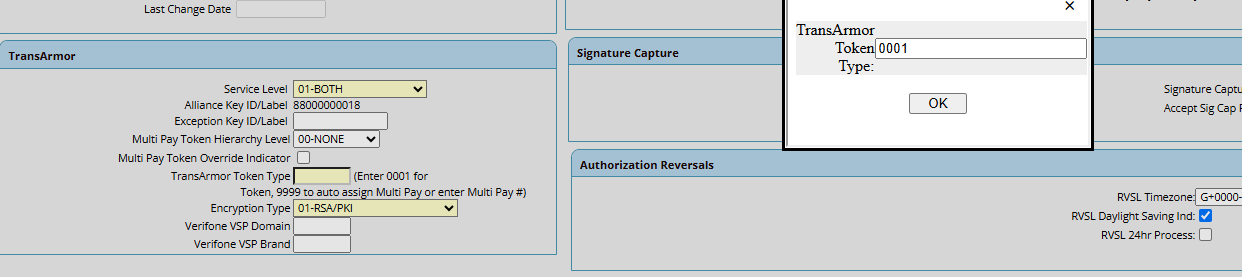
TransArmor — Service Level, Token Type, Encryption Type, and the Token confirmation pop-up.
- Select Save to complete the update.
Was this article helpful?
That’s Great!
Thank you for your feedback
Sorry! We couldn't be helpful
Thank you for your feedback
Feedback sent
We appreciate your effort and will try to fix the article