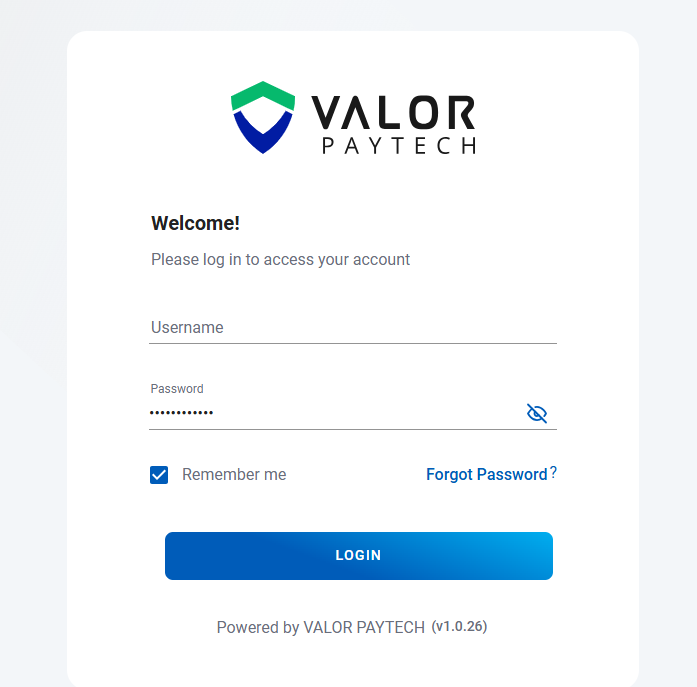
Log In to the Valor Portal
Access the Valor Portal and sign in using your authorized administrator credentials.
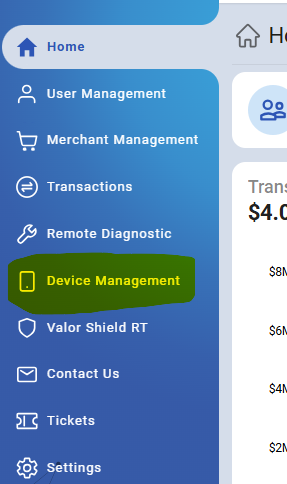
Navigate to the Device Management Section
Once logged in, go to the Device Management tab from the main dashboard.
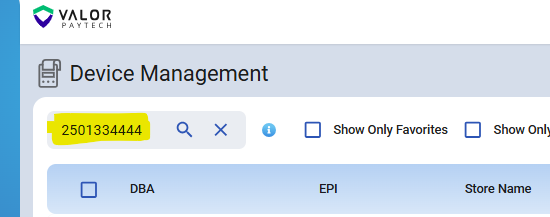
Search for the Terminal by EPI Number
Enter the specific EPI number associated with the terminal you wish to update. Press Enter or click the search icon to locate the device.
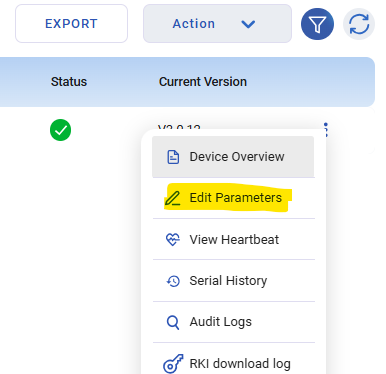
Edit Device Parameters
Click on the three vertical dots (•••) located next to the device
From the dropdown menu, select Edit Parameters.
Navigate to the Tip, Tax & Differential tab.
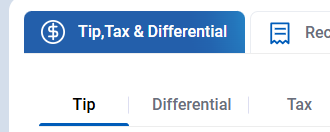
Update the Tip settings according to the merchant’s preferences (e.g., preset amounts, percentages, or enabling/disabling tips).
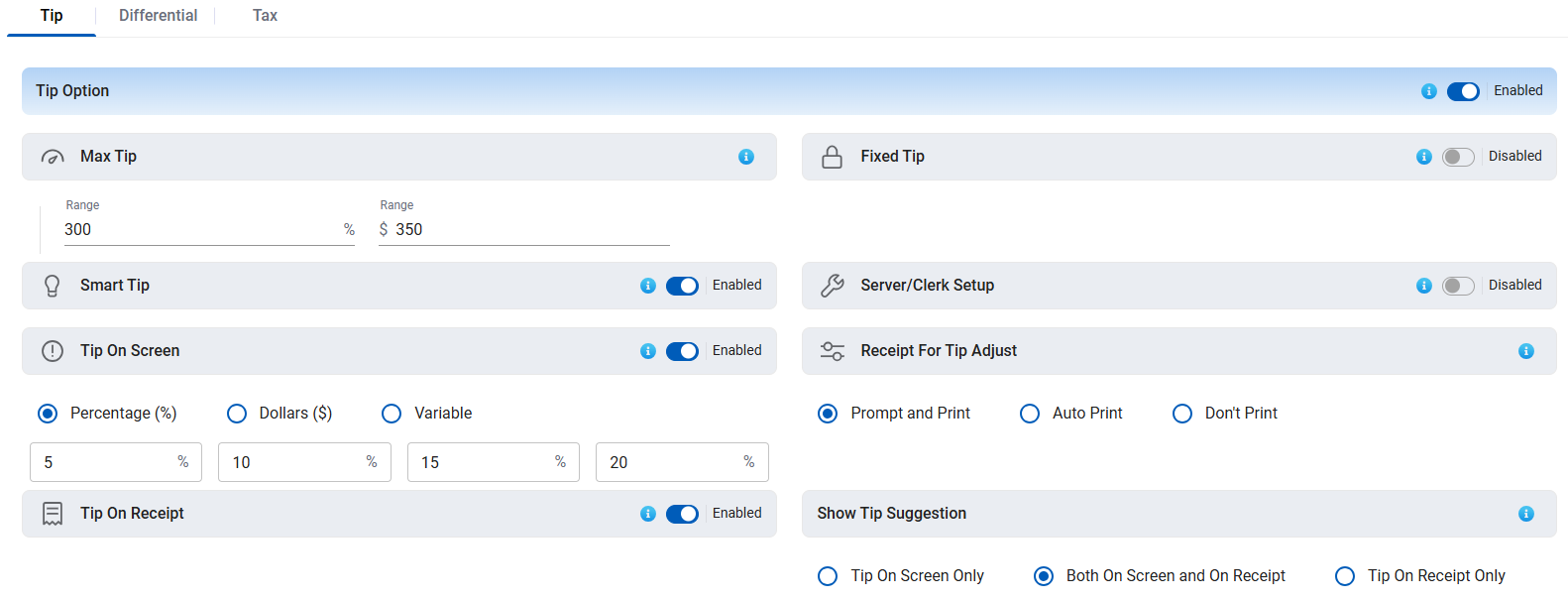
Save the Changes
Click the Save button to apply the updated parameters.

Re-enter the EPI number you are updating into 'Device Management'. Press Enter or click the search icon to locate the device.
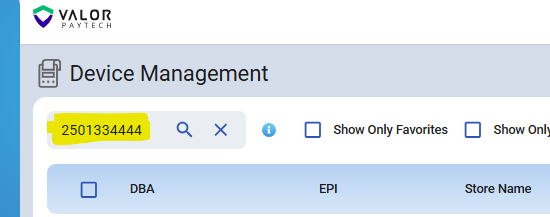
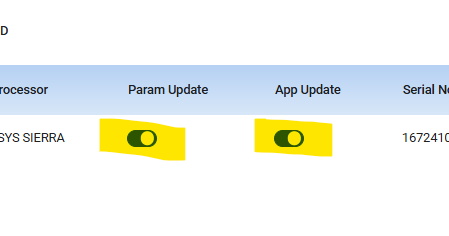
Ensure that 'Param Update' and 'App Update' are both enabled
Download Changes to Terminal
A download must be initiated on the physical terminal for the changes to take effect. This can typically be done via the terminal menu or by restarting the devicePerform a Test Transaction
After the download is complete, conduct a test transaction to confirm that the new tip settings are correctly applied and functioning as expected.
Was this article helpful?
That’s Great!
Thank you for your feedback
Sorry! We couldn't be helpful
Thank you for your feedback
Feedback sent
We appreciate your effort and will try to fix the article