Log into the CRM
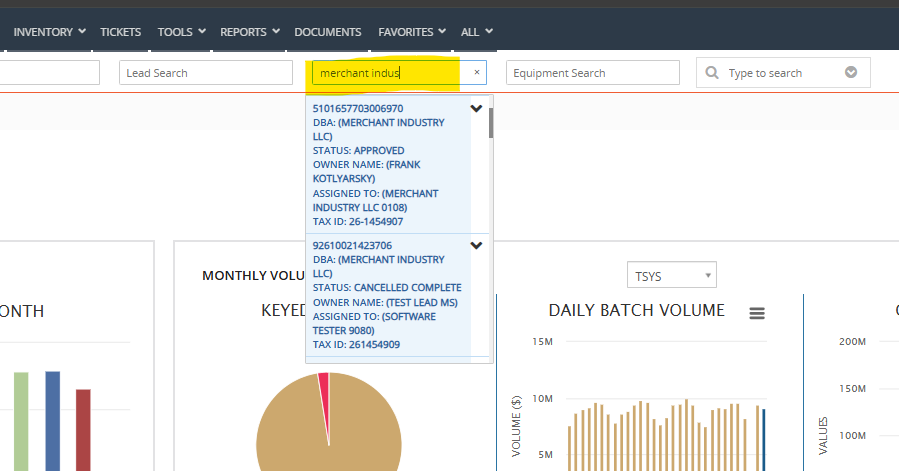
Search for the Merchant:
Use one of the following:MID (last 6 digits are sufficient)
Phone number
Email address
Tax ID
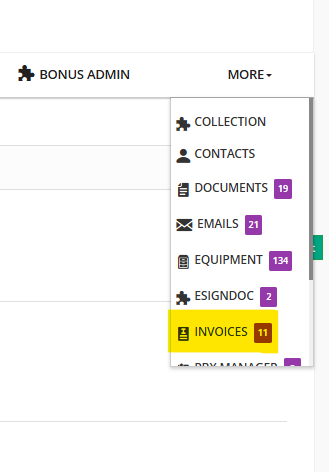
Click “More” on the right-hand side.
Select “Invoices” from the dropdown
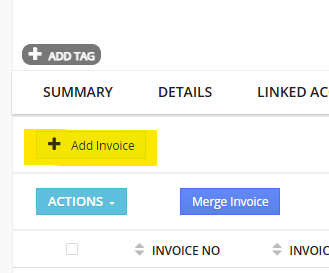
Click '+ Add Invoice' in the top-left corner
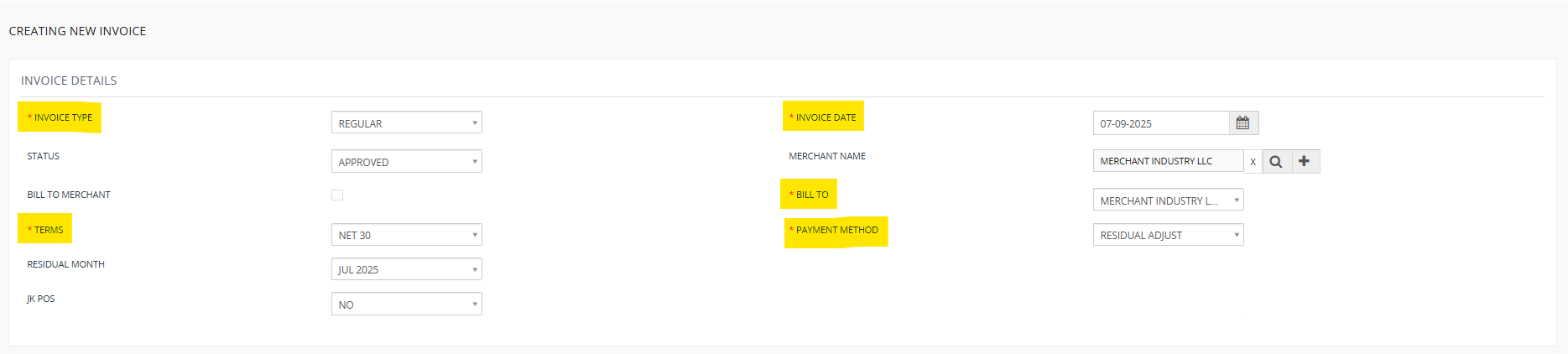
The invoice form will open with most fields pre-populated. Review and verify all required fields (marked with a red asterisk):
Invoice Type: Select Regular
Terms: Select Net 30
Invoice Date: Use today’s date
Bill To: Select ISO
Payment Method: Select Residual Adjust
Address Details:
This section will auto-fill with ISO information. Review it for accuracy.
Equipment Information:
Shipping Charges: Enter the amount in the Misc Fee field.
Tracking Number: Enter it in the Misc Description field.
Click 'Add' (far right) after entering both.

Adding Equipment to the Invoice:
Select either 'Bulk Add w/ D/Fee' or 'Bulk Add w/o D/Fee' depending on the item:
Use Bulk Add w/ D/Fee for programmed terminals (includes $25 deployment fee).
Use Bulk Add w/o D/Fee for items that do not require setup (e.g., SIM cards, charging cables).
Enter or scan the serial number, then click 'Add'.
For Items Without Serial Numbers (e.g., charging cables):
Use the Misc Fee section.
Enter the item description in Misc Description (e.g., “Charging Cable”).
Enter the price in the field above, then click 'Add'.

Scroll to the bottom and click 'Save' to submit the ticket.

ADDITIONAL STEPS FOR NY TECH:
Finalizing and Reporting the Invoice
After saving, a new page will load displaying the Invoice Number (top-right) and Invoice Details (bottom section under Equipment Information).
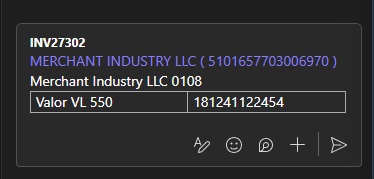
Copy the following information for tracking purposes:
Invoice Number
Merchant DBA
MID (Merchant ID)
ISO
Each Inventory Line Item listed on the invoice
(Exclude shipping charges and tracking numbers)Paste this information into the 'Terminal Check In/Out' chat on Microsoft Teams to log the invoice and inventory deployment
Was this article helpful?
That’s Great!
Thank you for your feedback
Sorry! We couldn't be helpful
Thank you for your feedback
Feedback sent
We appreciate your effort and will try to fix the article