With Your Var information and access to CRM (Iso.access) You can begin building the Pax S80 File
Log into BroadPOS and from the home page select “terminal Management”
On the next page place your cursor on the top left Green Plus Icon to build a New Merchant account and select “add-Merchant”
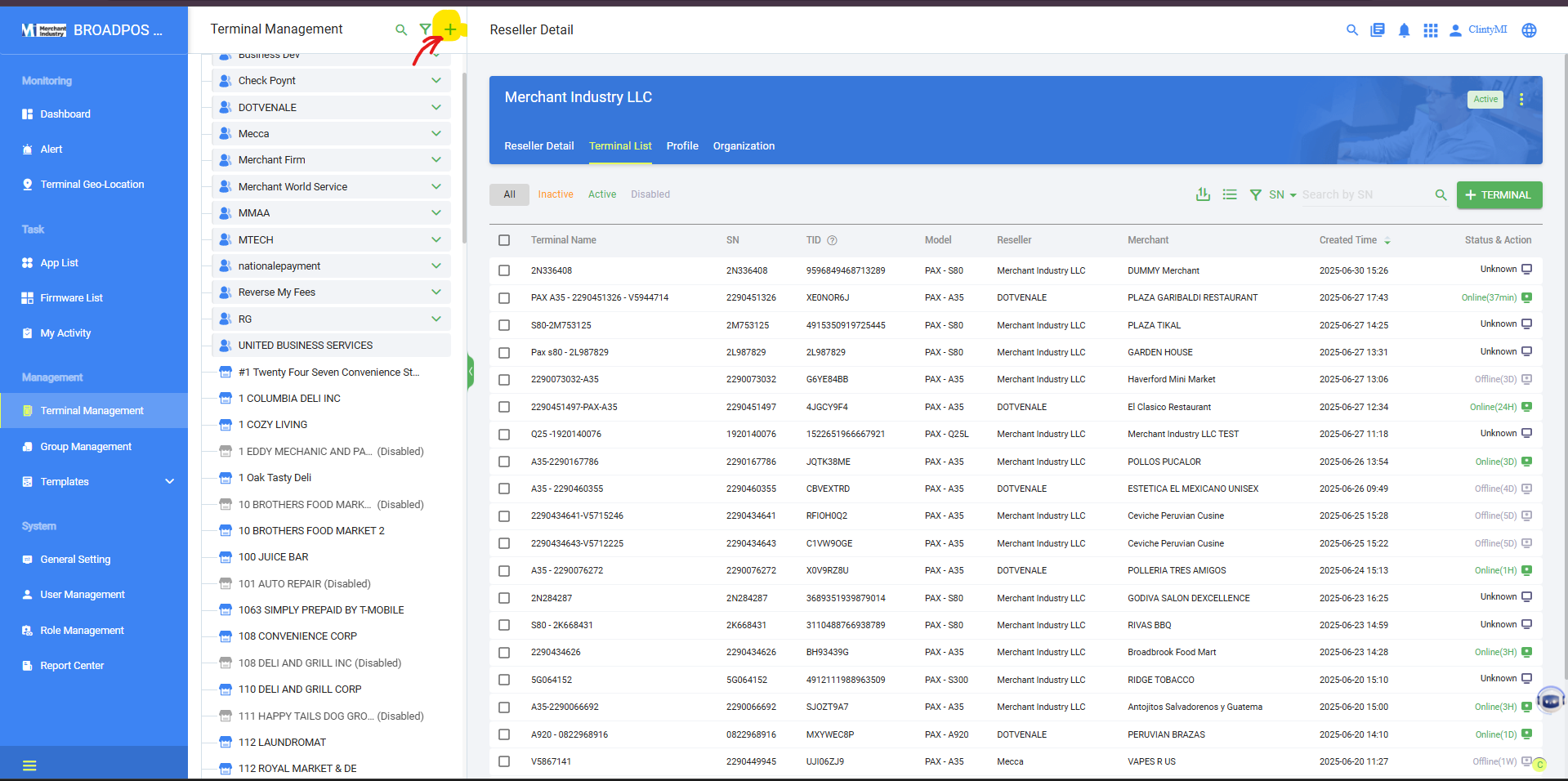
Enter the Required Minimum fields only.
If an Asterisk field is prefilled, you may leave the default selections in place.
Then Select the checkbox “Activate Merchant” and then Ok
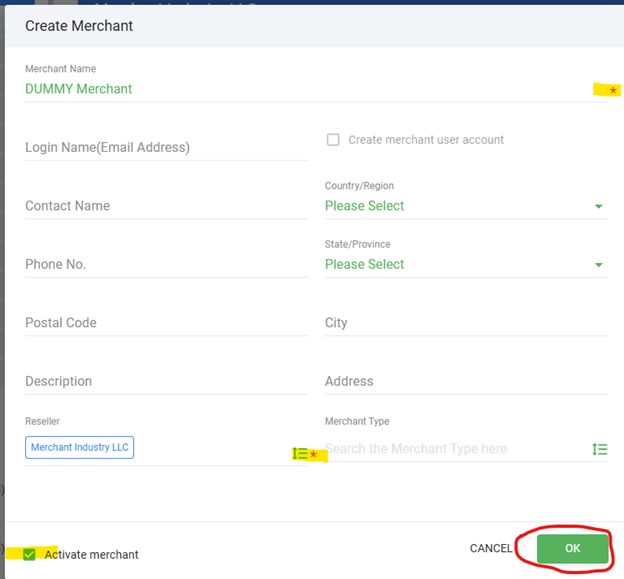
After Adding and activating the merchant
Click on the green +terminal button to continue,
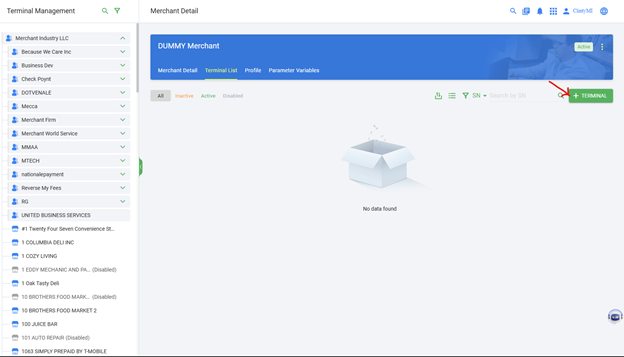
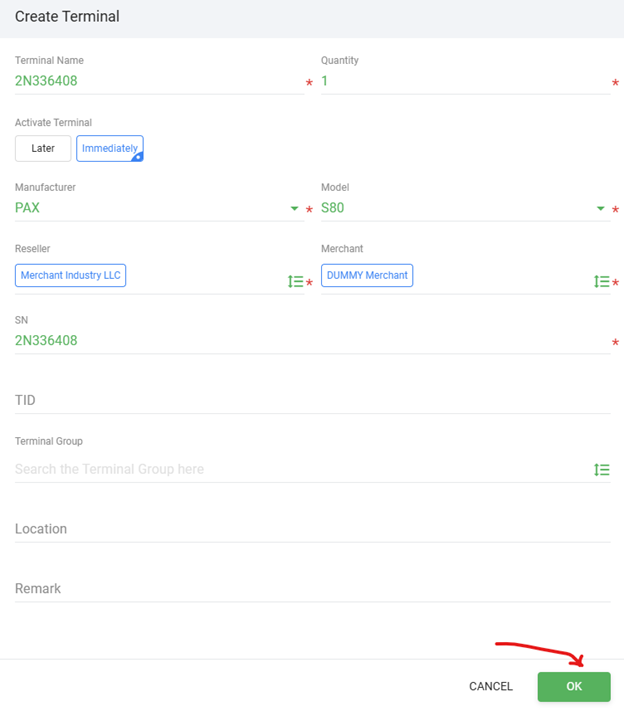
At this page, begin inputing the Data needed highlighted by the Red Asterisk,
You will need to input the following:
Terminal Name ( Serial Number)
For "Activate Terminal" Select the Checkbox Immediately
S/N – The Hardware’s serial Number located on the back of unit Next to a barcode.
Once entered the manufacturer and Model with auto populate.
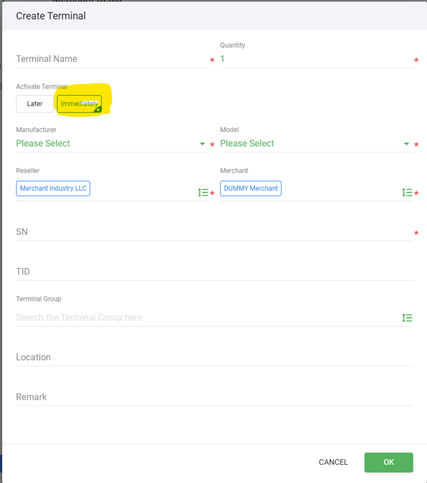
With all the necessary parameters in place, Click on the Green Ok to board and activate the Pax S80.
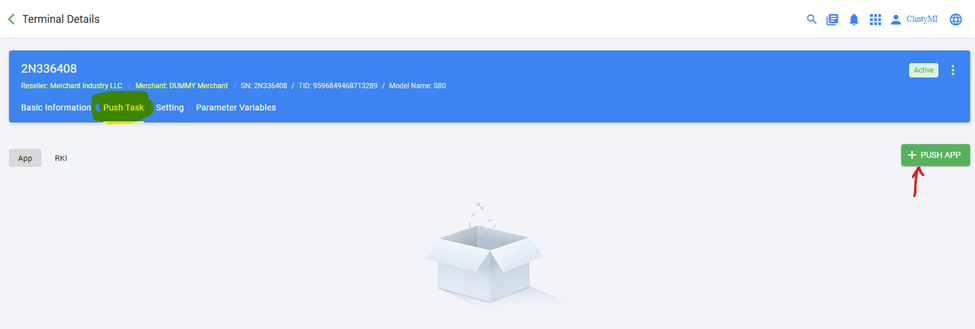
Once the Terminal has been boarded and activated successfully
We will now utilize the CRM and Stage Only Var to complete the file build.
Please select Push Task and then the +Push app button to proceed
In the new Window’s Select “Push Template”
and in the Search Bar type In OFFLINE to find the template APP “OFFLINE_NJD”.
Once highlighted Click on OK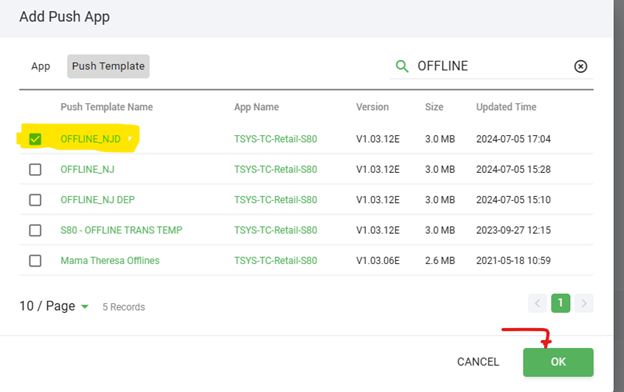
This template will Prefill all of the mandatory data fields,
to save time we will review and show only the changes needed.
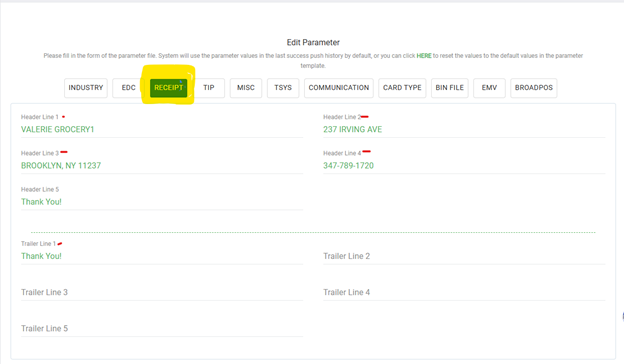
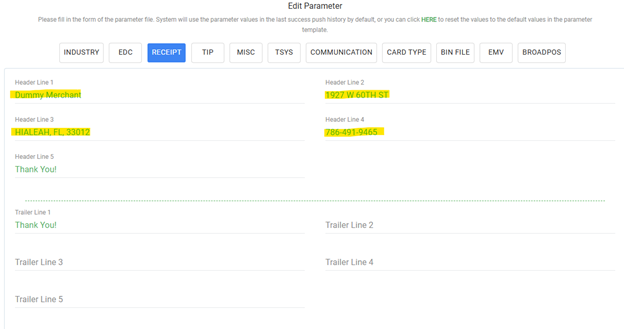
Select the Receipt Tab.
Please use the CRM and Stage Only Var for the new values. The Necessary changes will be:
Header 1 -Business Name ( DBA)
Header 2- Business Adress
Header 3- City, State, Zip
Header 4- Business Phone Number
WARNING:
This portal has a Timeout feature, If you do not complete the changes in time you will be logged out and have to start again.
If you see this sreen, be prepared to re enter the changes you have recently made.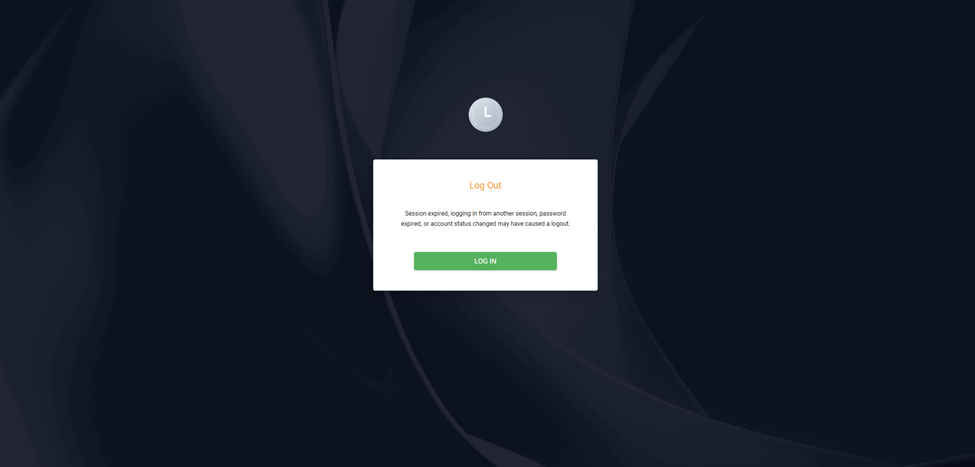
While viewing the Edit Paramters page,
The Next Tab you will need to edit will be the TSYS Tab
Please utilzie your Stage Only Var to make the approapte changes
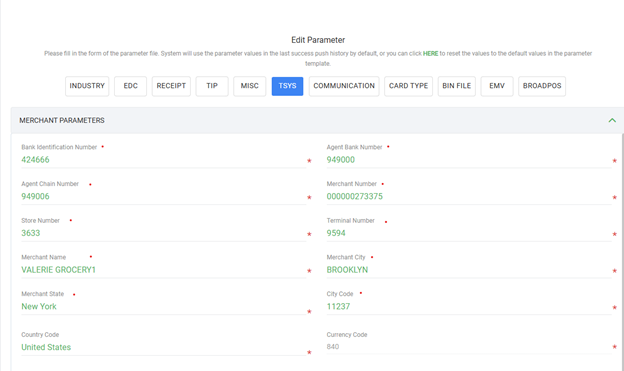
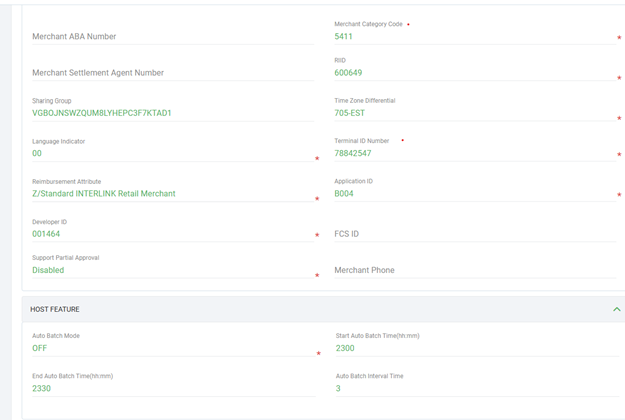
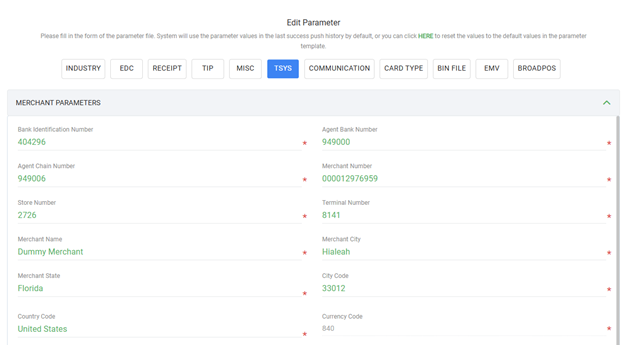
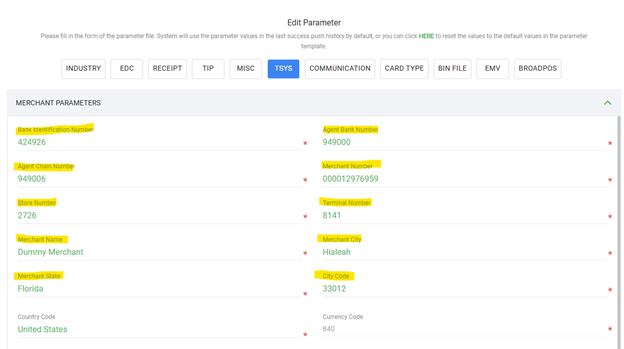
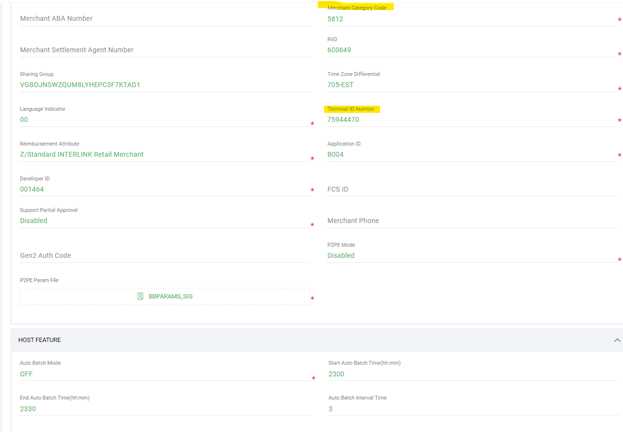
TIP: Some data points may remain the same even though the Stage Only is new.
The goal is to ensure that the Broad Pos S80 file matches The Var you are using.
After verifying the changes, scoll towards the bottom Right of the page and Select Next
Once the page refreshes Select the final step Activate to finalize the Pax S80
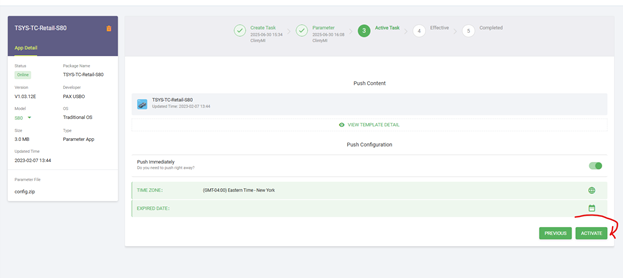
Once boarded sucessfully you will see a new page as below.
At this point you are ready to preform a Download to the S80 and use it to complete Offline sales.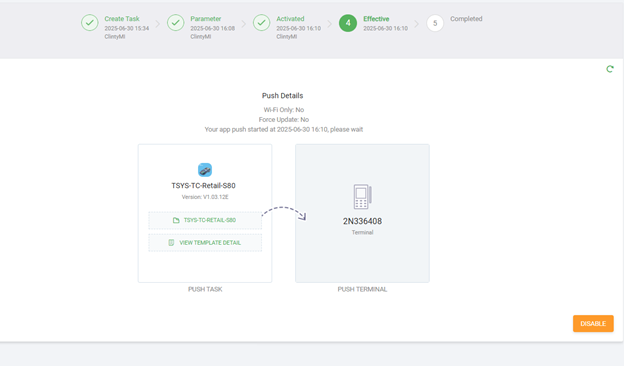
You have now pushed the file so the device can take download.
You can now connect the PAX S80 to power and connect Ethernet.
(If S80 does not take download by powering on follow these steps)
On the PAX S80 device press the button Menu > System Settings > App management > Pw is todays date (example: 09092023) > Activate (once device says activated) press cancel button twice (2x) to go back > App Update
- Pax should begin to download.
*Be sure to run a test transaction on the PAX device before doing offlines to make sure the device was correctly set up and we are able to see test transaction & batch on TSYS (mreports)
Once PAX device has completed download. Remove Ethernet cable to run offline transactions. Reconnect ethernet when ready to *Batch*
Make sure device displays 'Forced' on screen.
Proceed to enter amount > Ok > Enter Card # > Exp Date > Auth Code
You have successfully built a PAX S80 to run offlines!
Was this article helpful?
That’s Great!
Thank you for your feedback
Sorry! We couldn't be helpful
Thank you for your feedback
Feedback sent
We appreciate your effort and will try to fix the article