How to full board Valor Terminal (TSYS)
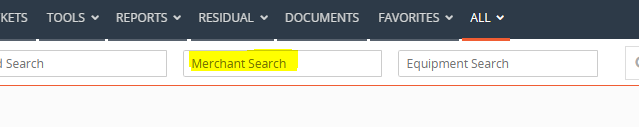
Go to CRM > Search MID you will be building valor for
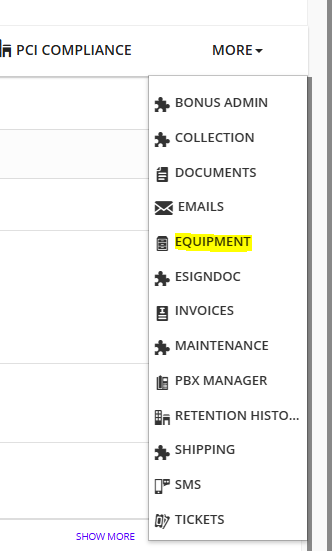
On the right side of the page click on ‘Equipment’
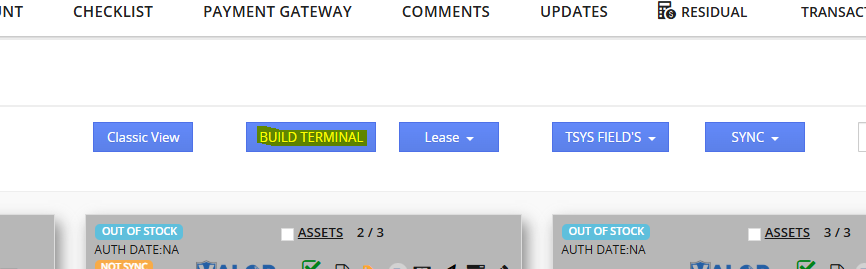
In the equipment page click on ‘Build Terminal’
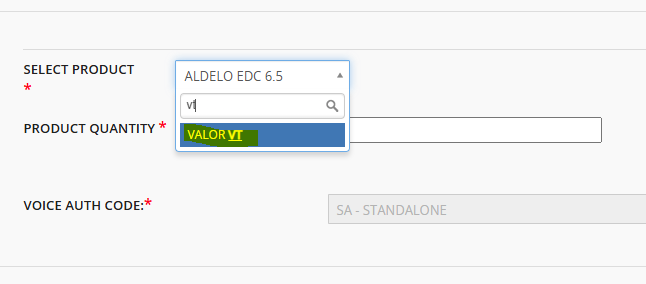
On this page scroll down to ‘Select Product Type’ you will select the type of terminal you are looking to build. In this case type in ‘Valor VT’ ’ (Be sure to select the PRODUCT you will be building)
Once Product Type is selected scroll down and click on 'Board Terminal'
Once you have selected the type of device. You will get redirected to the equipment page. A new equipment box should have been generated with the device you selected and today's date.
(Keep in mind that not all TSYS accounts will automatically generate an EPI as displayed in example 2.)
In this case we are going to proceed on how to fully board when EPI is not automatically boarded as seen in example 1.
Example 1 Example 2
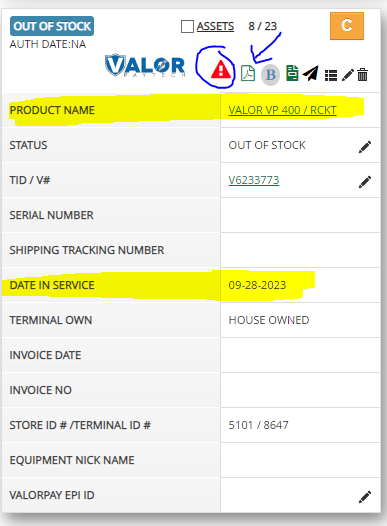
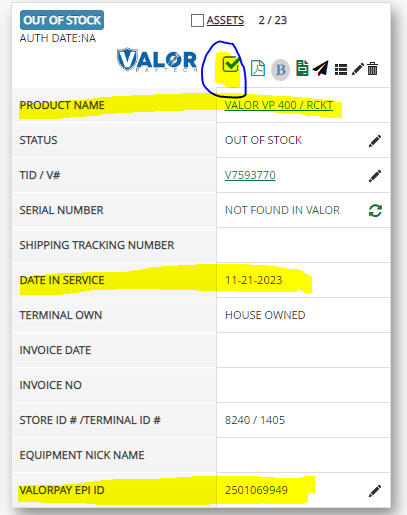
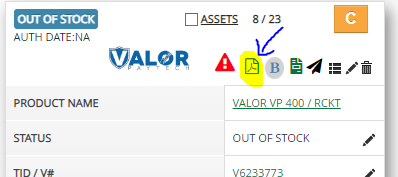
We can now go ahead and click on the small pdf icon located on the equipment box to download the VAR sheet we will be using.
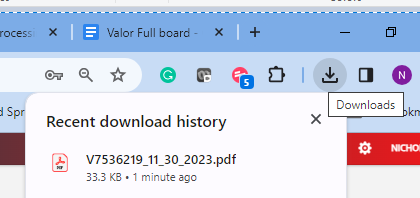
At this point we can now go to the Valor portal. https://online.valorpaytech.com/
On the left hand side click on the ‘Merchant Management’
First we will search the store or business name to see if there has been a store created for the merchant already. If the store has not been created proceed to click on ‘Add’ > ‘Full Board’

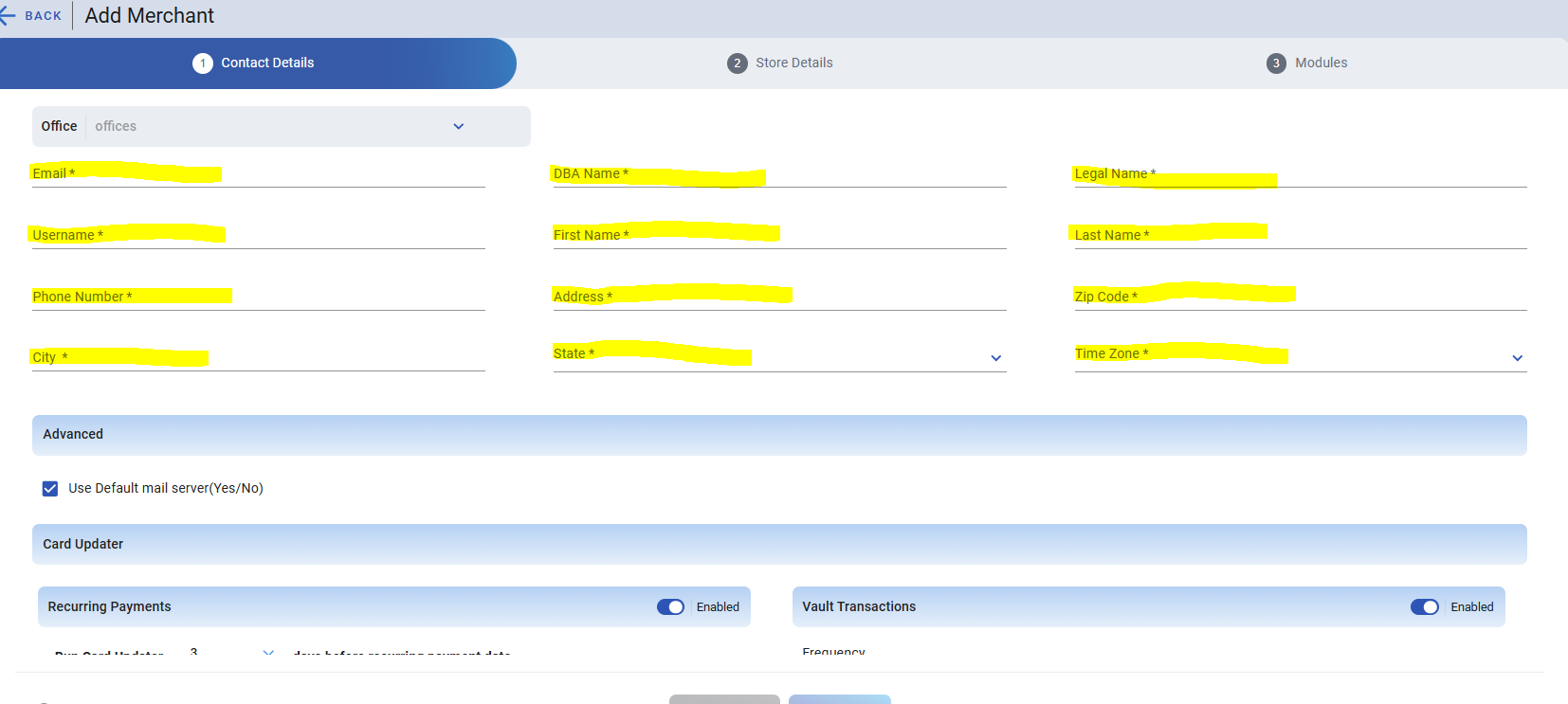
You can now fill in the merchants info from the VAR sheet previously downloaded in the correct fields. REMEMBER: This is going to be the contact information for the Owner of the business so they get the Password creation link. Once all the information has been imputed click Next at the bottom
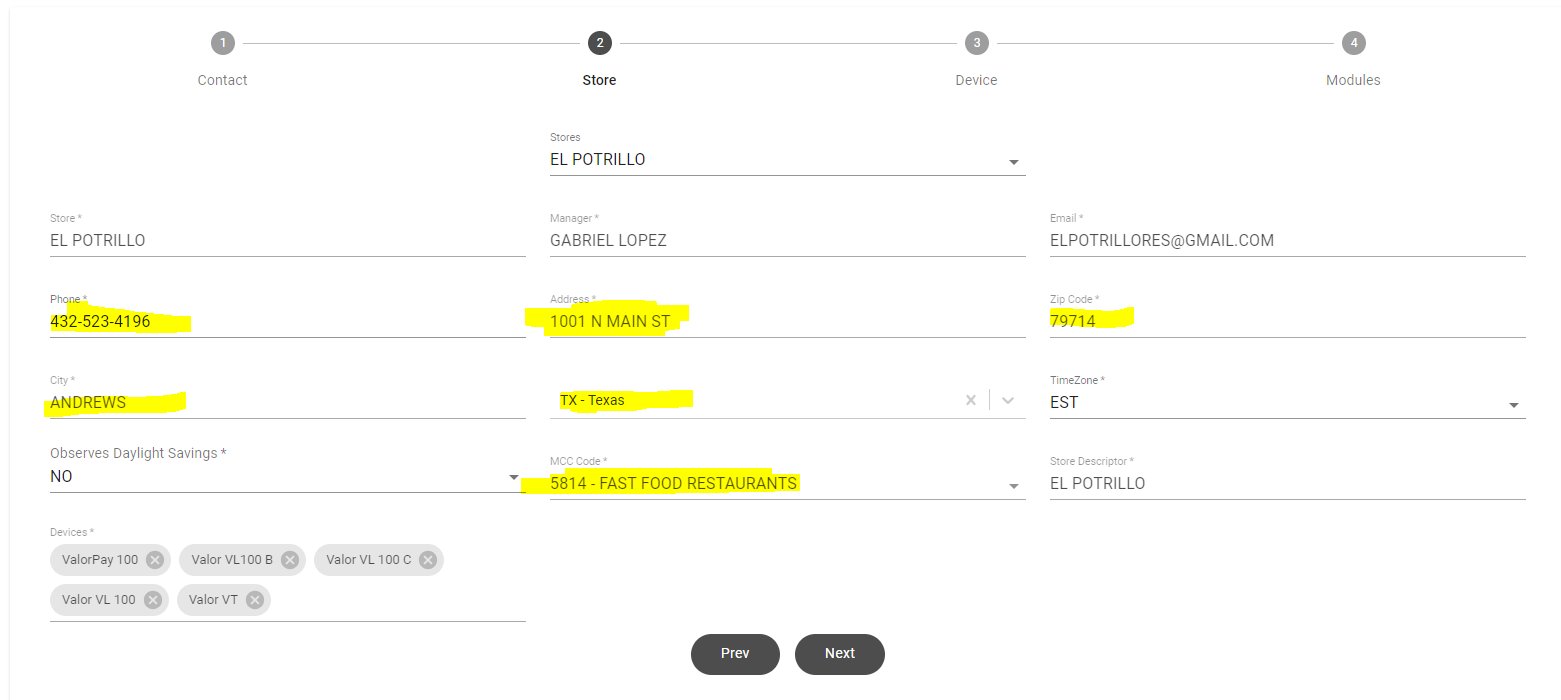
The next page needs the business information. You would need to make sure the information is for the store location and appear on their receipts so it's important that this is correct. Verify that the MCC code is correct if not this will cause an error. Once you are done click ‘Next’ again to get to the terminal page.
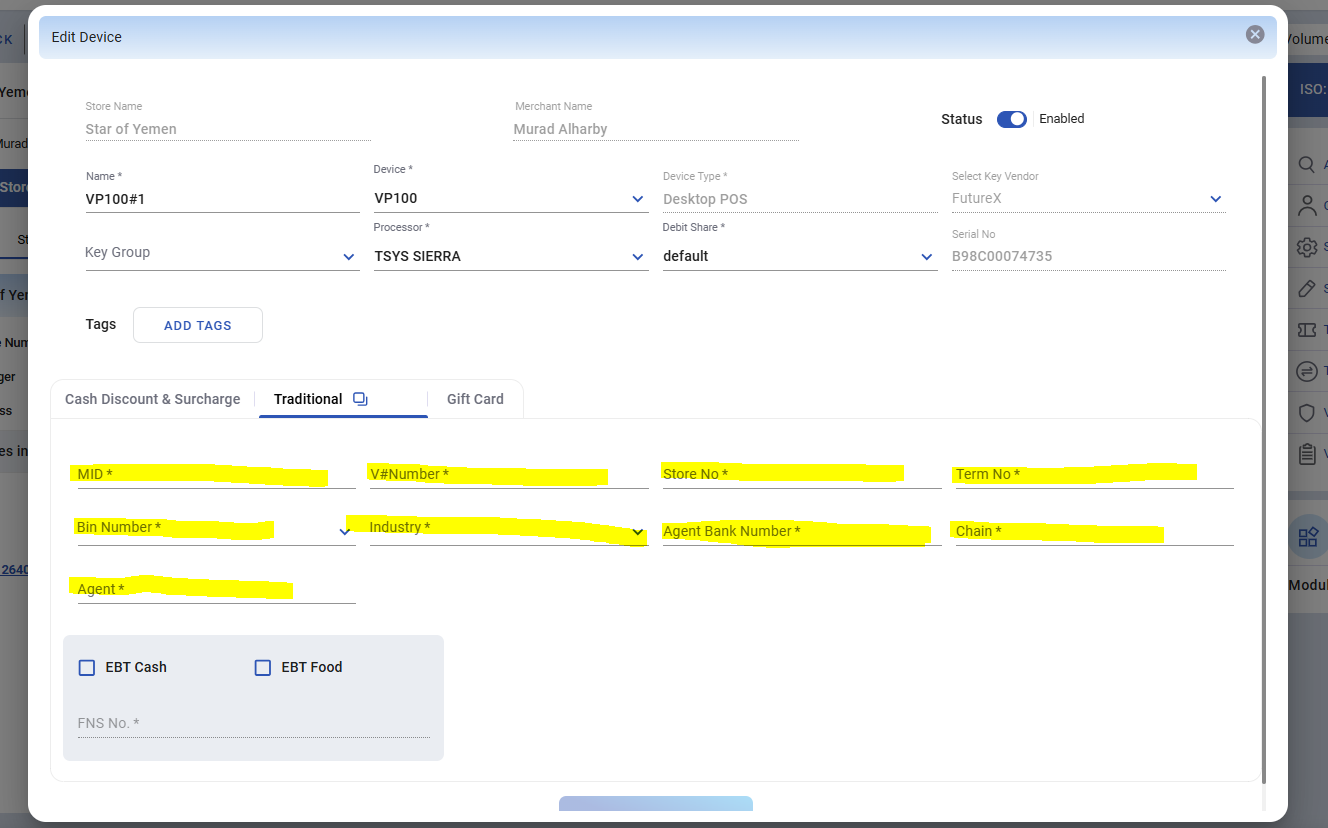
In the Device page you will need to fill in correct info regarding the device you will build out.
Under ‘Processors’ select ‘TSYS SIerra’. In the ‘Device’ section select ‘Valor VT’. In the ‘Debit Share’ section select ‘Default’.
In the lower section you will notice there are 3 tabs labeled as ‘Cash Discount/Surcharge’ ‘Traditional’ and ‘Gift Card’. Select the proper program type the device needs to be under and proceed to fill out info from the VAR sheet in the correct fields. You will also notice there has been an EPI generated be sure to notate this for future references. Once everything has been completely filled out proceed to click on ‘+Update Device’ a pop up will appear asking if you would like to add another device click ‘No’ and click ‘Next.
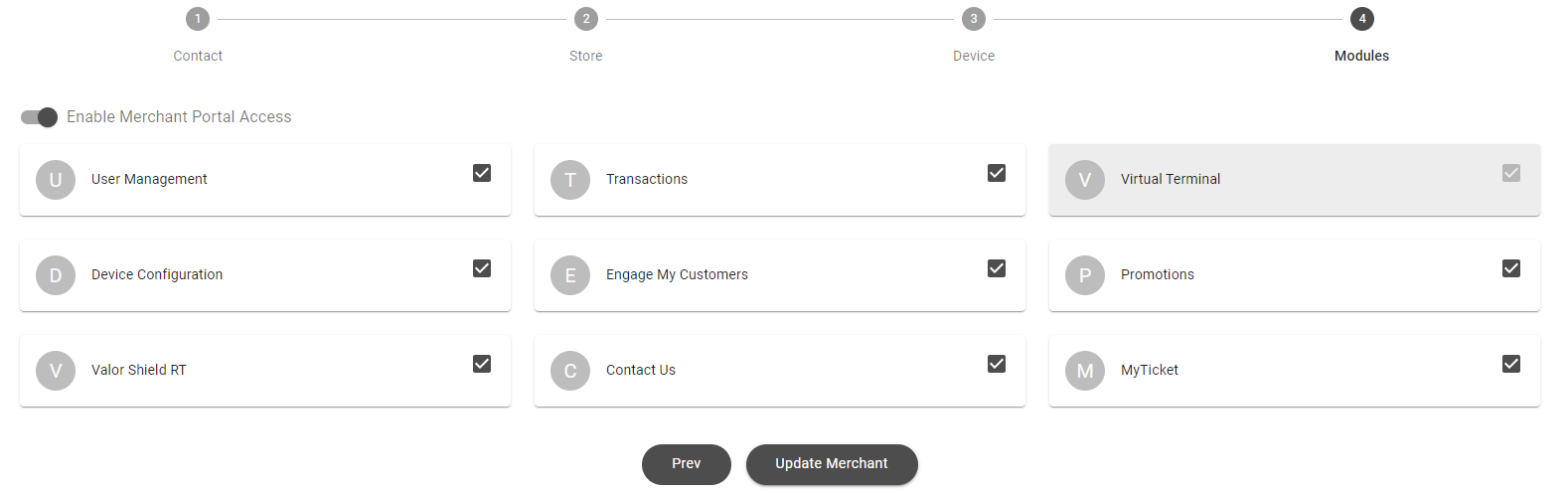
In the Module page you have the options to select what modules the merchant can have access to. Typically all these are selected unless specified otherwise. You can click ‘Update Merchant’. At this point the merchant will receive an activation email with a link to create a password.
You have successfully manually boarded a Valor Terminal.
Was this article helpful?
That’s Great!
Thank you for your feedback
Sorry! We couldn't be helpful
Thank you for your feedback
Feedback sent
We appreciate your effort and will try to fix the article