Log In to the Valor Portal
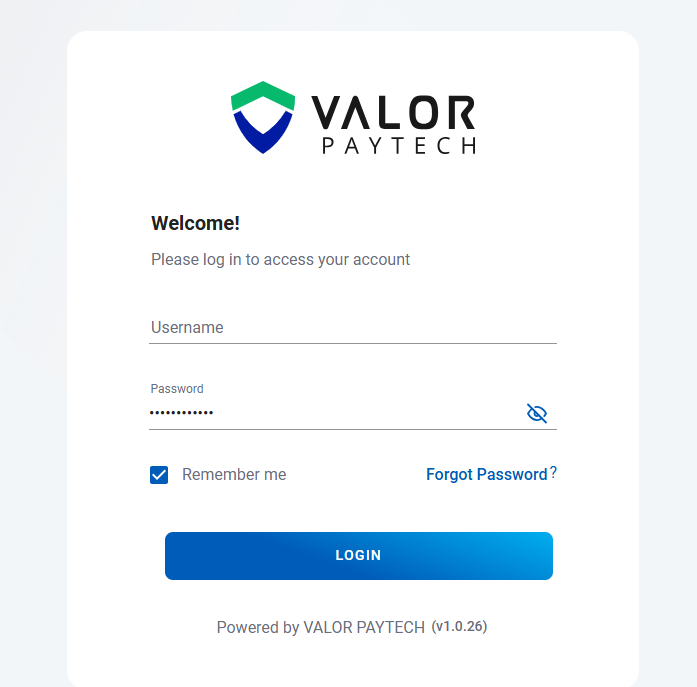
Access the Valor Portal and sign in using your authorized administrator credentials.
From the left-sided navigation panel, click on Merchant Management.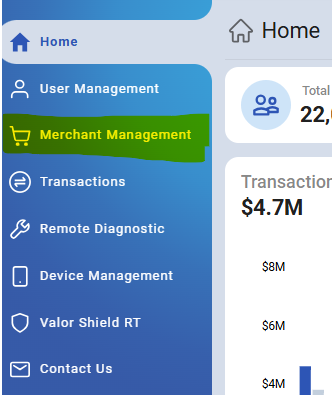
Use the DBA name or an associated EPI number to search for the merchant.
Tip: Searching by EPI number is recommended to narrow results and quickly locate the correct MID.
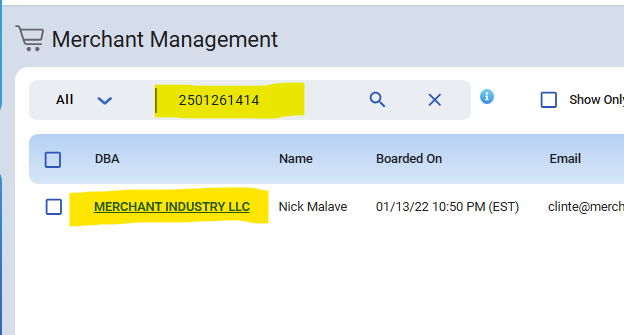
Click on the merchant name (highlighted in blue)
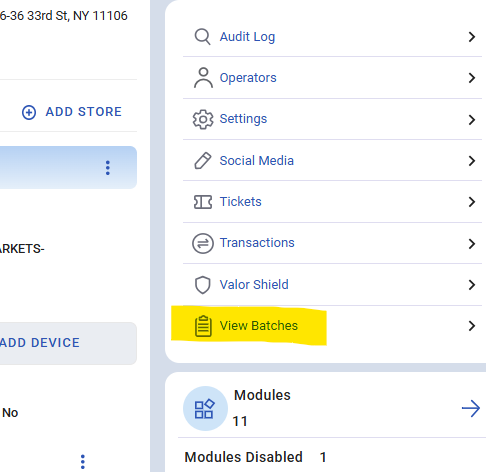
Once the Merchant Overview page is open, navigate to the right side panel and click View Batches
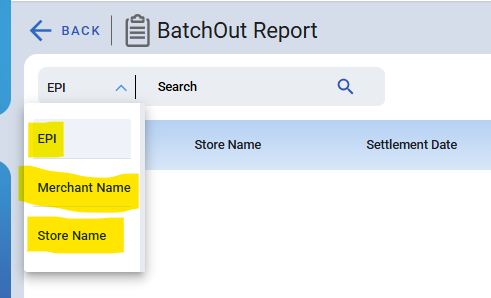
Use the drop-down menu next to the search bar (top left) to narrow down the results.
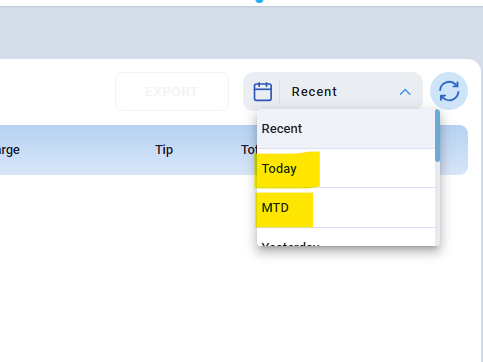
Set the desired date range by clicking Recent in the top right corner to open the drop-down menu
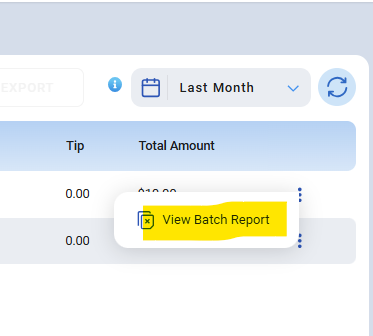
Once the batch is located, click the three dots on the right-hand side and select View Batch Report
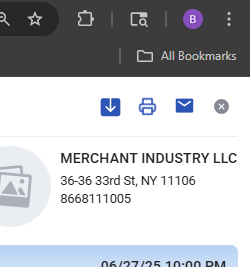
In the top right corner of the report, you can choose to Download, Email, or Print the batch report
Was this article helpful?
That’s Great!
Thank you for your feedback
Sorry! We couldn't be helpful
Thank you for your feedback
Feedback sent
We appreciate your effort and will try to fix the article