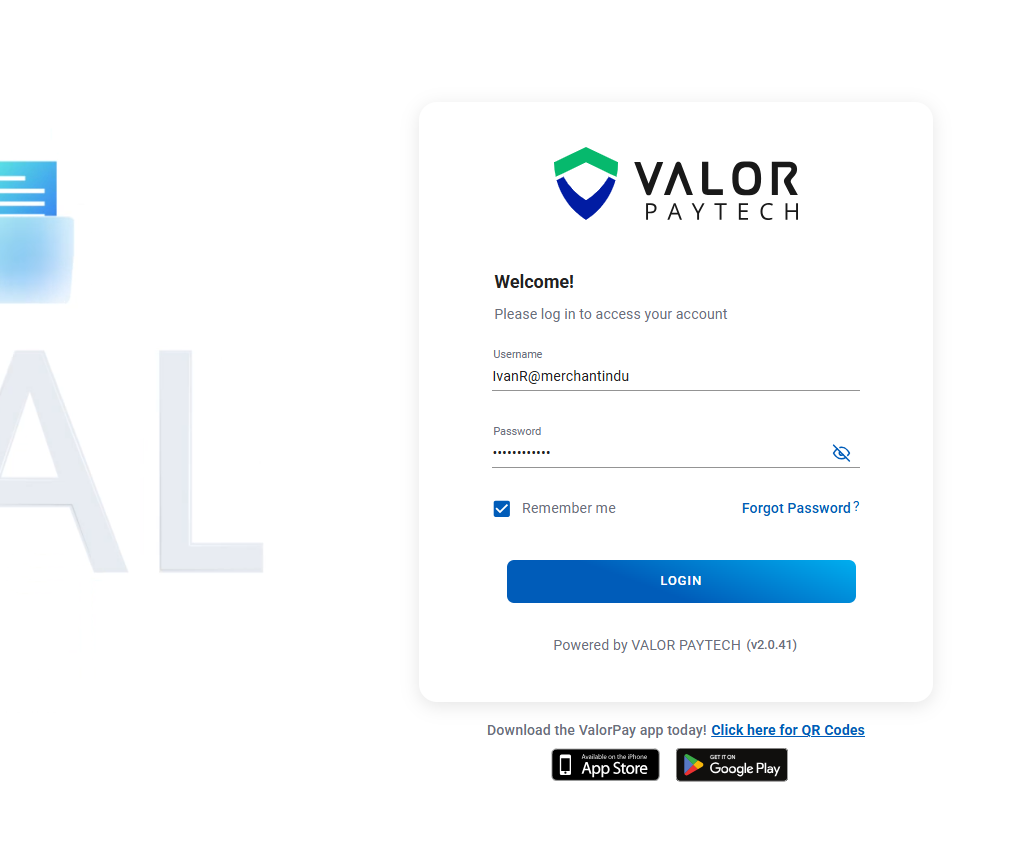
Step 1: Login to portal. Must be an admin account to add inventory.
Step 2: Once in the portal navigate to the settings section and select the tab that says Product.
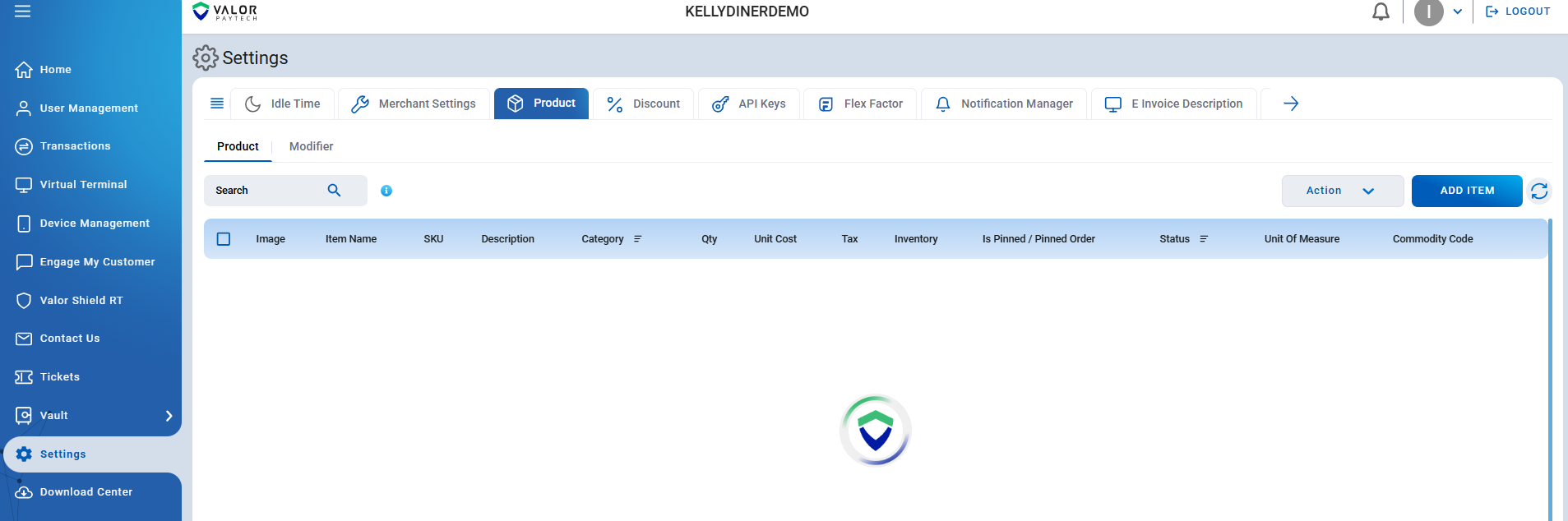
Please note basic operator access will not be able to see this tab.
Step 3: Select the blue Add Item tab and fill out the information. If you select Yes under Inventory you must put an amount in Qty. The SKU should be the number on the BarCode of the item you are adding.
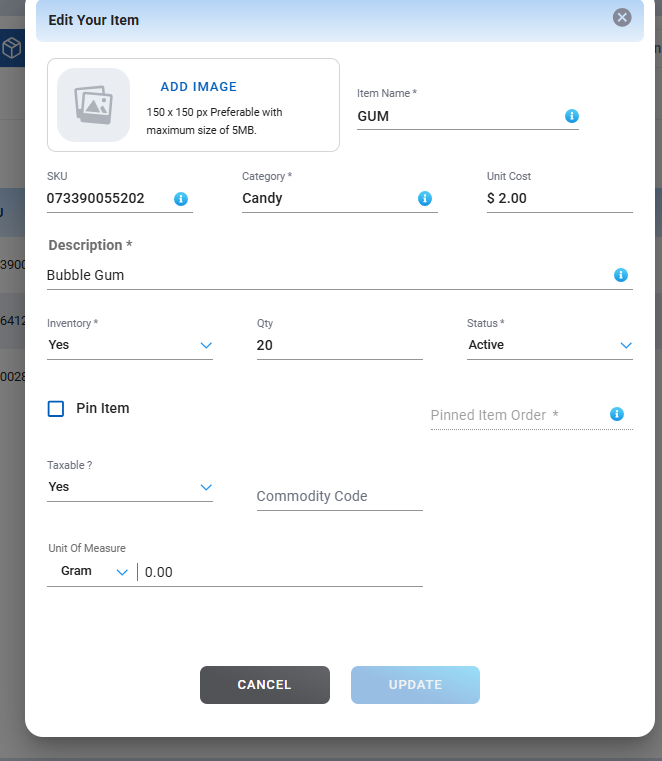
Step 4: Once the information is input hit create to add the item to Inventory. No update is required on the terminal, the item should be automatically added with the provided information.
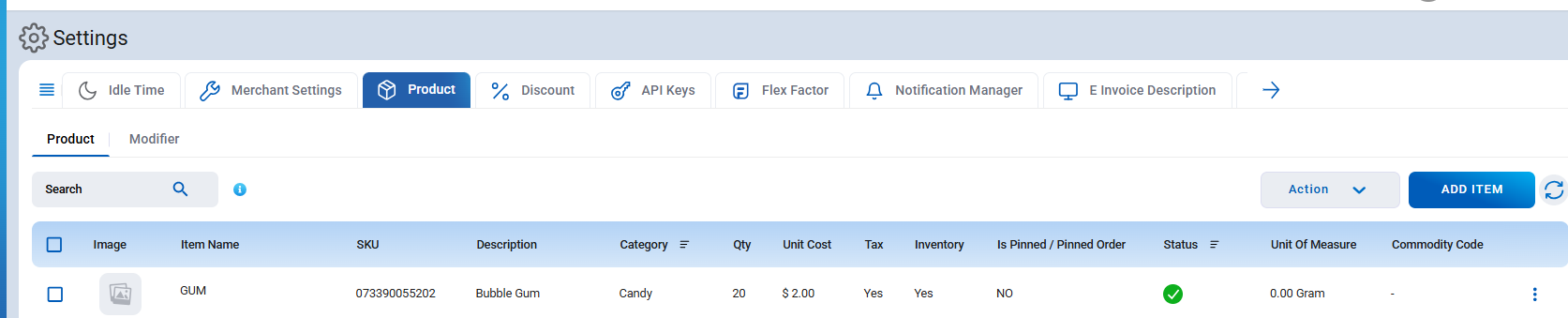
After selecting the Cart icon on the terminal you will see the newly added item.
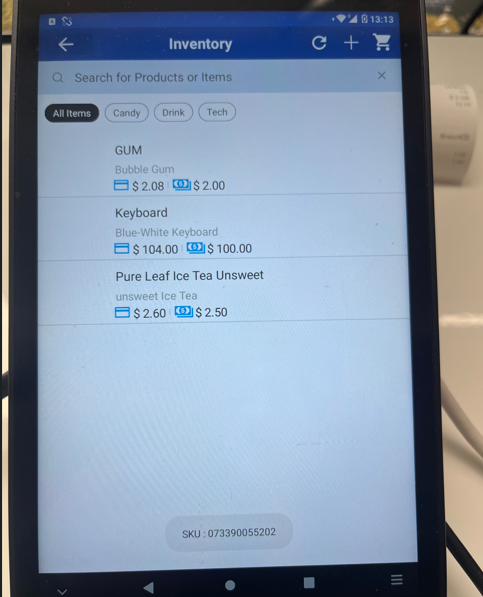
Step 5: From the inventory page on the Valor VP800 terminal you can use a scanner attached to the dock to scan the barcode of the item. The system will read it as the SKU and automatically add it to the cart. Please note this can only be done from the Inventory page on the terminal.
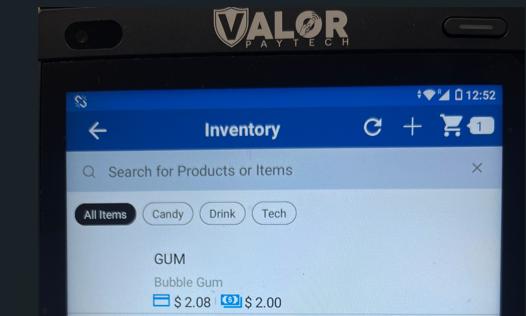 Once the item is in the cart you can select it and then proceed to run a sale as usual.
Was this article helpful?
That’s Great!
Thank you for your feedback
Sorry! We couldn't be helpful
Thank you for your feedback
Feedback sent
We appreciate your effort and will try to fix the article