What is TAP?
- Terminal Placement Program (TAP) is a special program that differs from the standard process. Under this program, the merchant is billed a monthly terminal fee instead of the agent.
Tap request
- A TAP request may be received through:
- CRM Ticket
- Email from agent/RM
- Merchant Processing Application (MPA) during onboarding
Before enrolling a merchant in the TAP program, verify the following:
- Signed TAP Addendum – Ensure the TAP agreement is signed by the merchant with equipment details.
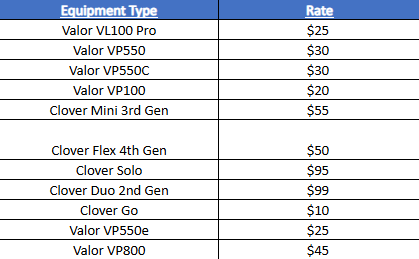
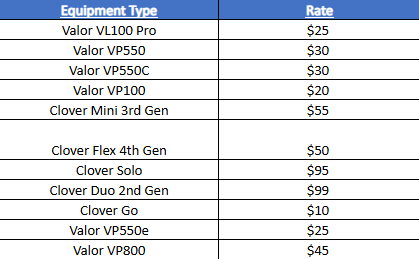
- Equipment Type – Verify that the equipment is one of the eligible models listed in the approved equipment table. Any other equipment type is not eligible for the TAP program.
Processing Guidelines
- If the TAP agreement is signed and the equipment type is eligible:
- Proceed with the TAP deployment.
- Add the applicable monthly terminal charges to the merchant's account.
- If a TAP ticket is submitted without a signed agreement or equipment type:
- Contact the agent to confirm the equipment type.
- Request the signed TAP agreement before proceeding with the deployment or applying any charges.
- If the ISO specifies in the MPA, CRM ticket, or TAP agreement that the agent should be billed instead of the merchant:
- Do not apply the monthly charge to the merchant's account.
- Notify Owen with the following details:
- Merchant name/MID
- Agent details
- Monthly terminal charge amount
- Owen will arrange the recurring monthly deduction from the agent's residuals.
Ticket request:
Use the following RFCs for TAP deployments:
- TAP - Deployment (Valor)
- TAP - Clover (Clover)
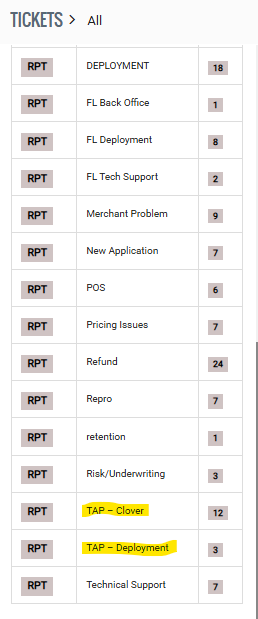
- These RFCs should only be used for merchants enrolling in the Terminal Placement Program (TAP). Regular deployment requests must not be submitted under these RFCs.
- If a regular deployment request is received under a TAP RFC, contact the ISO to confirm.
- The equipment type
- Whether the merchant is enrolling in the TAP program
Equipment Creation process – TSYS
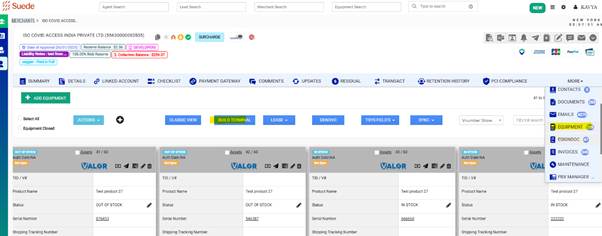
- Go to CRM and search for the MID.
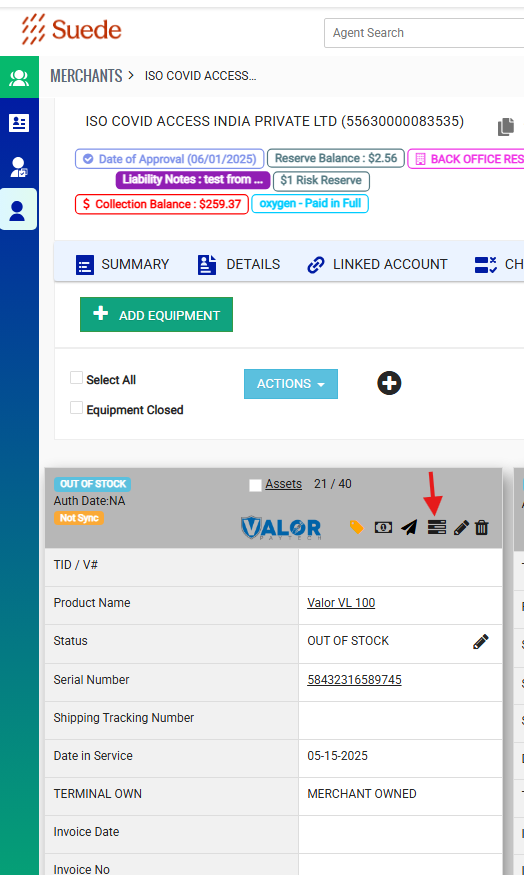
- Navigate to the Equipment section.
- Click Build Terminal.
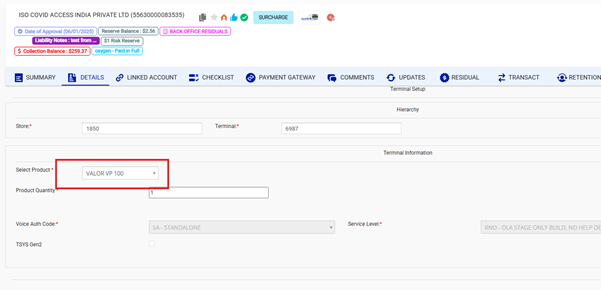
- Under Select Product, choose the respective equipment
- Scroll to the bottom of the page and click Board Terminal.
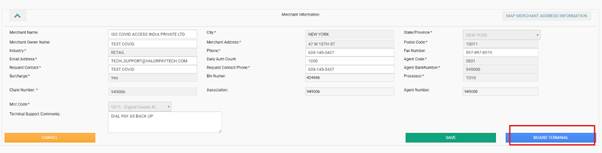
- Once the confirmation message appears, click Close
- You will be redirected to the Equipment page.
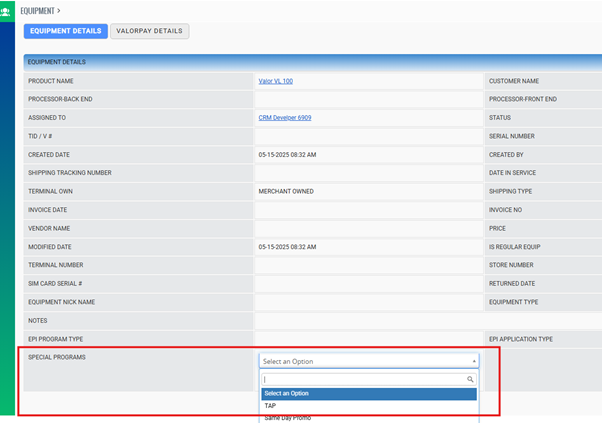
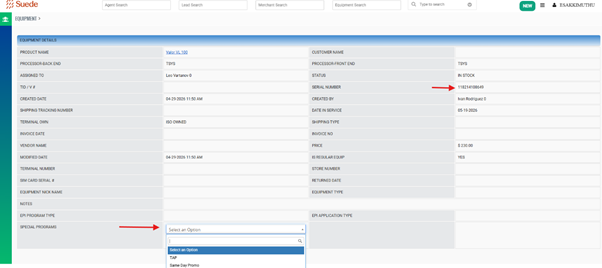
- Edit the newly created equipment and set the Special Program to TAP. (Mandatory)
Equipment Creation – FD
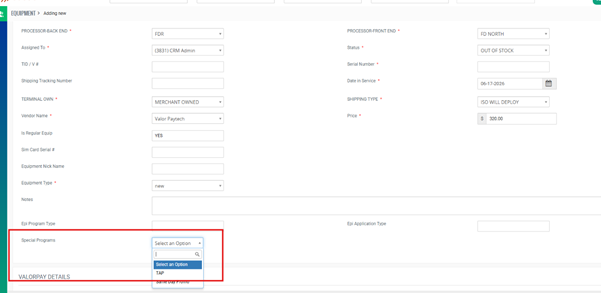
- Follow the standard file build process for the deployment.
- CRM à Equipment page – click Add equipment à Select appropriate equipment à Click Save
- After created a file à Edit the product to select Special program as TAP à Save the changes.
Invoice Creation process
- The primary difference between a TAP deployment and a standard deployment is the invoicing process. For every TAP deployment, two invoices must be created:
- Invoice 1 – TAP Equipment Invoice
- Create an invoice for the TAP equipment with a $0 charge for tracking purposes.
- Bill To: TAP Program 7452
- Equipment Charge: $0
- Invoice 2 – Shipping & Miscellaneous Charges
- Create a separate invoice for:
- Shipping charges
- Deployment fees
- Any applicable miscellaneous fees
- Bill To: Corresponding ISO
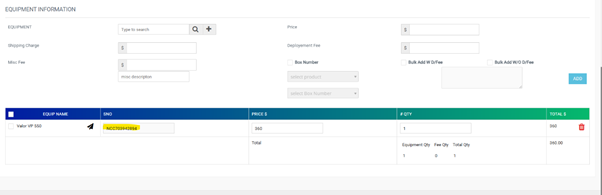
- Enter the TAP equipment serial number on the invoice.
- Before selecting the equipment, ensure the correct serial number is enabled for the TAP program.
- Save the invoice
- Create a separate invoice for:
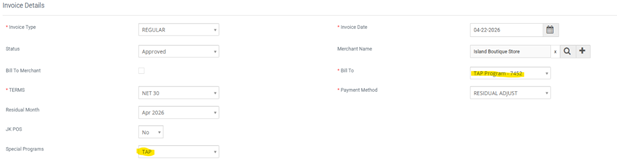
- Enter the TAP equipment serial number on the invoice. Ensure the correct serial number is enabled for the TAP program before selecting the equipment.
After creating the invoice,
- Search the serial number under Equipment Search.
- Open Details → Edit.
- Set the Special Program to TAP and save the changes.
Note: Record the total TAP equipment cost in the House Notes for future reference.
Billing process
- Add the monthly terminal charge to the merchant's pricing based on the processor.
- TSYS – Misc Fixed Fee (with the appropriate fee name)
- Omaha – UDG (appropriate UDG ID)
- North – FSC (323)
Note: If the TAP agreement specifies that the agent should be billed instead of the merchant, do not add the fee to the merchant's account. Notify Owen so the recurring deduction can be applied to the agent's residual.
Notes to remember:
- Update the Special Program to TAP in all applicable places àEquipment file build, Product, Invoice
- Ensure the monthly TAP charge is applied to the correct account (merchant or agent, as applicable).
- Two invoices are mandatory for every TAP deployment.
Was this article helpful?
That’s Great!
Thank you for your feedback
Sorry! We couldn't be helpful
Thank you for your feedback
Feedback sent
We appreciate your effort and will try to fix the article