Log in to Business Track:
Go to https://fdpos.businesstrack.com/fdposng/#/search/main.Access FDPOS Management:
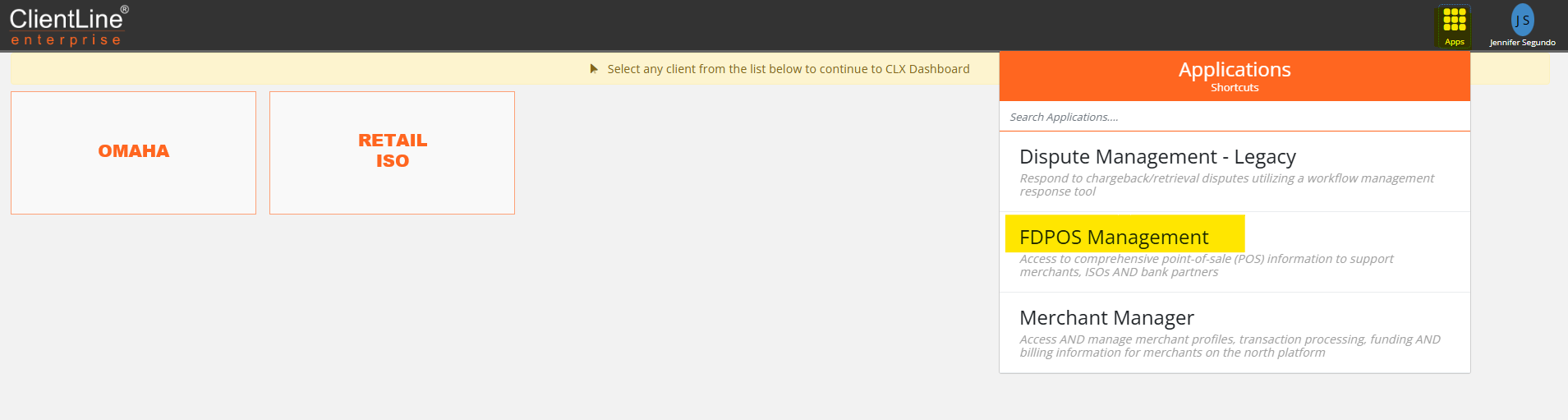
Click the six dots in the top right corner.
Select FDPOS Management.
Paste the MID into the Merchant# field.
Click Search
Click Add Devices
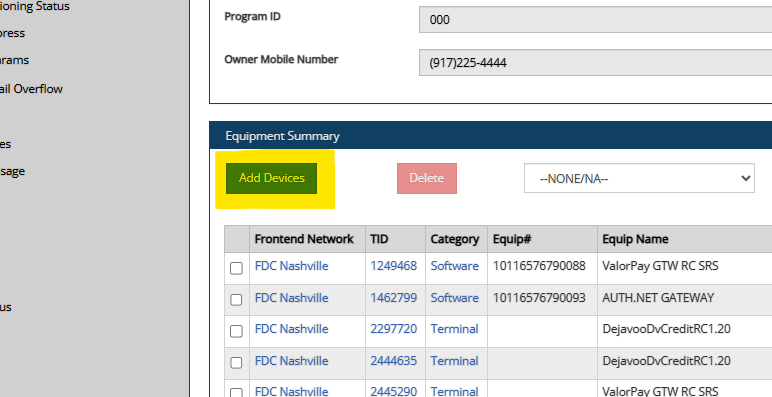
Click Add Equipment 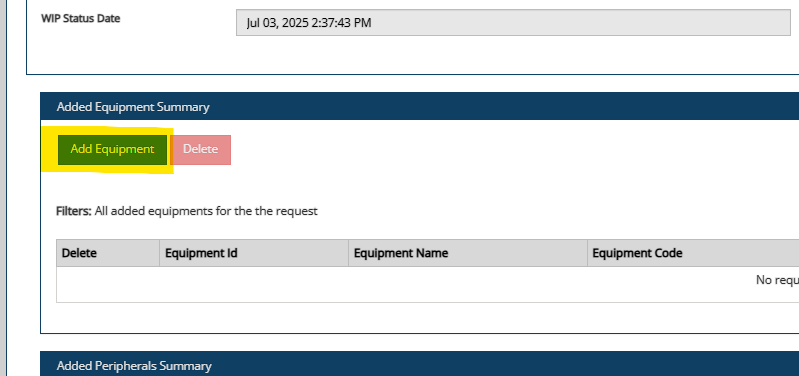
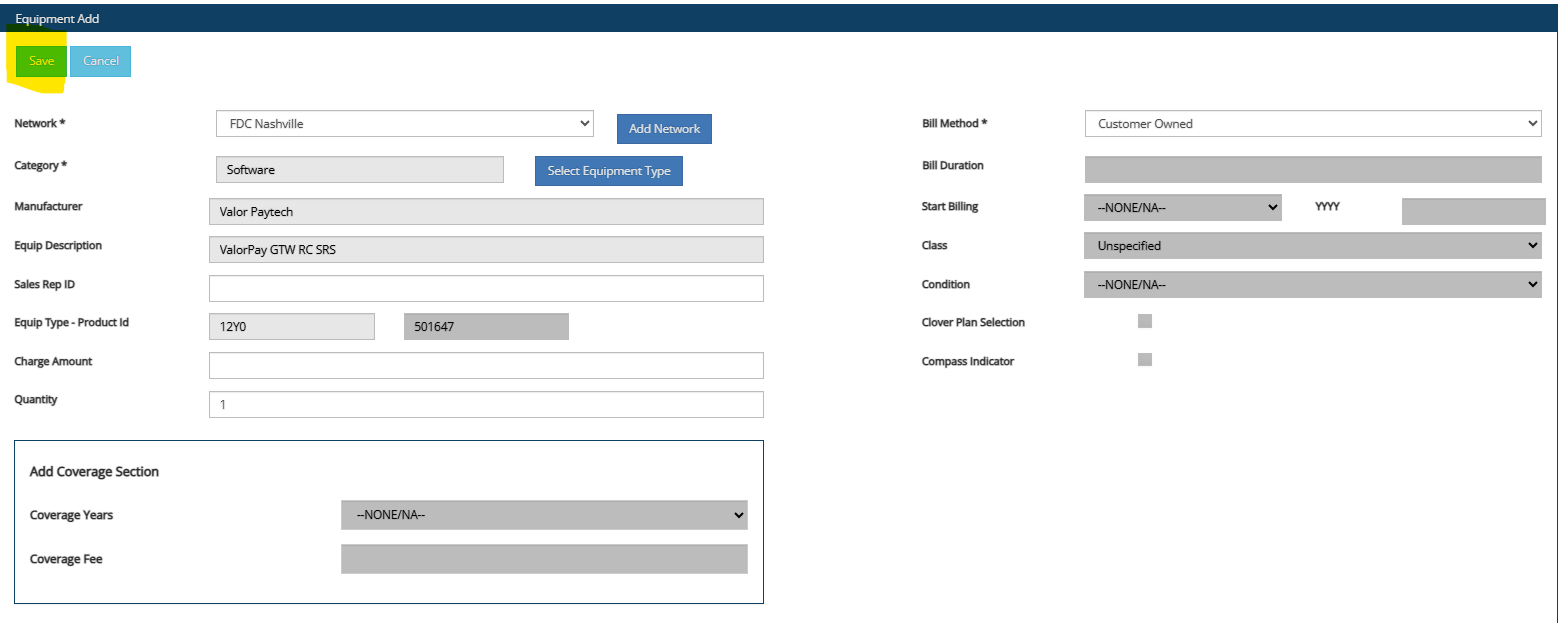
Complete the fields based on ticket details
Select the Network Type (found in the CRM merchant profile).
For Bill Method, choose Customer Owned.
Set Quantity to 1.
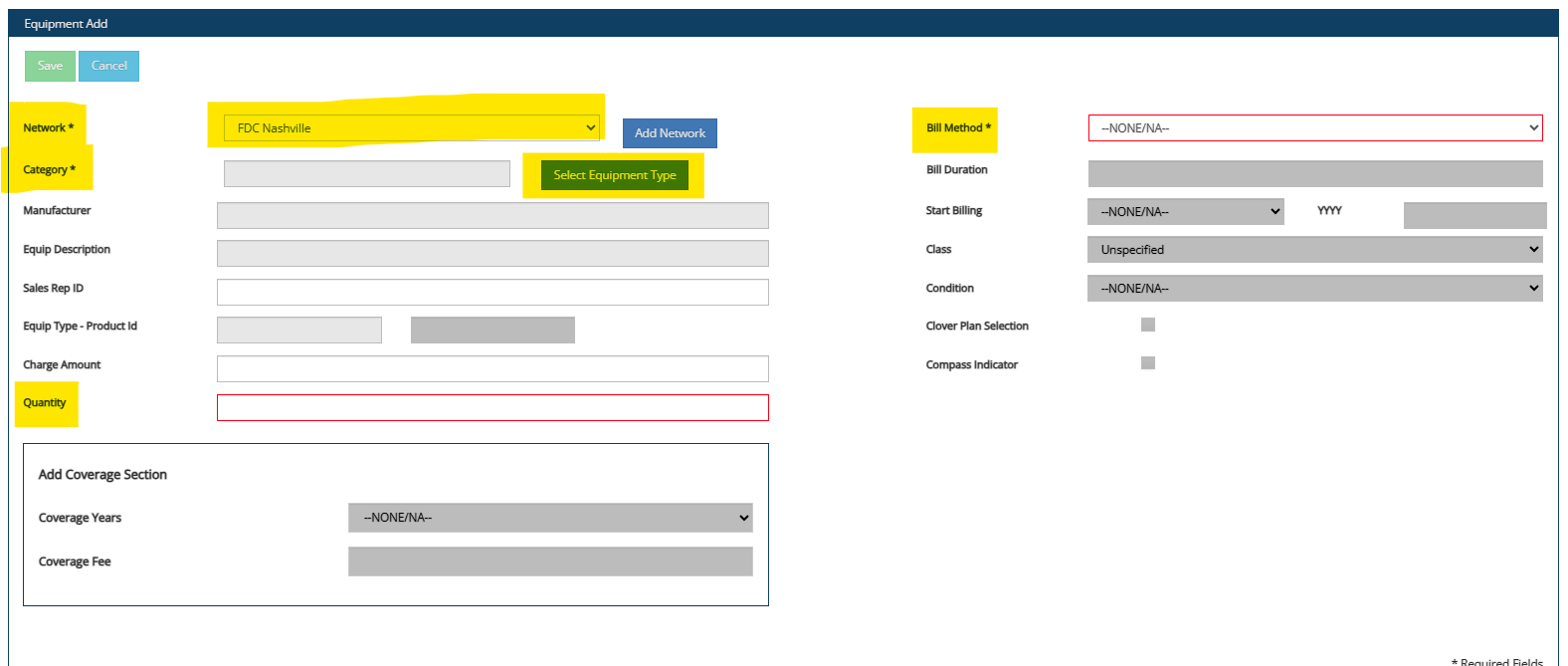
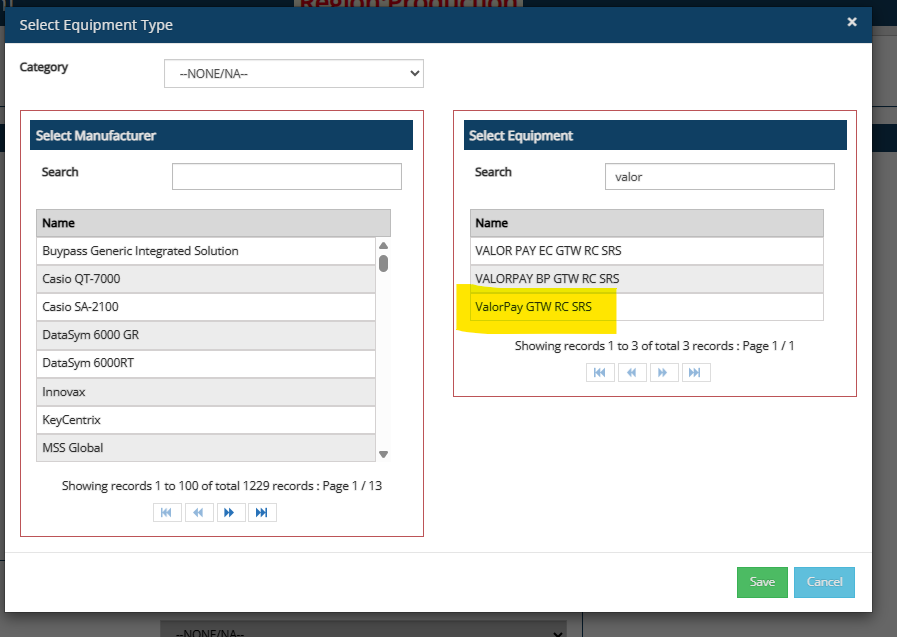
Click Select Equipment, choose the appropriate device, and click Save
Once all required fields are complete, click Save (top left)
Click Submit Order. 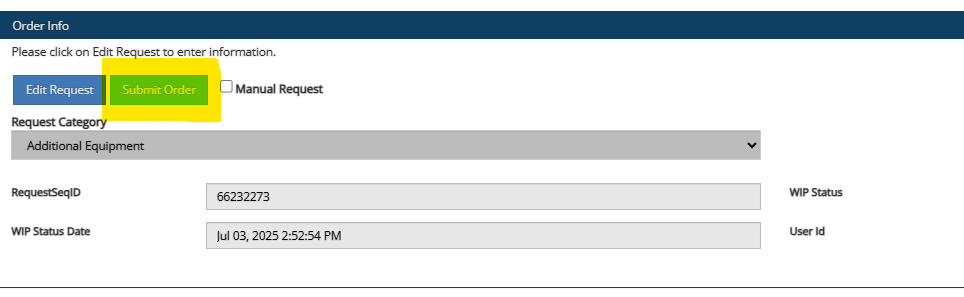
Go to Merchant Summary.
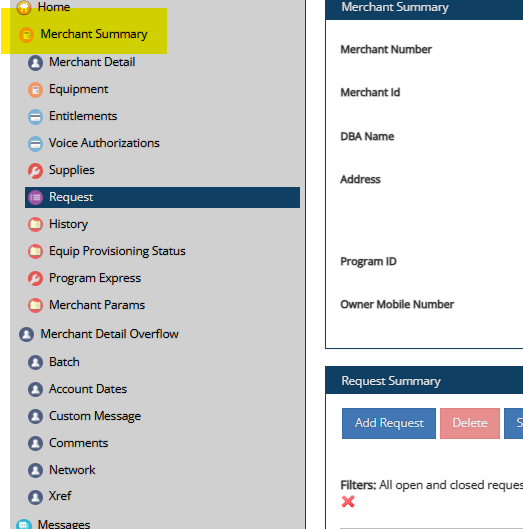
Under Equipment Summary, click the newly created TID.
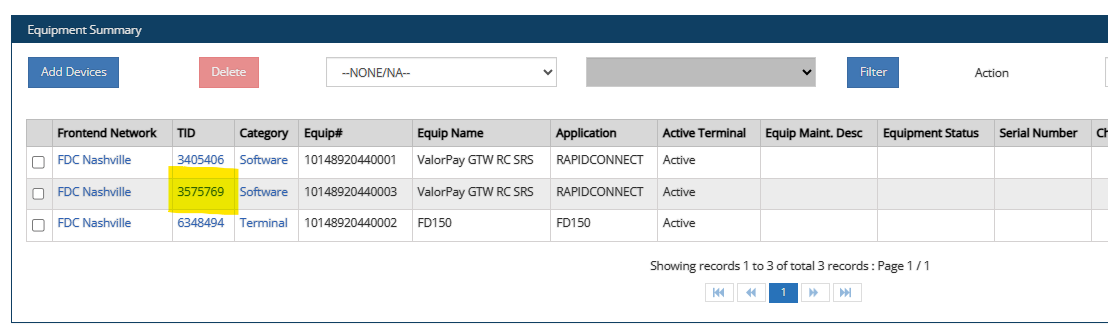
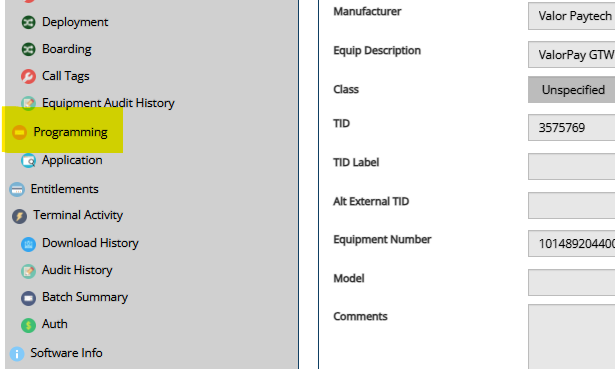
Select Programming from the left menu.
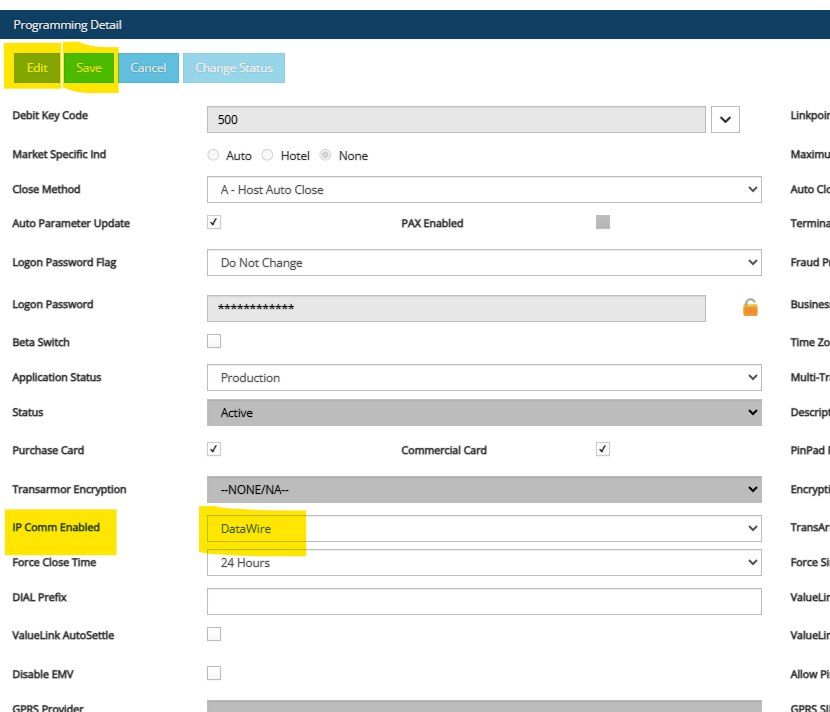
Click Edit, set IP Comm Enabled to Datawire, and click Save.
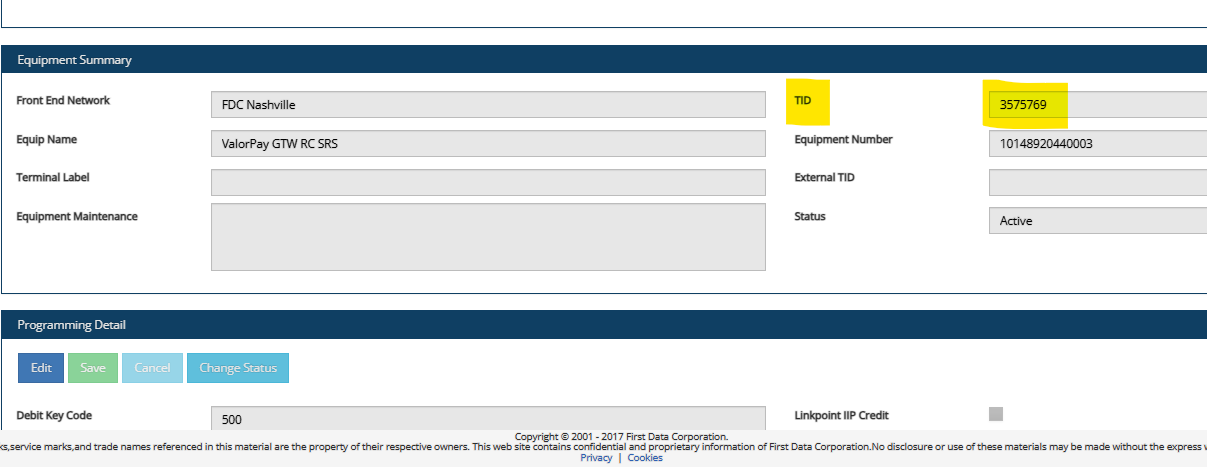
The TID is now ready for use and listed under Equipment Summary.
Was this article helpful?
That’s Great!
Thank you for your feedback
Sorry! We couldn't be helpful
Thank you for your feedback
Feedback sent
We appreciate your effort and will try to fix the article