TSYS – Dejavoo Terminal Build Process
Purpose
This document outlines the procedure for building a Dejavoo terminal file in CRM and validating the configuration in the DVMS portal.
Step 1: Access the Equipment Page in CRM
Log in to the CRM system.
Navigate to More
Go to the Equipment page.
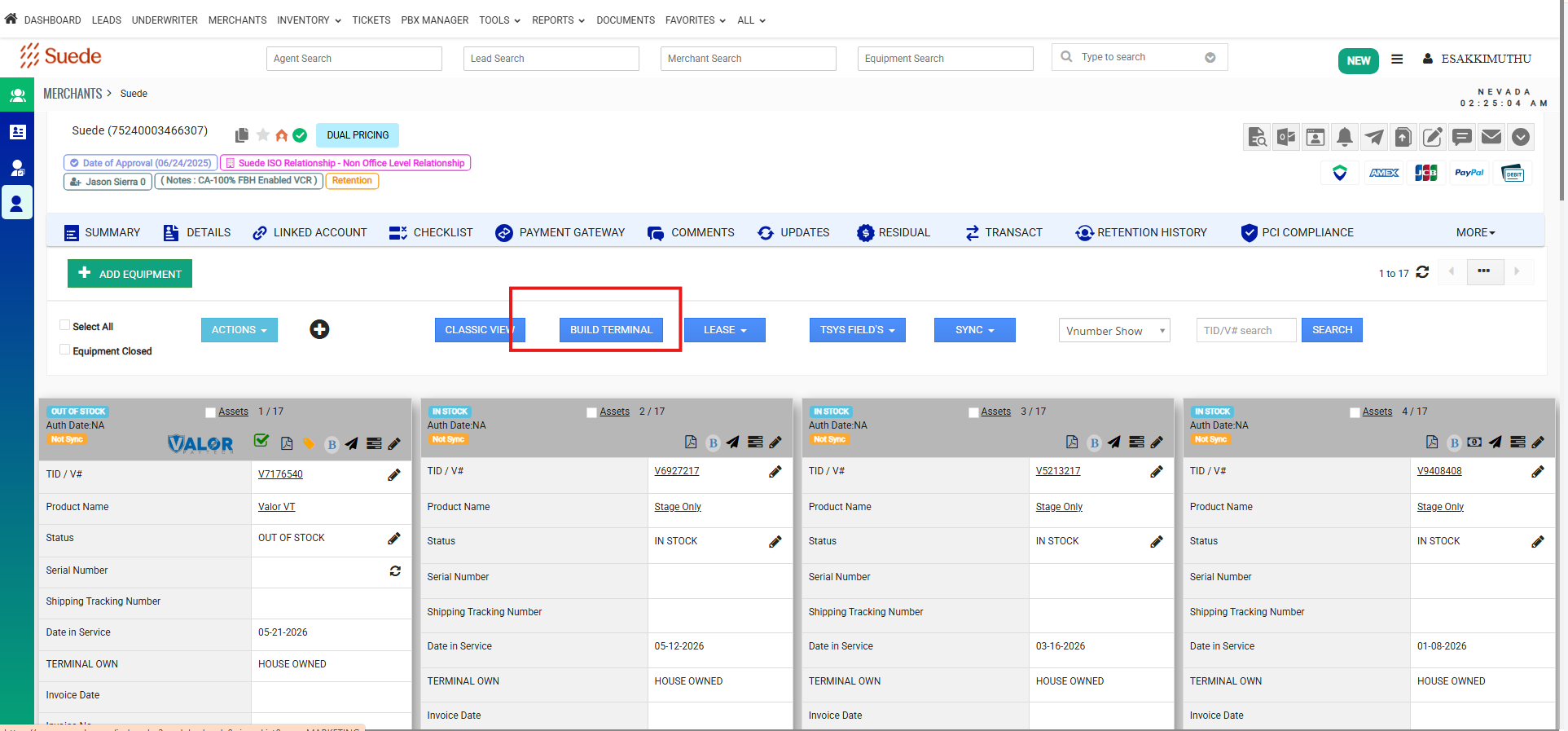
Step 2: Build the Dejavoo Terminal
Select Build Terminal.
From the device list, choose the appropriate Dejavoo terminal model.
When prompted for Dejavoo Terminal Information, select Yes. (For Denovo Service)
Continue to the template selection screen.
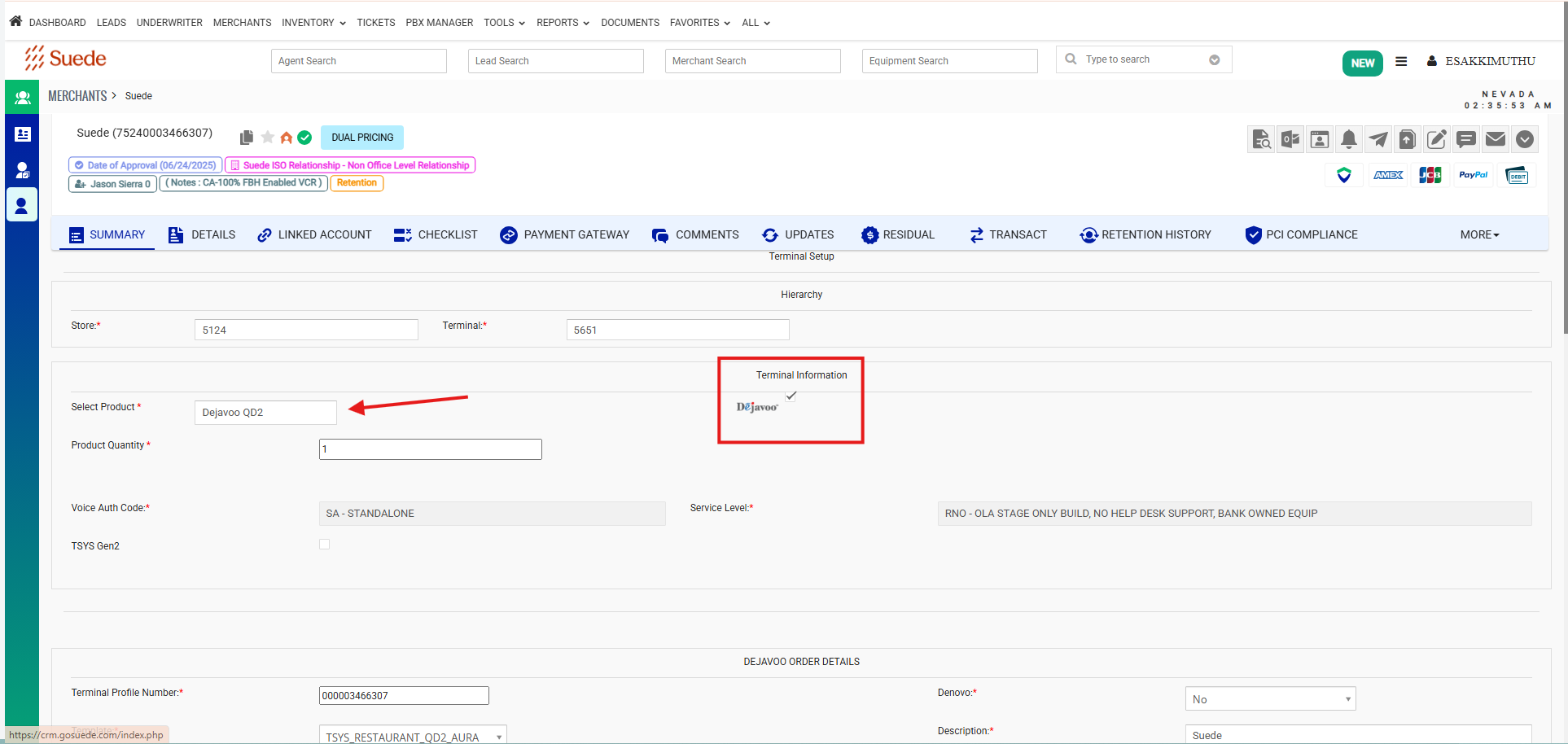
Step 3: Select the Appropriate Template
Choose the correct template based on the merchant's business type:
Retail Template – For standard retail merchants.
Restaurant Template – For restaurants, cafés, bars, and food service merchants.
Important: Ensure the selected template matches the merchant's processing environment to avoid deployment issues.
Step 4: Configure Parameters
Review all available terminal parameters.
Apply parameter settings according to:
ISO requirements
Merchant-specific requirements
Special processing needs (EBT, Tips, auto close, etc., if applicable)
Verify all settings before proceeding.
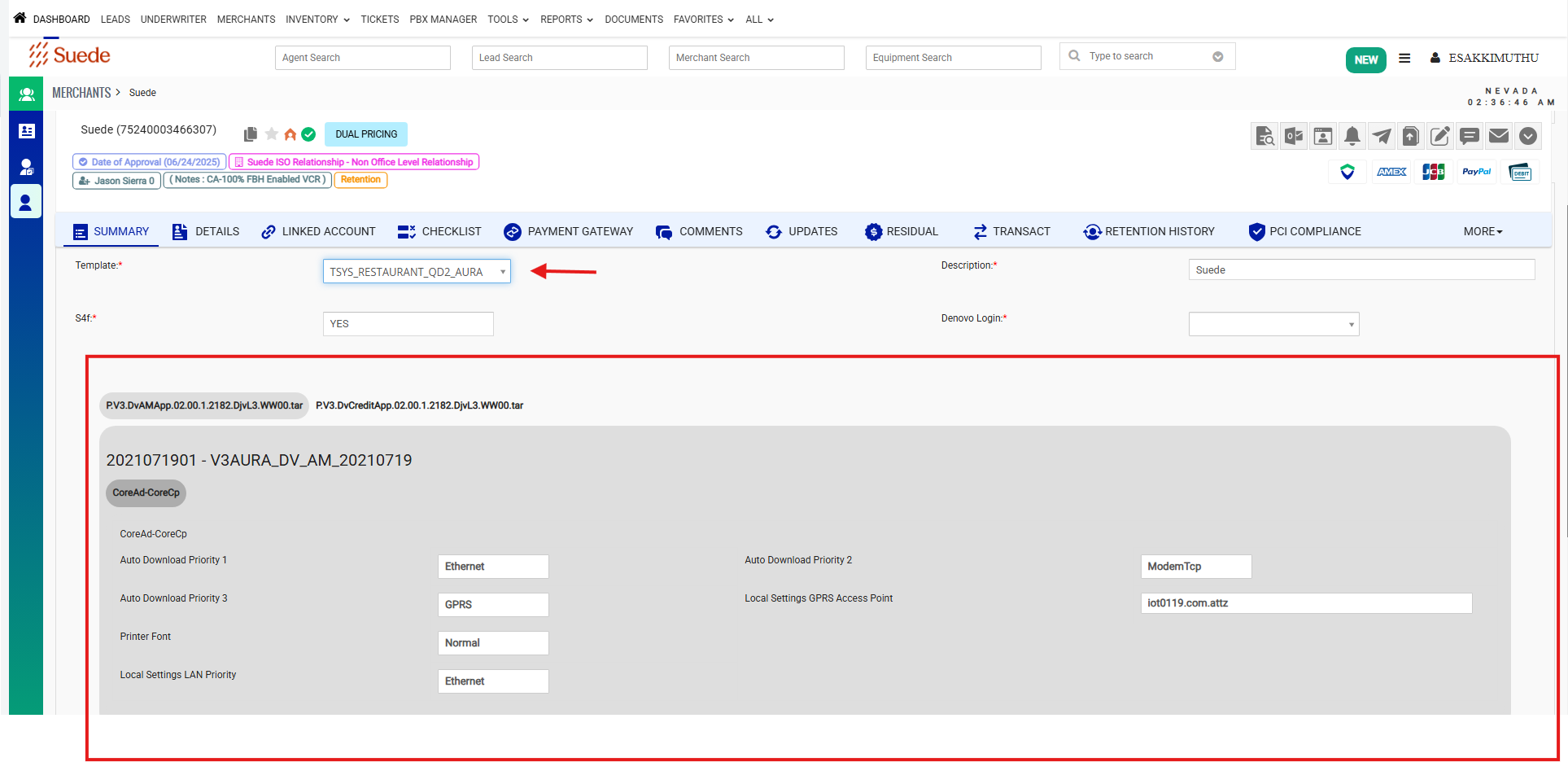
Note: Incorrect parameter settings may result in terminal functionality issues after deployment.
Step 5: Complete the Build
Click Save or Build to generate the terminal configuration.
Record the generated TPN (Terminal Profile Number).
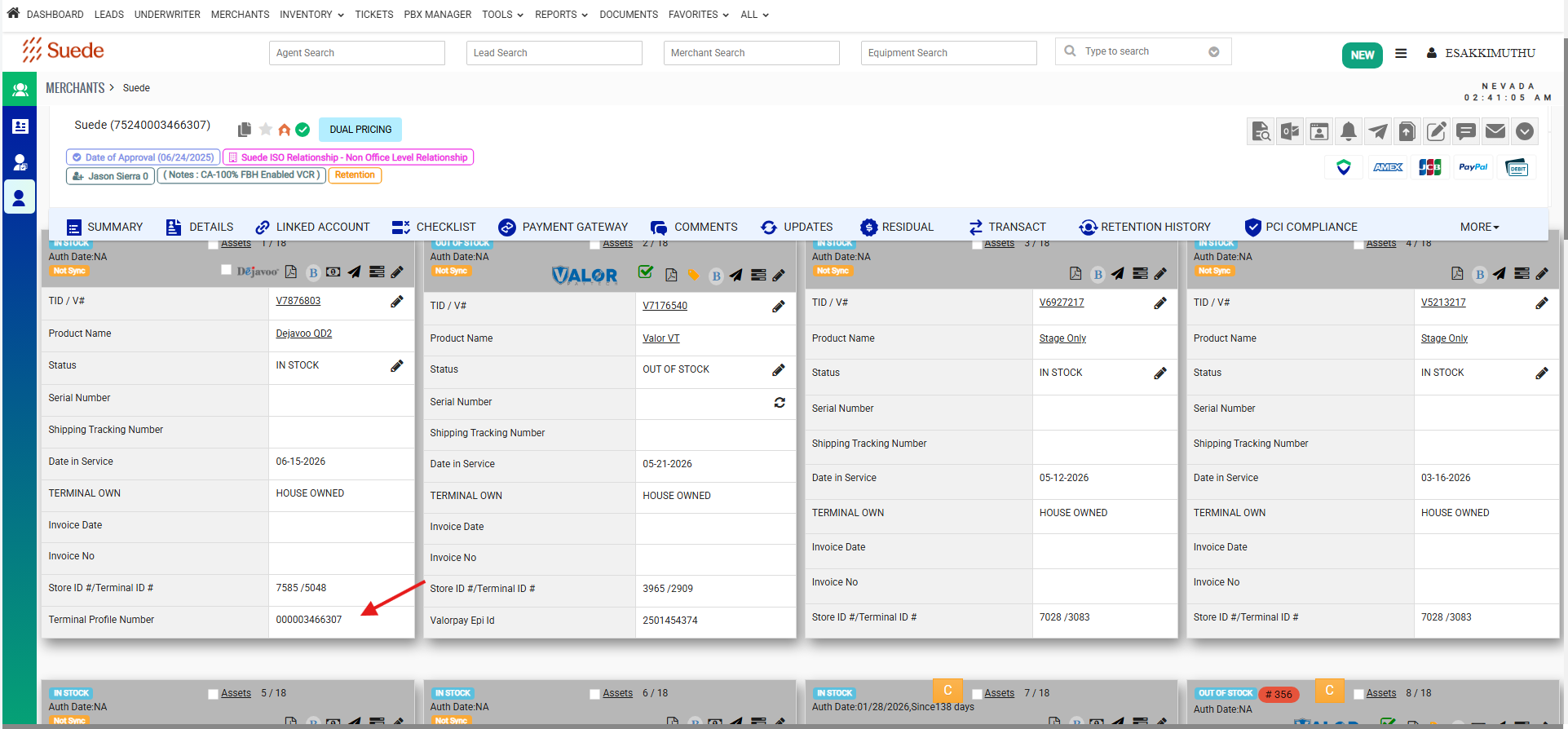 Step 6: Validate in DVMS Portal
Log in to the DVMS (Dejavoo Management System) portal.
Search for the newly created TPN.
Open the terminal profile.
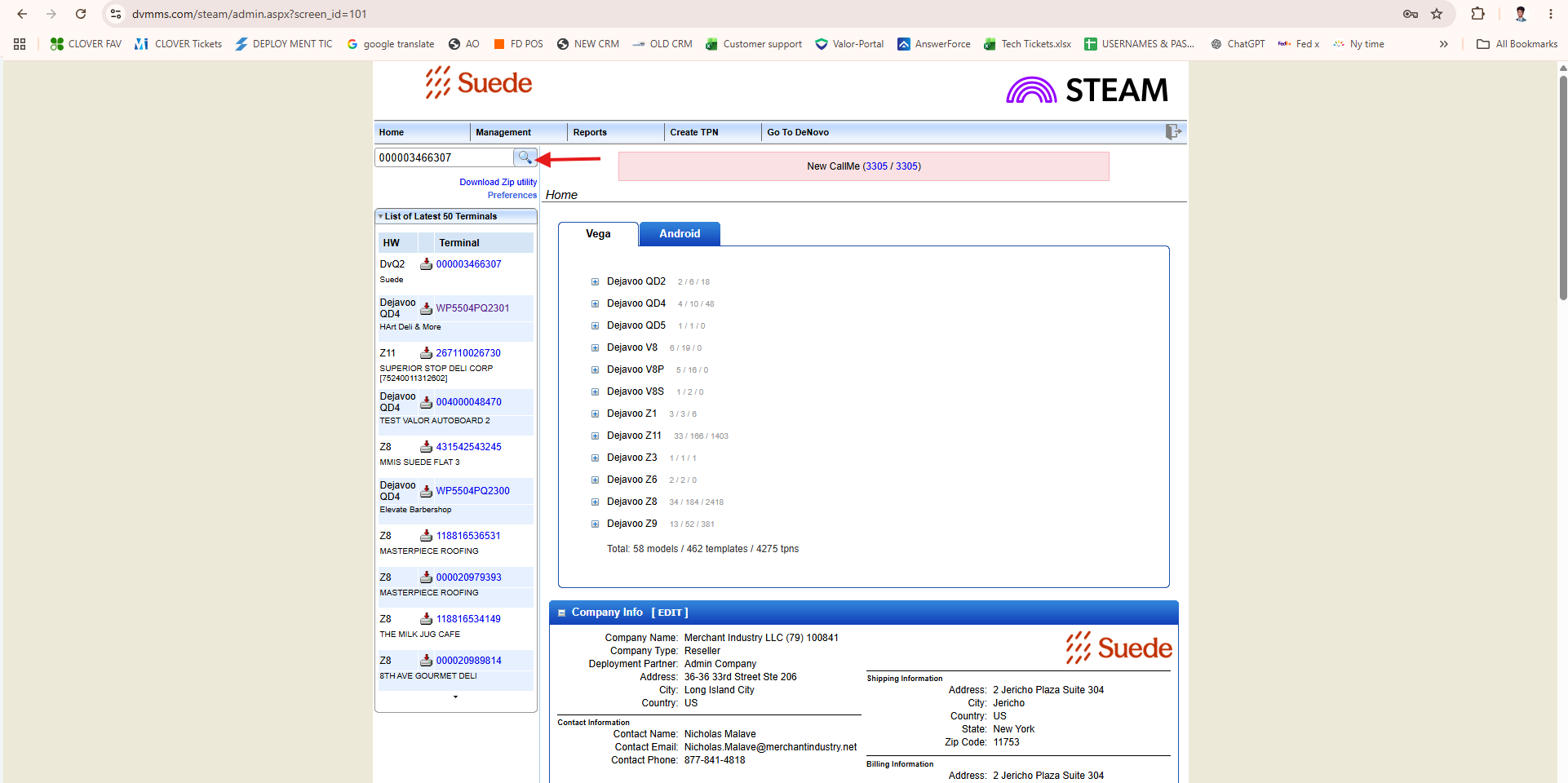
Step 7: Review Terminal Configuration
Verify the following information:
Merchant information
Processor settings
Template assignment
Communication settings
Parameter configuration
Any custom merchant requirements
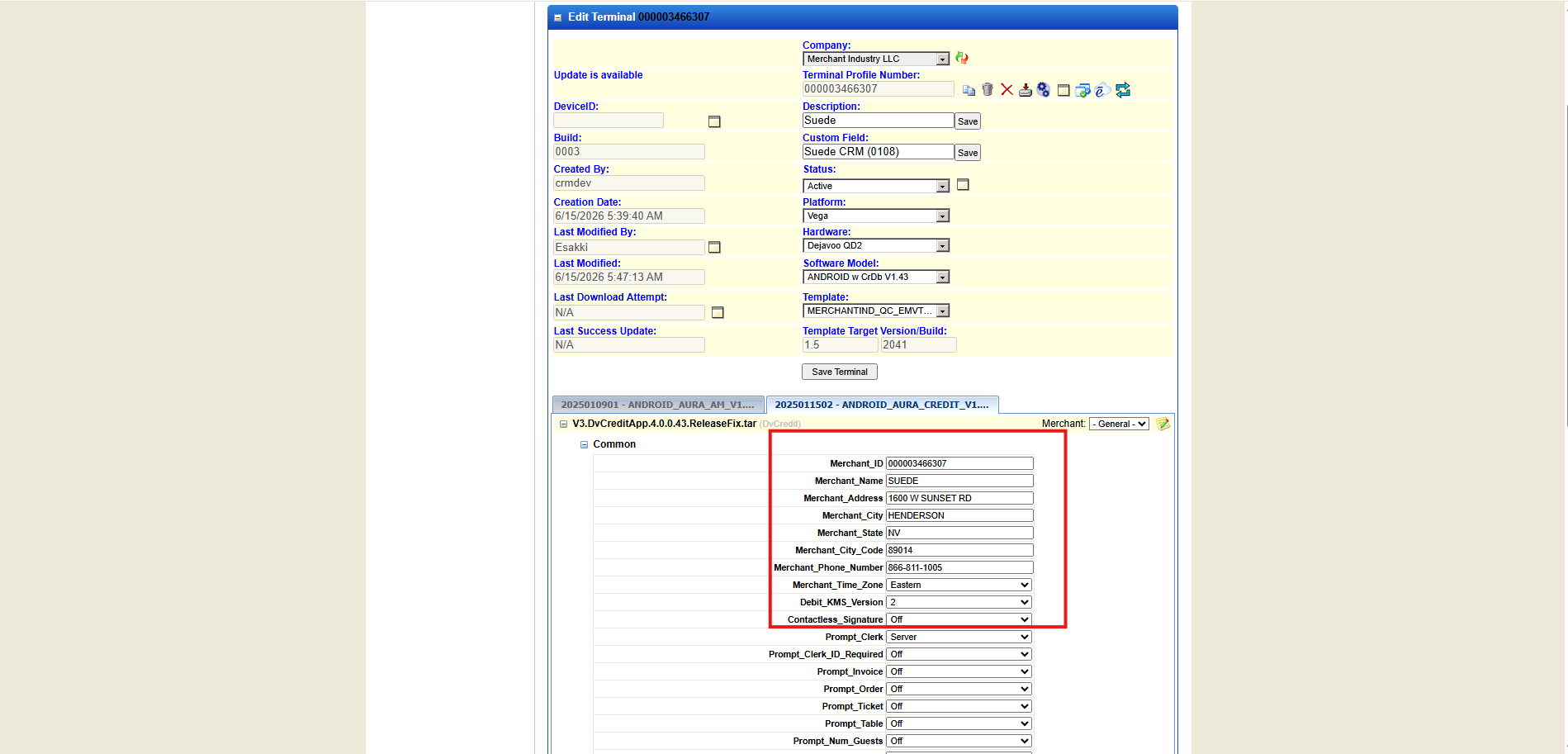
Step 8: Update if Necessary
If any information is incorrect or missing:
Make the required changes within DVMS.
Review all updates carefully.
Click Save terminal to apply the changes.
Step 9: Build Confirmation
After confirming all settings:
Ensure the TPN is active and properly configured.
Verify all required parameters have been applied.
Confirm the terminal profile is ready for deployment.
Result
The Dejavoo terminal file has been successfully built and validated in both CRM and DVMS.
Was this article helpful?
That’s Great!
Thank you for your feedback
Sorry! We couldn't be helpful
Thank you for your feedback
Feedback sent
We appreciate your effort and will try to fix the article