Omaha & North (Fiserv) – Dejavoo Terminal Creation & Build Process
Purpose
This document outlines the procedure for creating a TID in FDPOS for Fiserv, creating equipment in CRM, generating a TPN, and validating the terminal configuration in DVMS.
Step 1: Create the TID in FDPOS
Log in to FDPOS.
Search for the merchant using the MID or DBA.
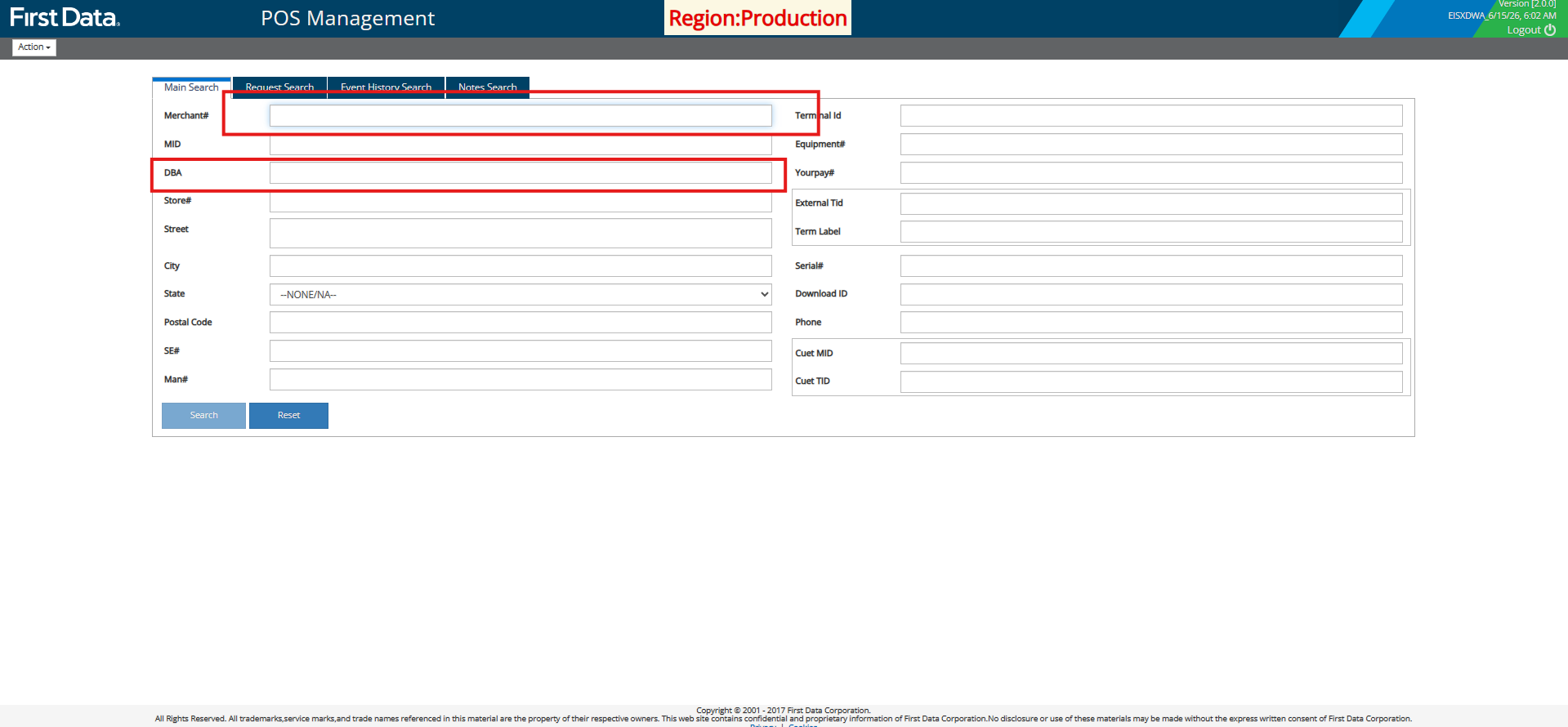
Open the merchant profile.
Select Add Device.
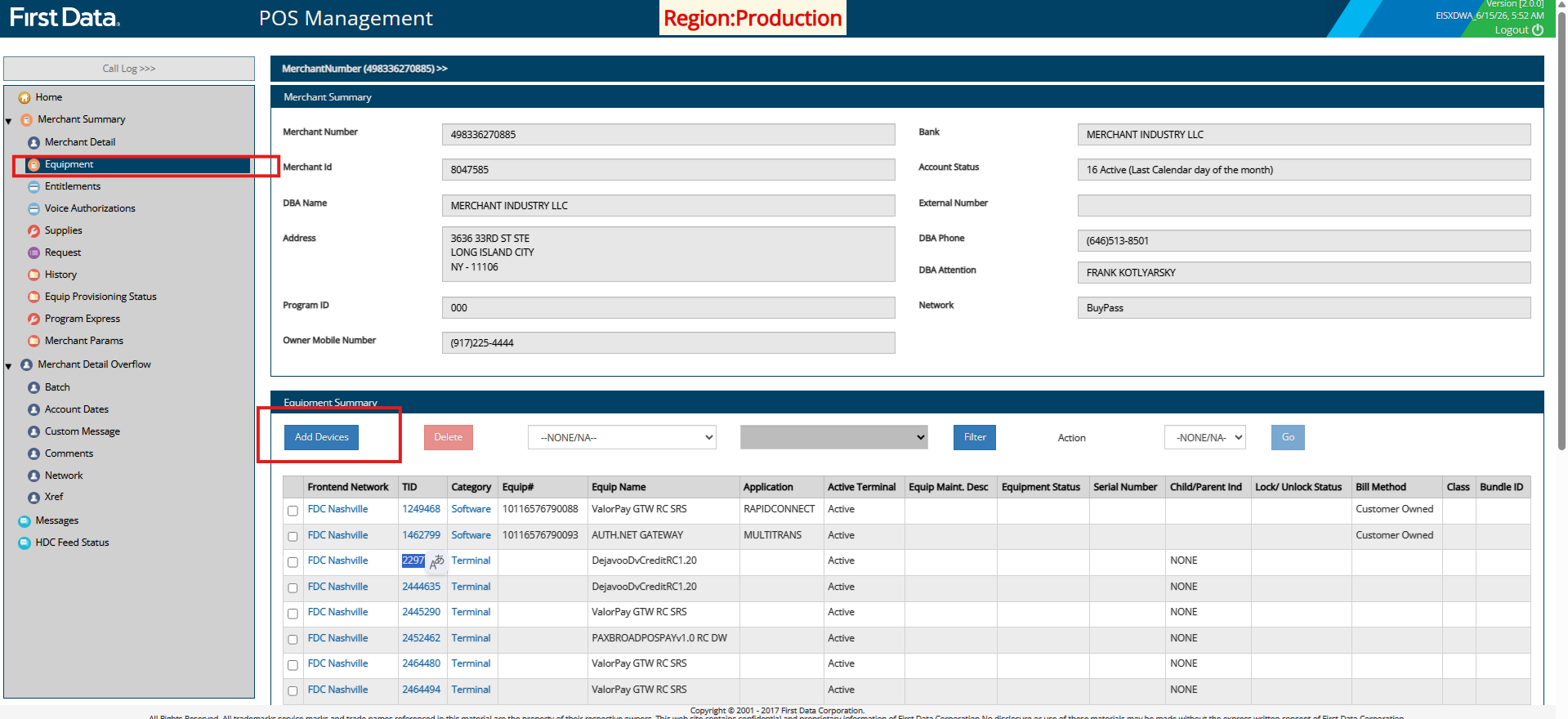
Step 2: Configure the Device Request
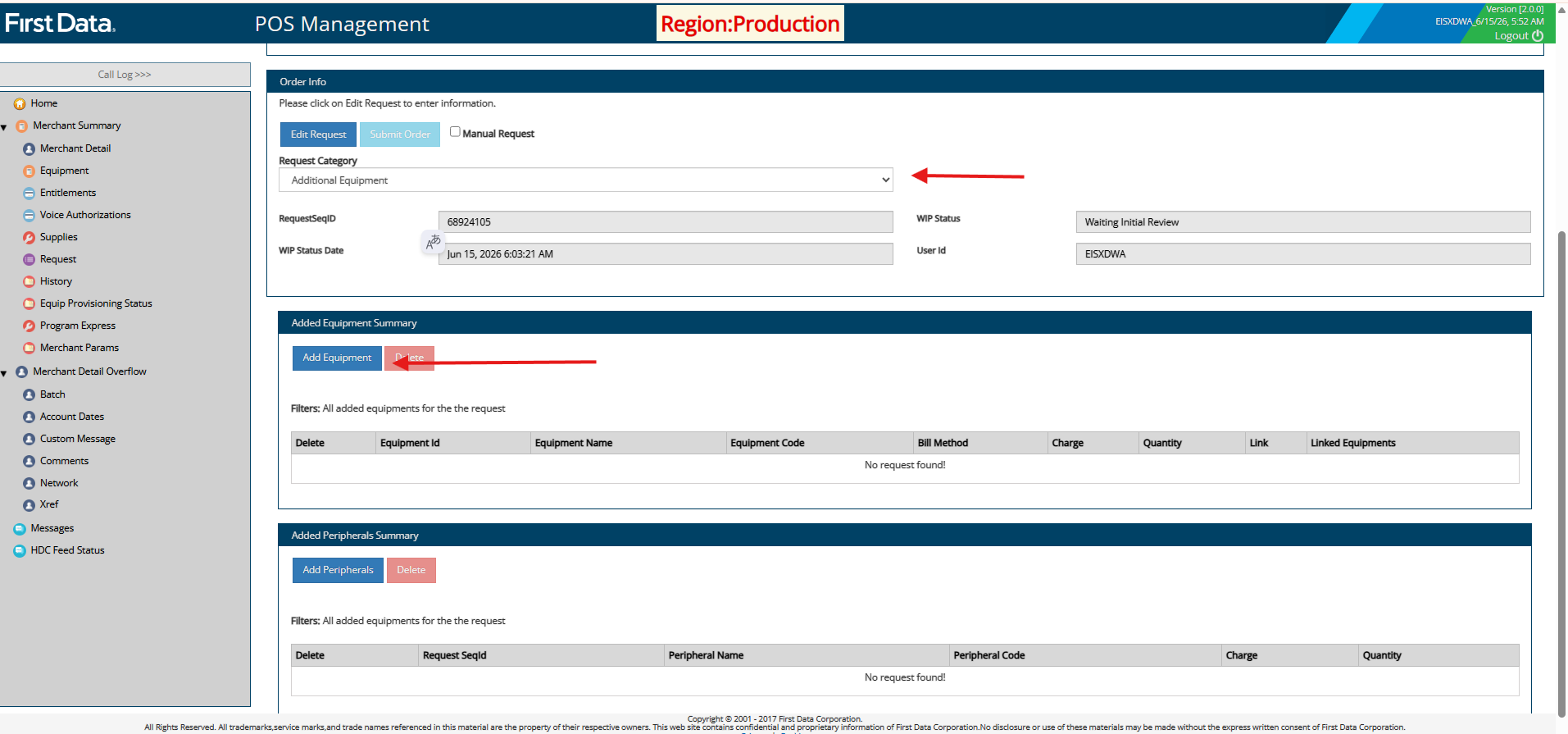
Select the appropriate Request Category:
New
Existing (Old)
Click Add Equipment.
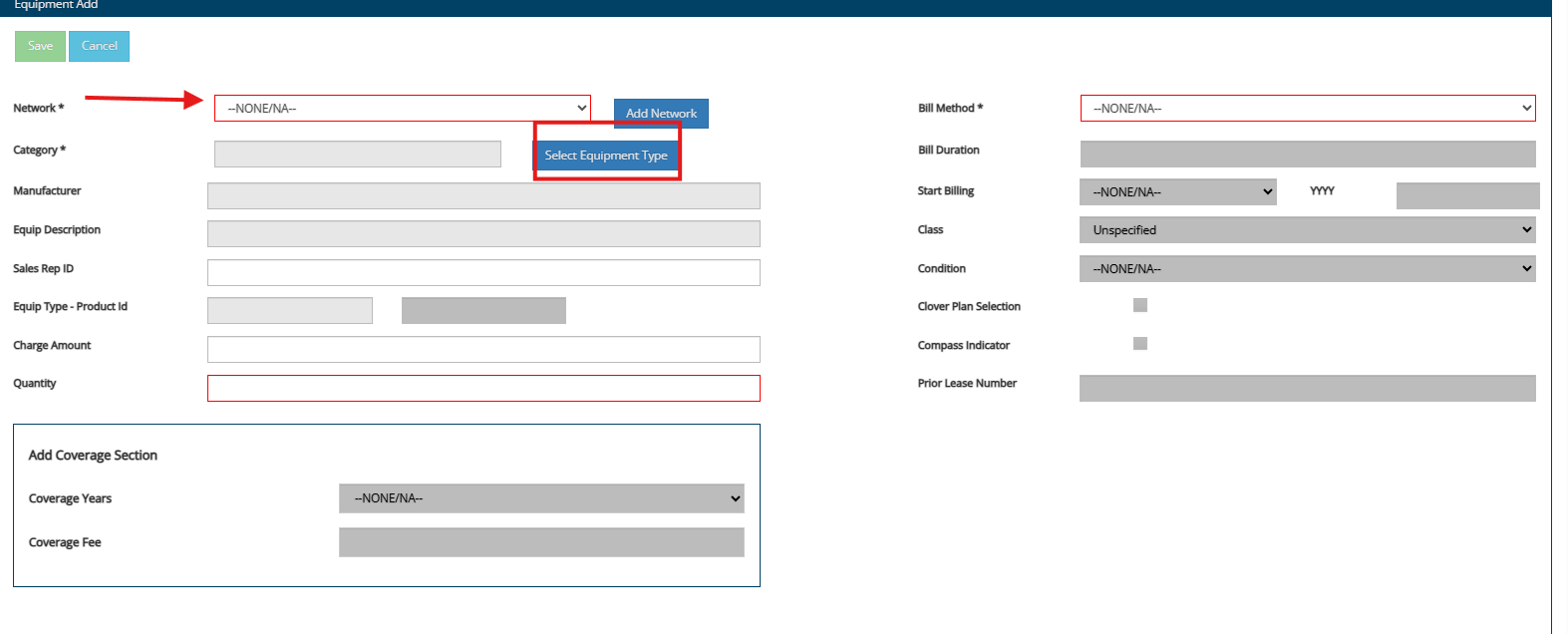
Select the appropriate Network based on the backend processing configuration.
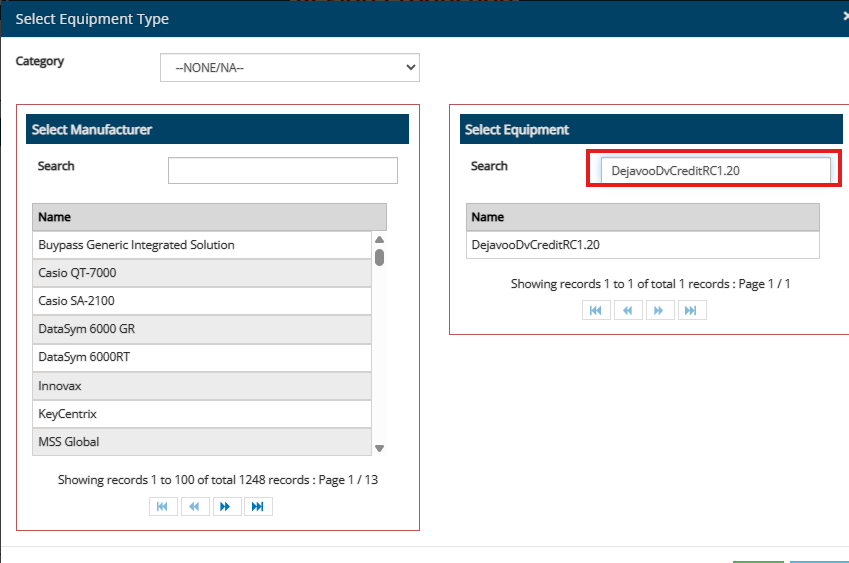
Click Select Equipment.
Search for and select the following software package:
DejavooDvCreditRC1.20
Enter the required quantity.
Set the Billing Method to:
Customer Owned
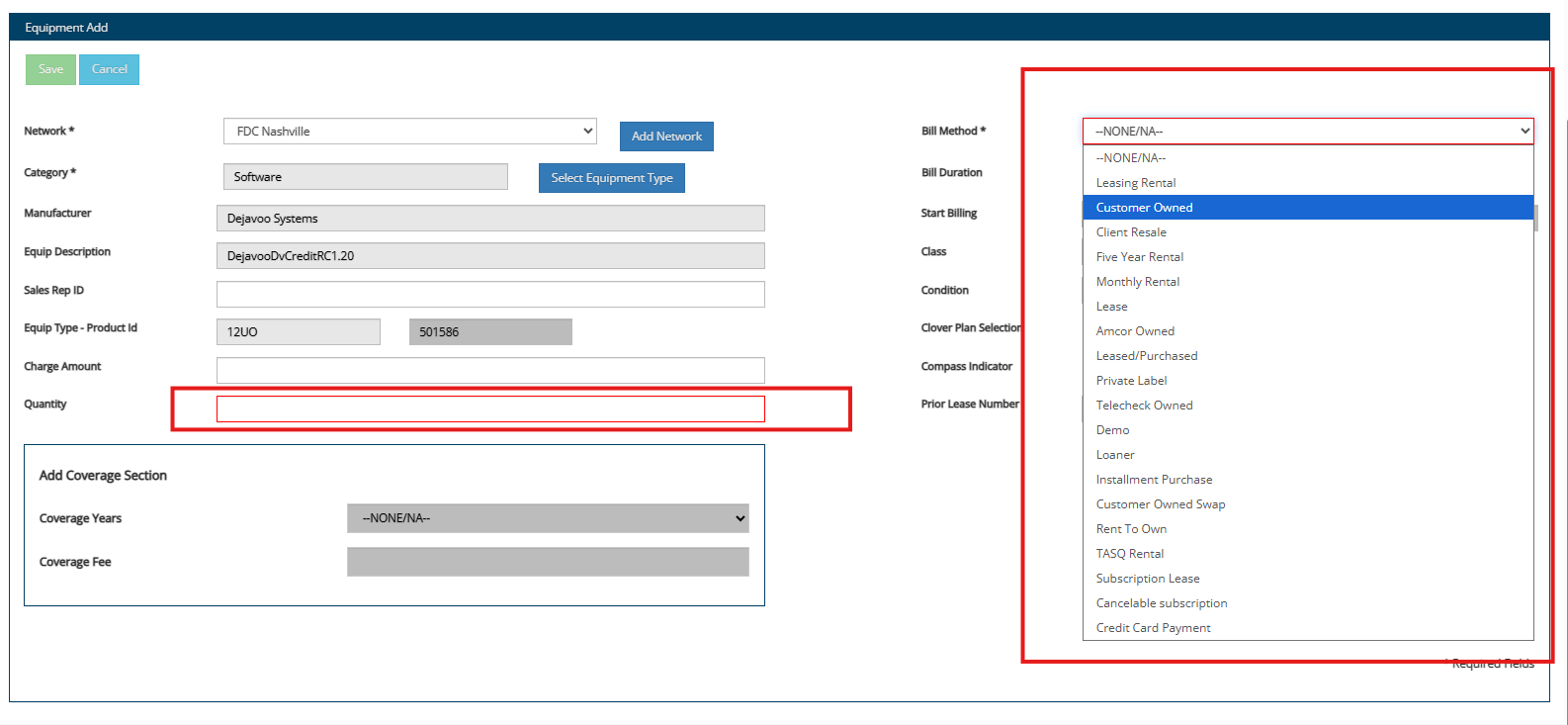
Click Save.
Step 3: Submit the Order
Select Manual Order.
Click Submit Order.
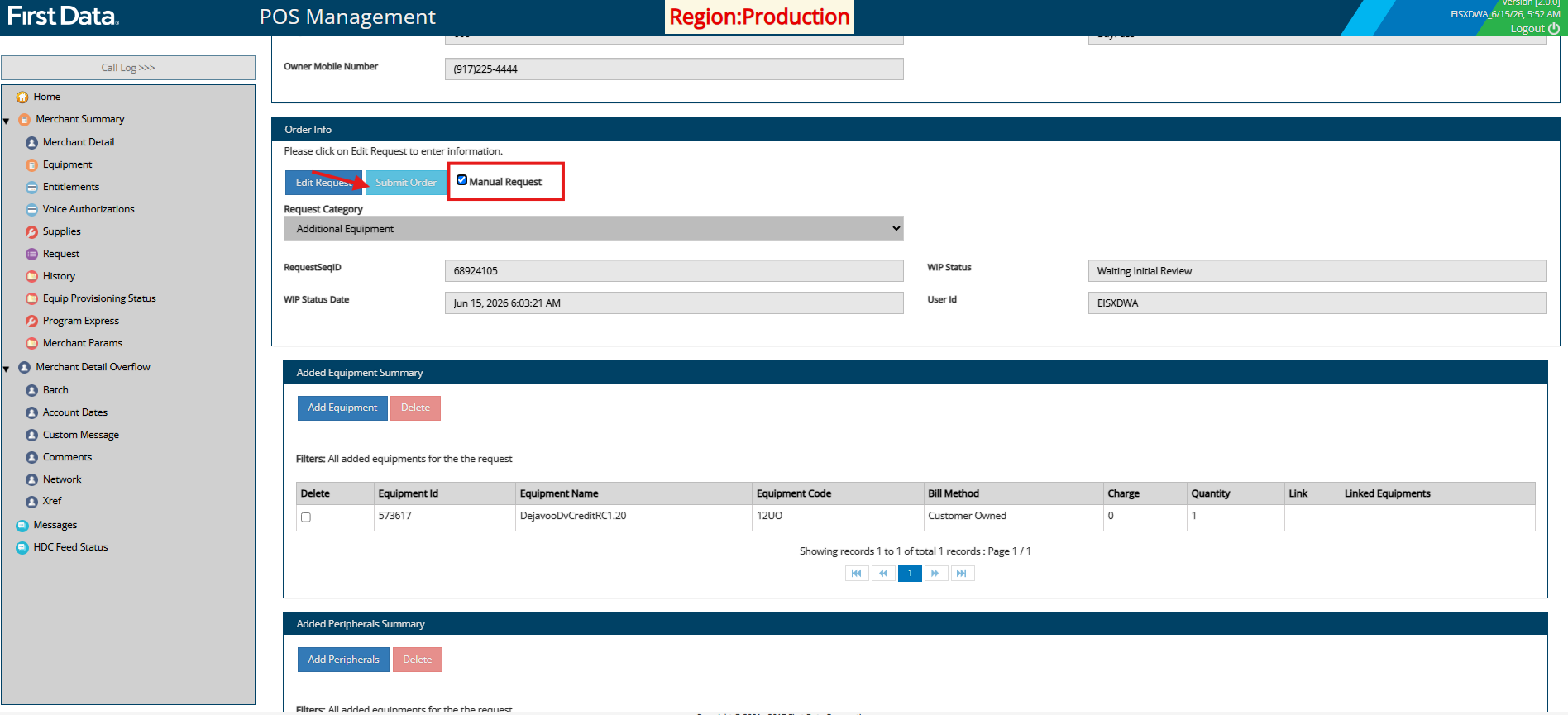
Wait for the system to generate the TID.
Step 4: Configure Program Details
Open the newly created TID.
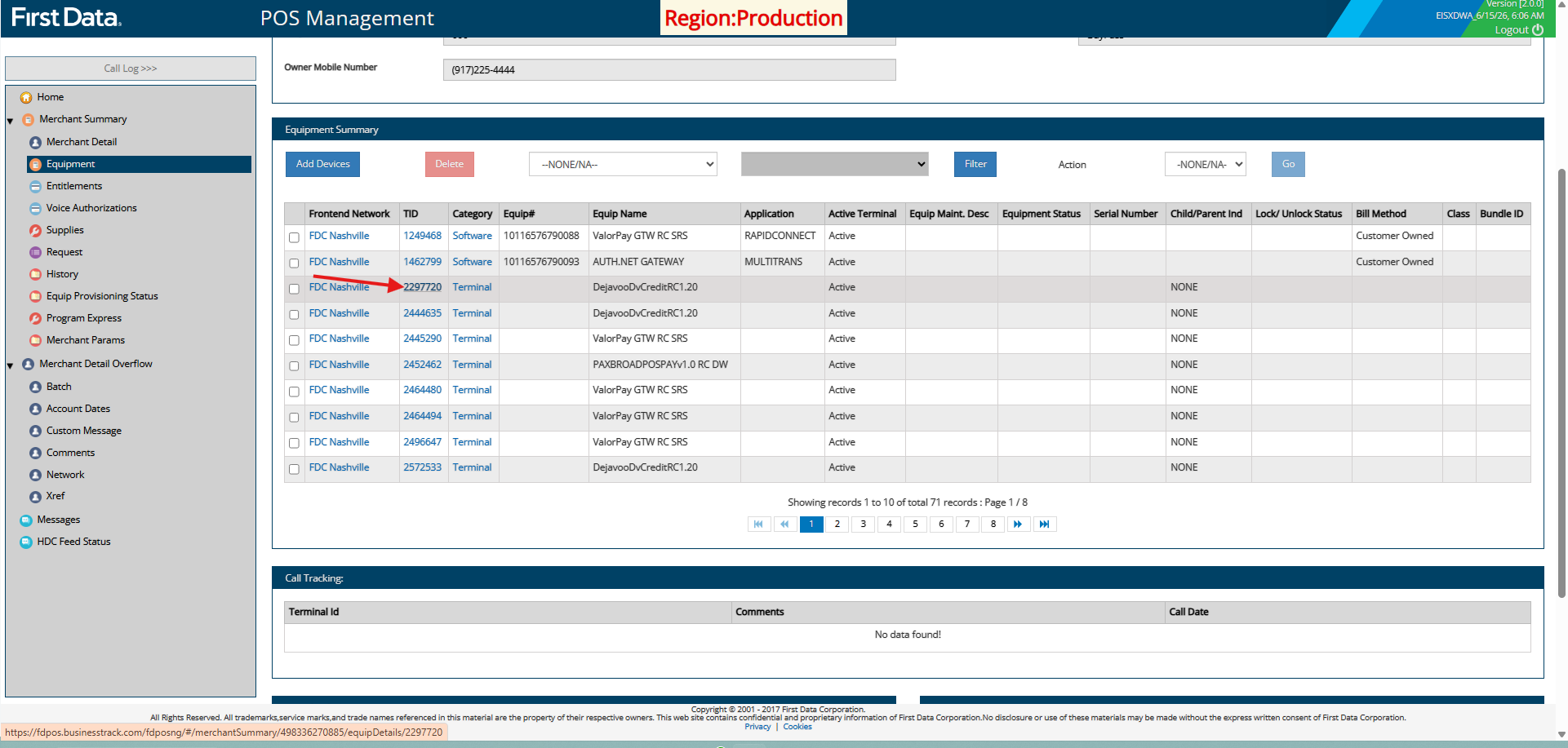
Navigate to Program Details.
Verify that "Y" is selected as the IP communication method.
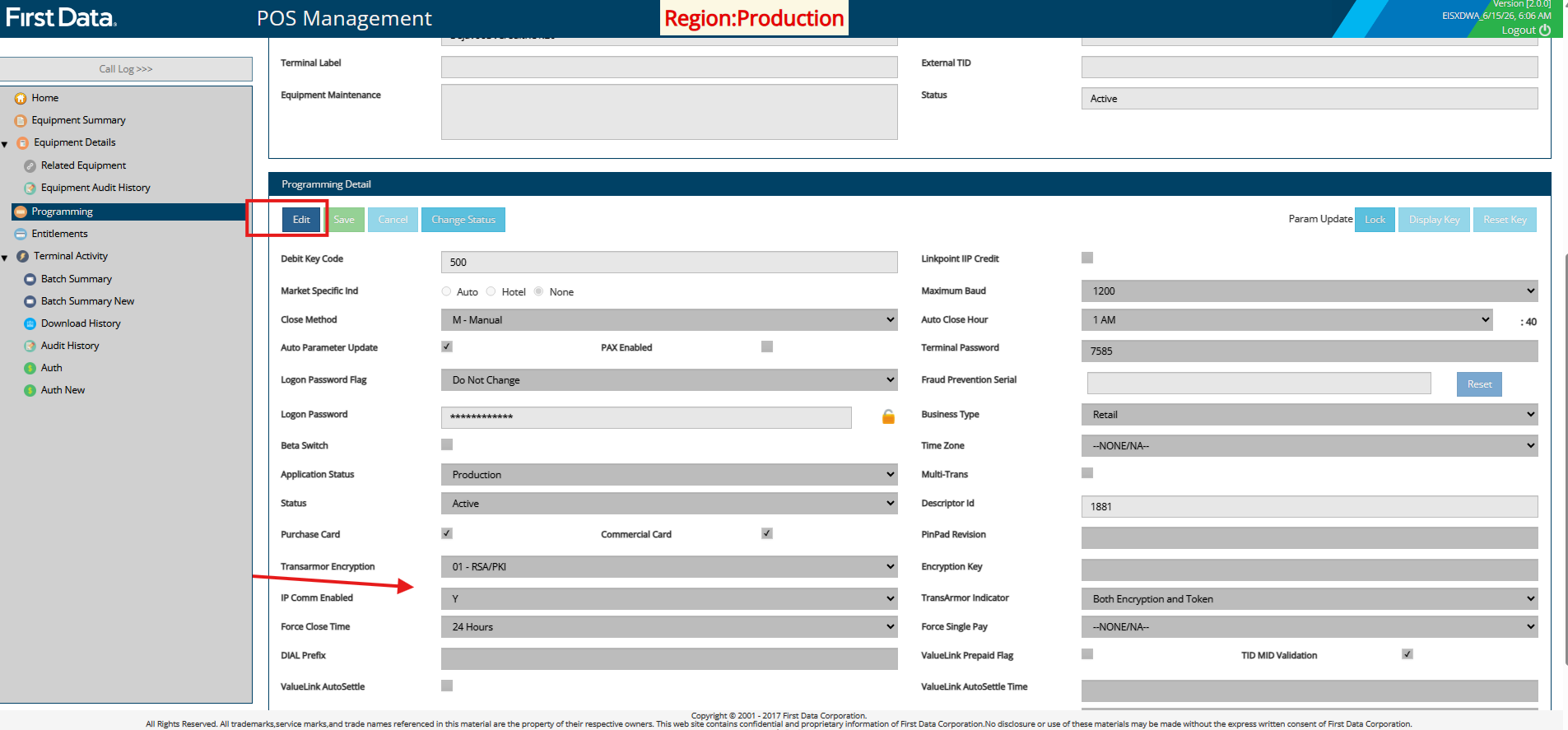
Copy the generated TID.
Step 5: Create Equipment in CRM
Log in to CRM.
Navigate to the merchant's Equipment page.
Select Add Equipment.
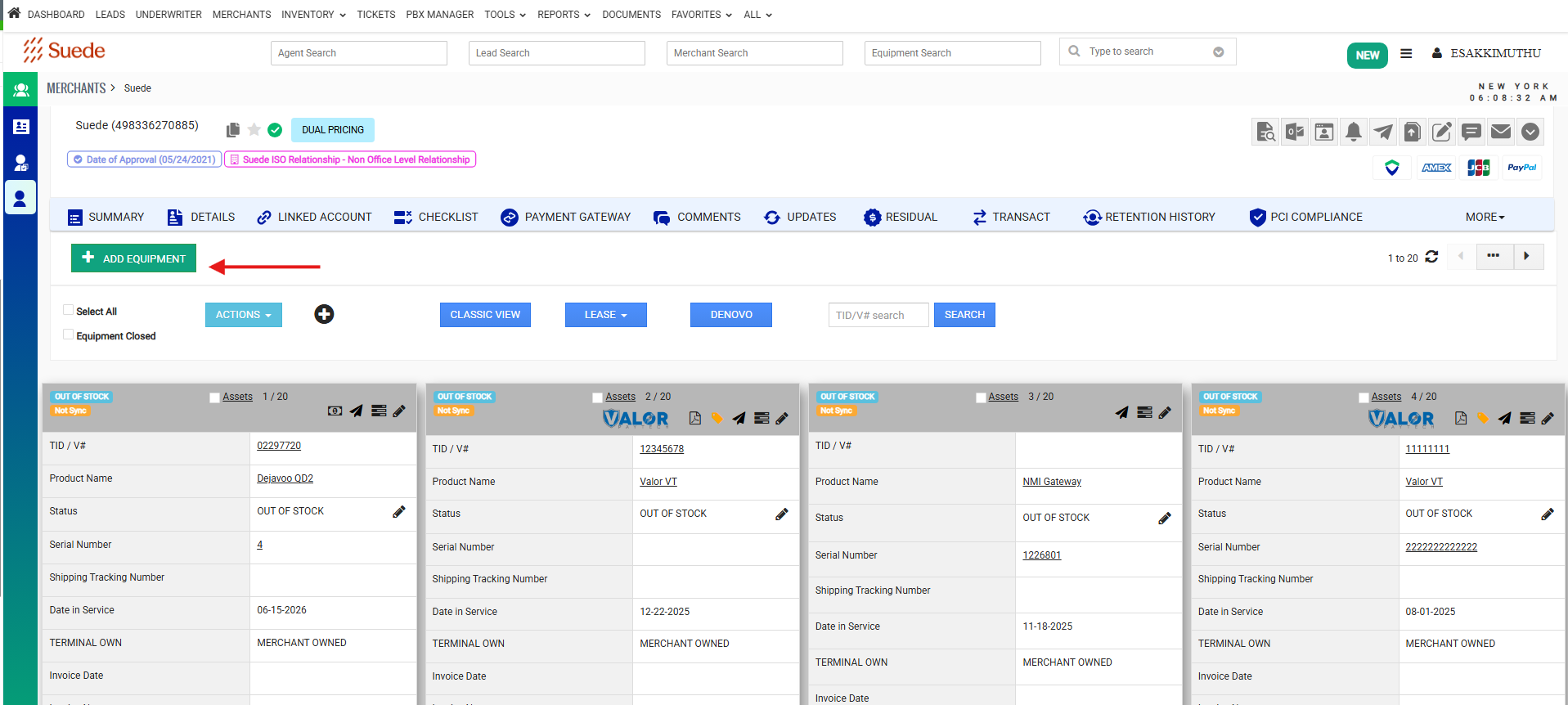
Search for the appropriate Dejavoo terminal model.
Enter the required details:
TID
Serial Number (SN)
Any additional required fields
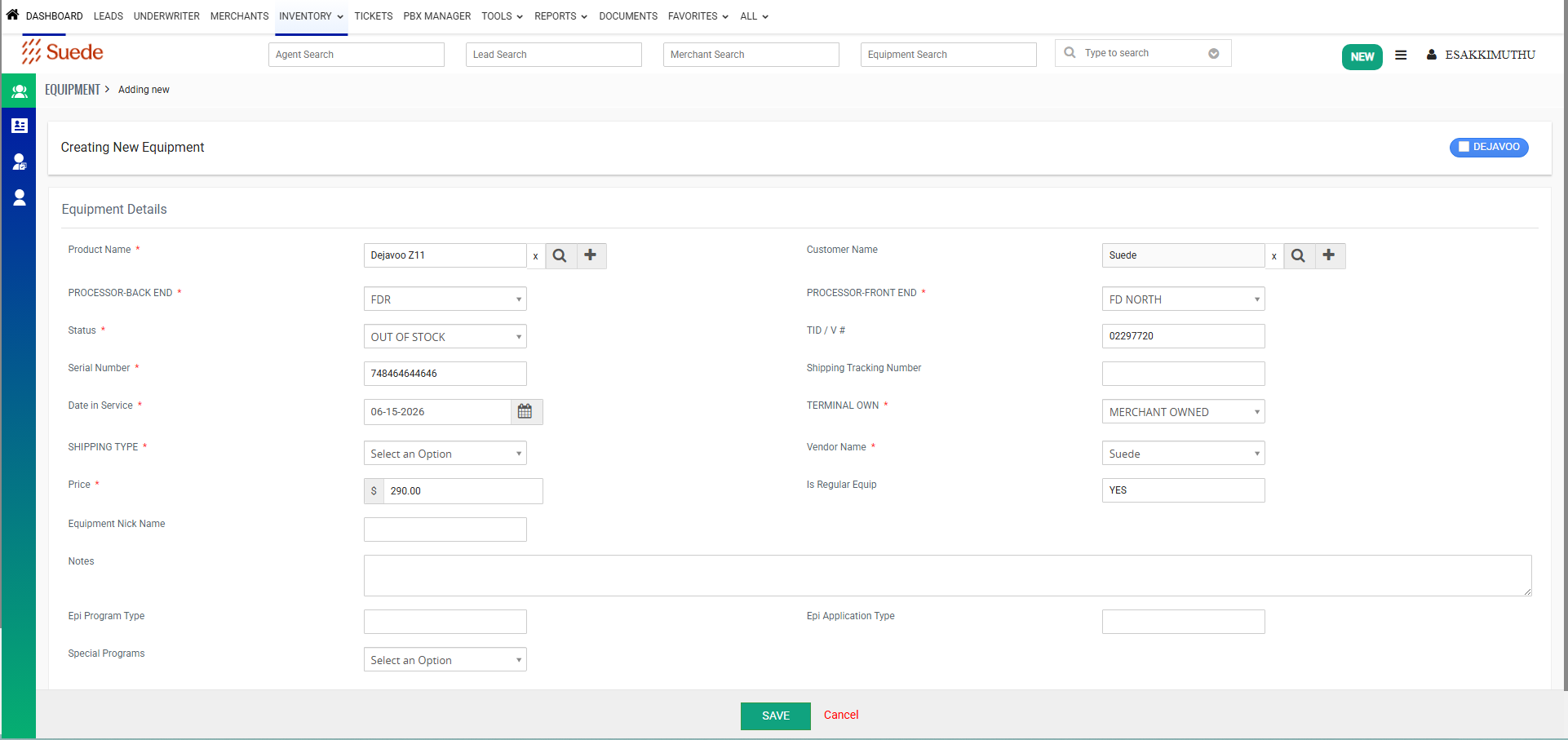
Click Save to Create Equipment.
Step 6: Obtain the TPN
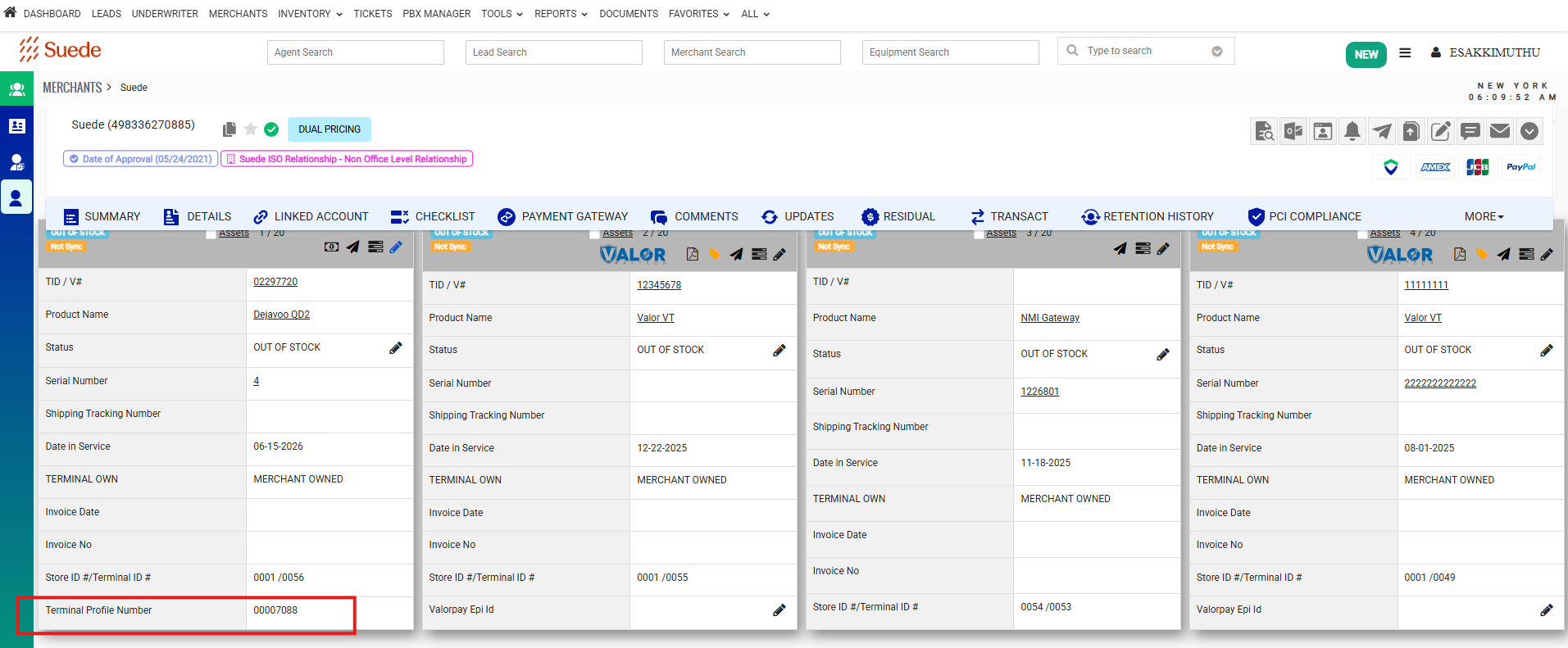
After the equipment is created, open the equipment record.
Locate the generated TPN (Terminal Profile Number).
Copy and record the TPN for validation.
Step 7: Validate in DVMS Portal
Log in to the DVMS (Dejavoo Management System) portal.
Search using the generated TPN.
Open the terminal profile.
Step 8: Review Terminal Configuration
Verify the following information:
Merchant Information
Terminal Model
Processor Settings
Template Assignment
Communication Settings
Parameter Configuration
Custom Merchant Requirements
Network Configuration
Ensure all information matches the merchant setup requirements.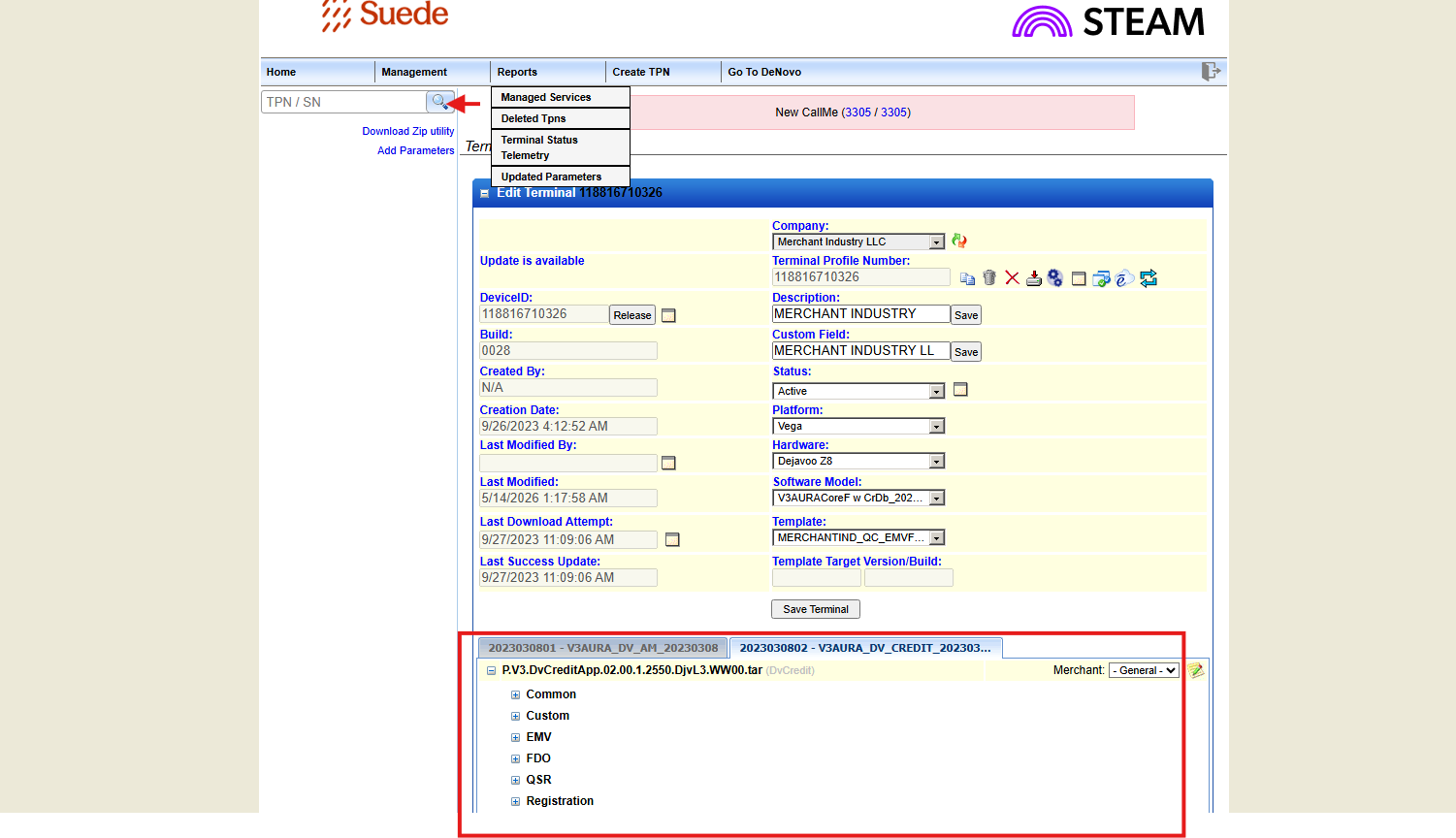
Step 9: Update Configuration if Required
If any information is incorrect or missing:
Update the necessary fields in DVMS.
Review all changes carefully.
Click Save to apply the updates.
Step 10: Build Confirmation
After completing the review:
Verify the TPN is active.
Confirm all required parameters have been applied.
Ensure communication settings are configured correctly.
Verify the terminal profile is ready for deployment.
Result
The TID has been successfully created in FDPOS, the equipment has been created in CRM, the TPN has been generated, and the Dejavoo terminal profile has been validated and configured successfully in DVMS.
Was this article helpful?
That’s Great!
Thank you for your feedback
Sorry! We couldn't be helpful
Thank you for your feedback
Feedback sent
We appreciate your effort and will try to fix the article