Purpose
To update the DBA (Doing Business As) name displayed on a Dejavoo terminal.
Procedure
Step 1: Locate the Terminal
- Log in to the DVMS Portal.
- Search for the terminal using either:
- TPN (Terminal Profile Number), or
- Current DBA Name.
Step 2: Verify Merchant Information
- Open the terminal record.
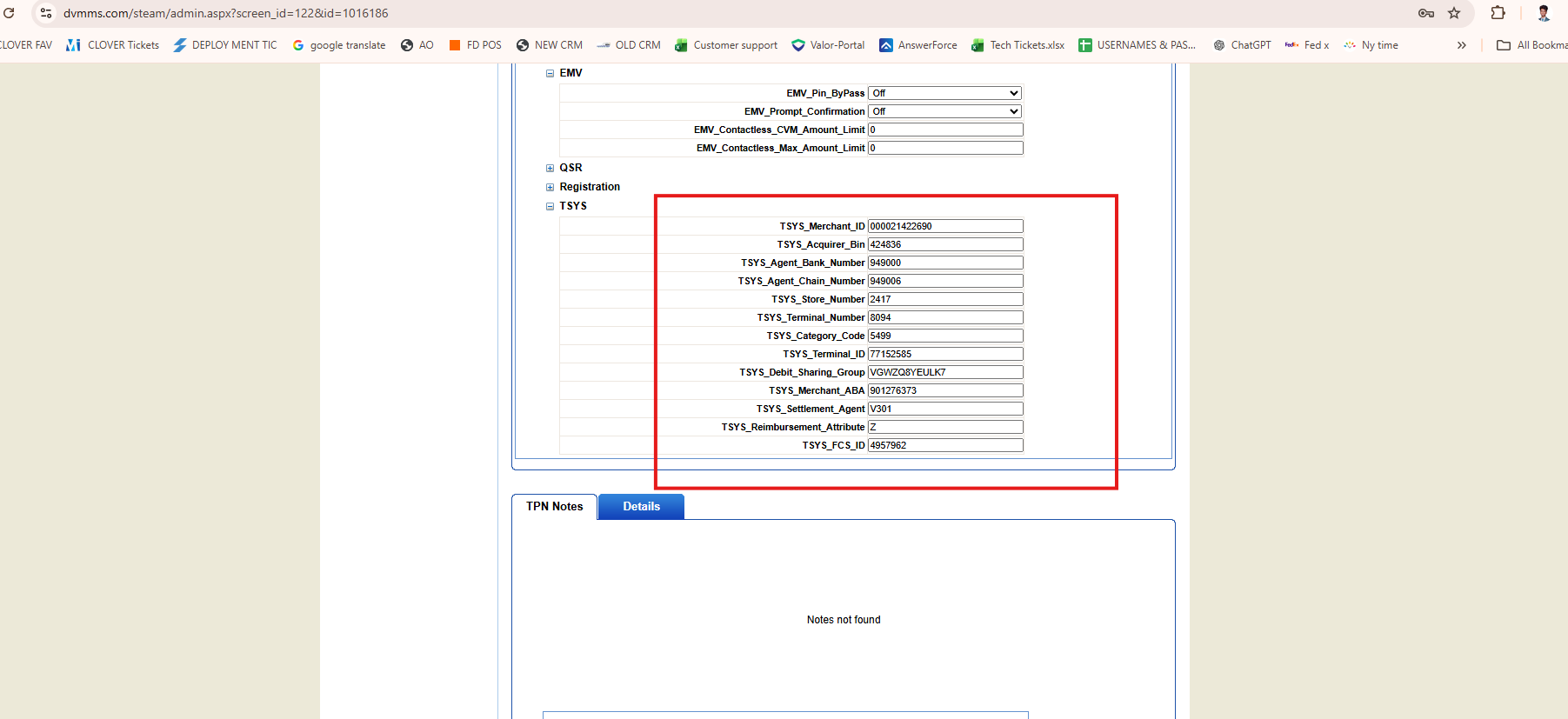
- Review the TSYS Fields section.
- Verify that the merchant details match the requested account.
Step 3: Update DBA Name
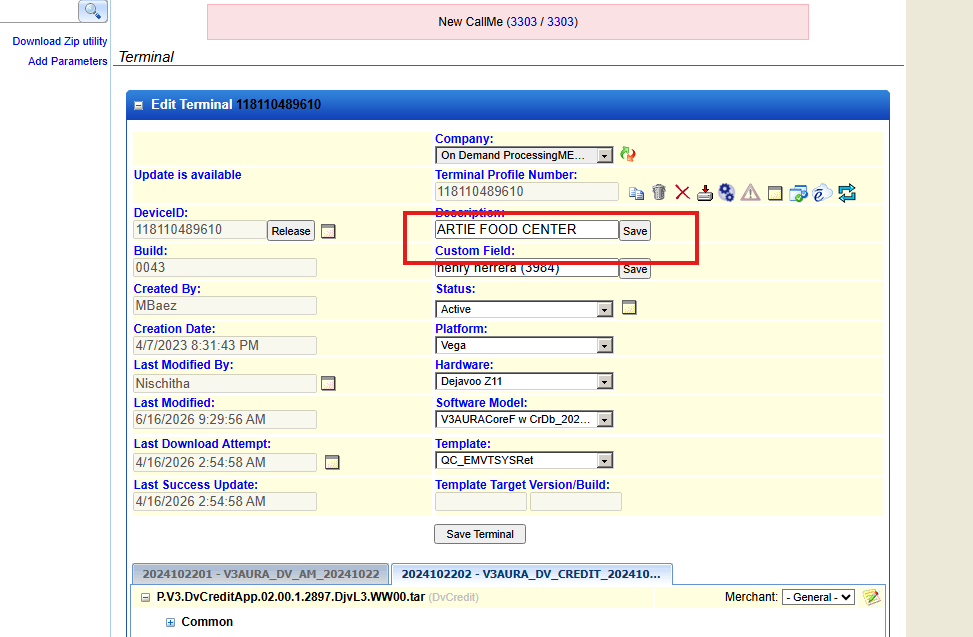
- Navigate to Edit Terminal.
- Under the Description section, update the DBA Name as requested.
Step 4: Update Receipt Header
- Navigate to Template Parameters.
- Open Customer Fields.
- Locate the Header field.
- Update the Header with the new DBA Name.
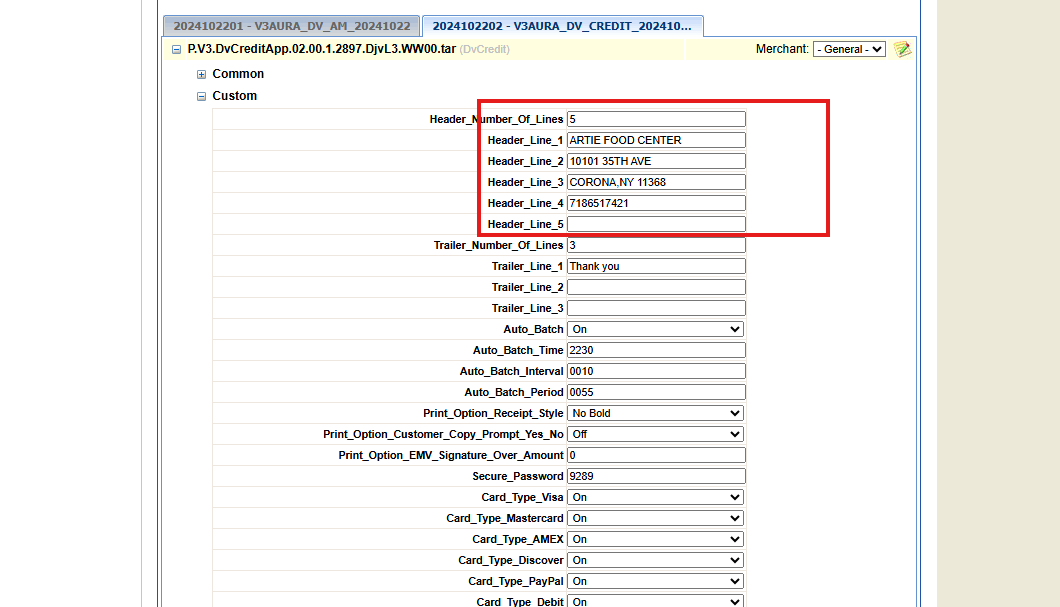
- Click Save.
Step 5: Push the Update to the Terminal
- Copy the TPN.
- Perform Parameter Update (Param Download).
- Wait for the update to complete successfully.
Step 6: Verify Changes
- Confirm the parameter update completed successfully.
- Verify the new DBA Name appears correctly on the terminal and receipt header.
- Document the completion in the ticket.
Expected Result
The terminal downloads the updated parameters and displays the new DBA Name on the terminal and printed receipts.
Was this article helpful?
That’s Great!
Thank you for your feedback
Sorry! We couldn't be helpful
Thank you for your feedback
Feedback sent
We appreciate your effort and will try to fix the article